 Help
Start after application review
In the full public application, the applicant completes the information steps and reaches a review of their answers. The It looks good checkbox confirms that review. Continuing takes them to any active consents that apply to that application and have not already been processed for it.
If no applicable consent remains, the application moves directly to the signature step. The compact application is a shorter intake path and does not present this full review–consent–signature sequence.
Read one consent at a time
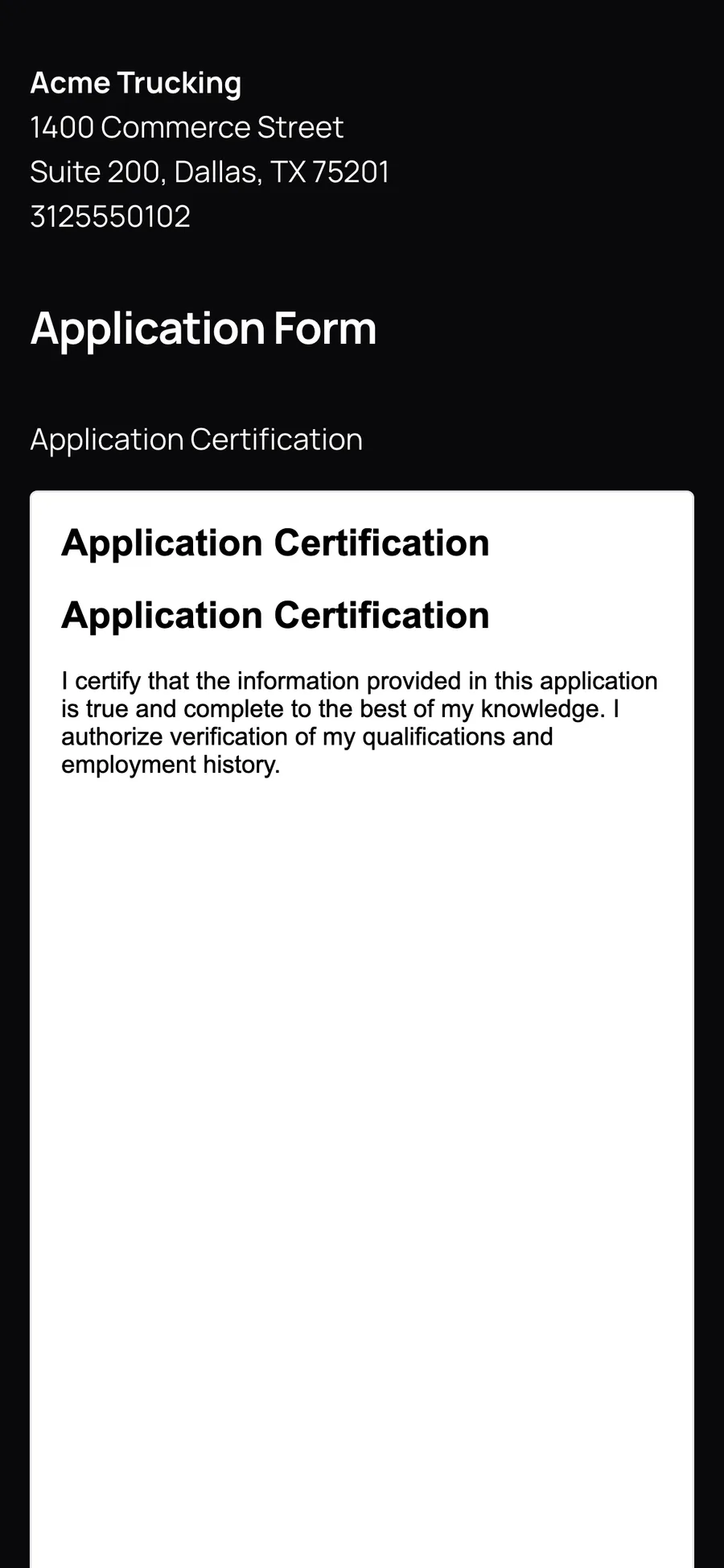
Each consent screen displays the Title first. A Default consent displays its formatted document. A Custom PDF displays the uploaded PDF. An Employment Verification consent displays an authorization for each employer recorded in employment history.
The document’s text or paper preview is followed by Agree, the Accepted line, and Next. The list’s sort order is not a public-step ordering control, so do not rely on moving rows in the admin list to sequence documents.
Required and optional choices
| Setting | Applicant action | Recorded result |
|---|---|---|
| Required on | Check Agree, then choose Next. The required consent validates affirmative agreement before continuing. | A consent response is associated with this applicant and this application. |
| Required off, Agree checked | Choose to accept, then select Next. | The response records acceptance. |
| Required off, Agree unchecked | Leave Agree unchecked and select Next if you choose not to accept. | The response records that choice and this document is treated as processed for this application. |
Optional does not mean invisible. It means the applicant can continue without affirmative acceptance. Administrators should read the recorded response rather than treating the existence of a consent-related file as proof that every optional document was accepted.
Draw the application signature
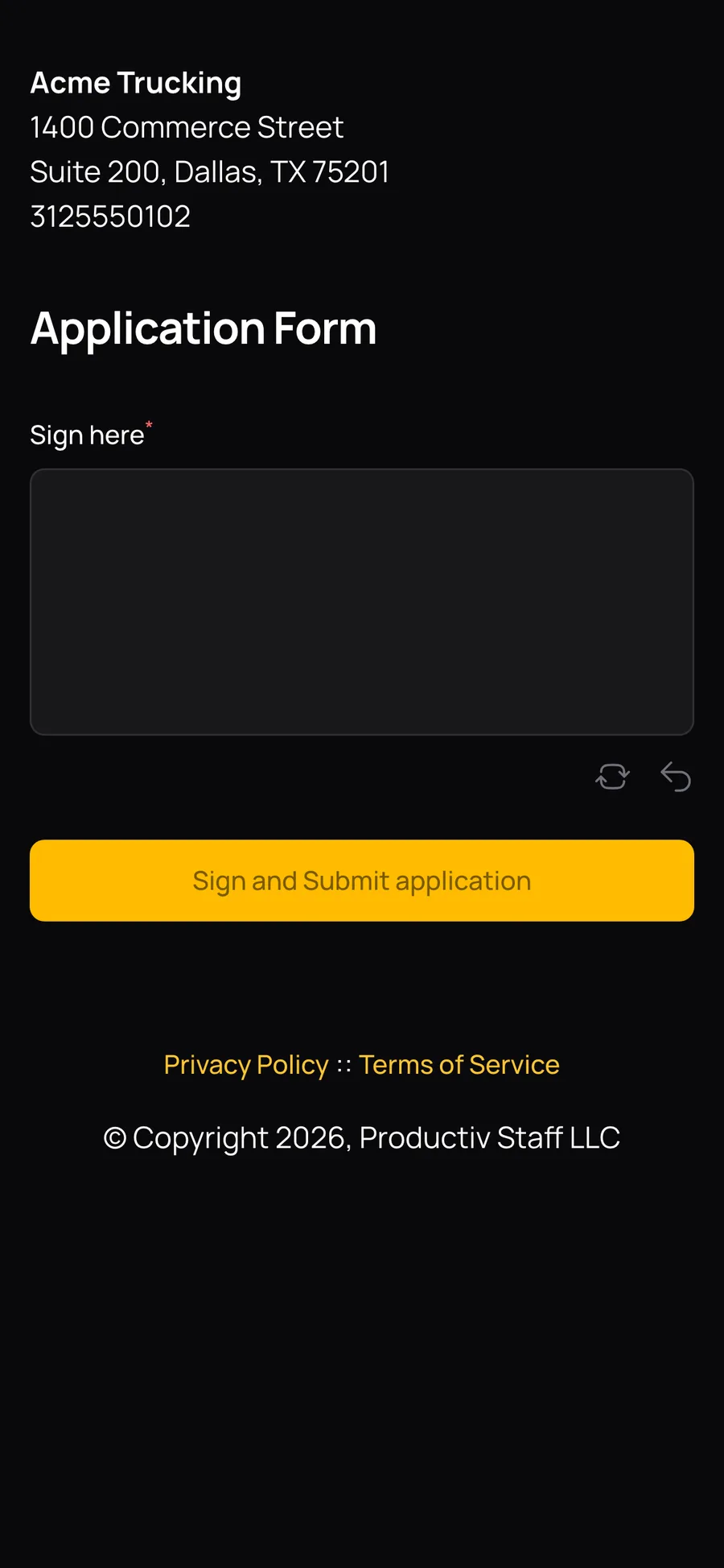
After the consent steps, the applicant reaches Sign here. Draw the signature in the signing area and use the pad’s available clear/reset control if it needs to be redrawn. Select Sign and Submit application when ready.
Final submission records the signature, signing time, and submitting network address; changes the application to Submitted; generates the application and consent files; and sends the application email to the applicant, with the configured company notification address included. Company submission notifications and assignment behavior are handled separately by the application’s workflow.
What staff can check afterwards
- Open the application in the staff workspace.
- Review its status and submitted information.
- Open Files to inspect the saved application and consent documents.
- For an employment authorization, check that there is an employer-specific consent file for the employer you intend to contact.
- Use Employment History for the separate verification request.
Read Find signed documents and understand access for file controls and masked versions.
Why a test may skip the consent
The application selects active applicable consent records with no prior response for that applicant and application. It does not simply redisplay a document every time its wording changes. An optional unchecked choice is also a processed response, so revisiting the same application can skip that document.
Use a fresh test application when checking a newly published consent, and create a new consent version when new acceptance is required. See Change or retire a consent.