 Help
Use a group for company alerts
Open Settings → My Company → Telegram Notifications as a company administrator. The connection belongs to that company and sends application-submission alerts to one connected Telegram chat.
Prepare a Telegram group or supergroup for the intended team. A private one-to-one chat or channel is not a supported connection target in this workflow. Make sure you can add the bot and send the connection command in the group.

Connect the group
- Select Connect Telegram.
- Read the Telegram Bot handle displayed in the dialog and add that exact bot to the intended Telegram group.
- Copy the complete Connection Command using the copy control.
- Send that command as a message in the intended group. Do not send it to a different group or paste it into an applicant’s form.
- Return to Truckers Data. The connected heading identifies the group name and chat identifier.
- Confirm that the automatic connection test arrived. You can also select Send Test Notification to request another test.

What the connection dialog and actions mean
| Field or button | What it does |
|---|---|
| Telegram Bot | The configured bot to add to your group. The bot shown in your own account is the one to use. |
| Connection Command | A company-specific command containing a temporary connection code. It expires after one day; reopening a still-valid pending setup reuses that pending code. |
| Copy | Copies the command so you can send it without changing its spelling or spaces. |
| Close | Closes the instructions. It does not connect the group by itself. |
| Send Test Notification | Queues a new test message to the connected group. Queued success does not mean Telegram has already delivered it. |
| Disable | Stops application notifications while keeping the group connection. Messages may be recorded as skipped while delivery is disabled. |
| Enable | Resumes delivery using the saved group connection. |
| Disconnect | Requires confirmation, then removes the saved group connection and clears its connection details. Reconnect through a new setup command if needed. |
Enable the saved connection before testing delivery. If notifications are disabled, a test can be queued and then recorded as skipped rather than arriving in the group.
Read the notification log
The connected tab lists notification attempts for the group. Search can match the displayed message or chat identifier. Open View on a row to inspect its message, status, sent/failed dates, and error details. The log refreshes periodically, so a pending message can change status after the page first appears.
| Field or button | What it does |
|---|---|
| Attempted at | The recorded sent or failed time for an attempt. |
| Chat ID | The destination chat recorded for that request. Check it if the group is not the one you expected. |
| Message | A shortened preview of the notification text. View opens the full details. |
| Status | Delivery or retry outcome; use the status meanings below. |
| Error message | The recorded failure detail. Correct the underlying issue before retrying. |
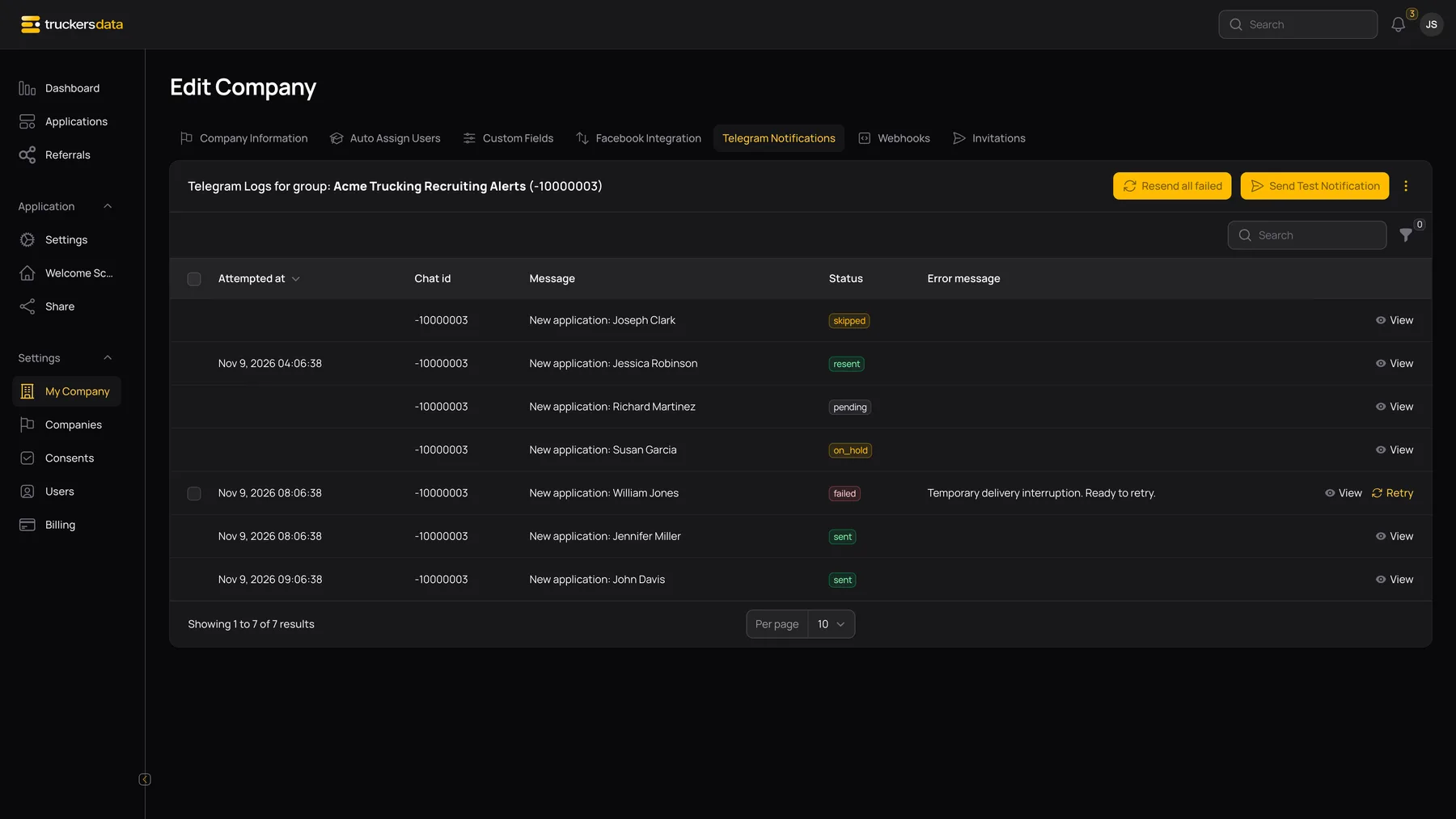
Statuses and retry controls
| Field or button | What it does |
|---|---|
| Pending | The message is queued for delivery or has been queued again for a retry. |
| Sent | Telegram accepted the original message successfully. |
| Failed | Delivery failed; read the error. A connected integration and an eligible failed record are required for Retry. |
| On Hold | Delivery is temporarily held; wait for the queued process rather than repeatedly clicking actions. |
| Skipped | The message was not sent, such as when notifications are disabled or the connection is unavailable. |
| Retry – Sent | A retried message was successfully sent. |
| Retry – Failed | A retry still failed. Read the current error before deciding what to do next. |
| Retry | Confirms and queues another eligible attempt for one failed record. |
| Retry Selected | Queues eligible selected failures. Selecting checkboxes does not send anything until you confirm the action. |
| Resend All Failed | Shows a confirmation count before queuing retries. Large global selections require narrowing the company filter and are subject to the page’s retry ceiling. |
When a connection or notification fails
| Field or button | What it does |
|---|---|
| Invalid or expired command | Reopen Connect Telegram, copy the current command, and send it exactly as shown. |
| Command was sent in a private chat | Use the company’s intended group or supergroup. |
| Connected to the wrong group | Disconnect, then reconnect from the correct group. Check the displayed group name afterward. |
| Test queued but not received | Wait for the log outcome, then inspect its error and confirm that the bot remains in the group. |
| Application alerts stopped | Check that the connection is still connected and enabled. Disabled notifications are different from failed message delivery. |
| Many failures | Correct the shared problem first. Use status filtering and targeted retries rather than creating repeated tests or retrying every row immediately. |