 Help
Open the correct company’s library
Sign in as a company administrator and open Settings → Consents. The ordinary company library lists documents belonging to your company. When working for a carrier through a recruiting relationship, open the carrier’s company page and its Consents tab so that the new document is associated with the intended carrier.
Select Create, then choose Custom consent for a blank form or From template to start with an available template. A template is a starting point: the new record is the company’s own copy, and later changes to that copy do not edit the original template.
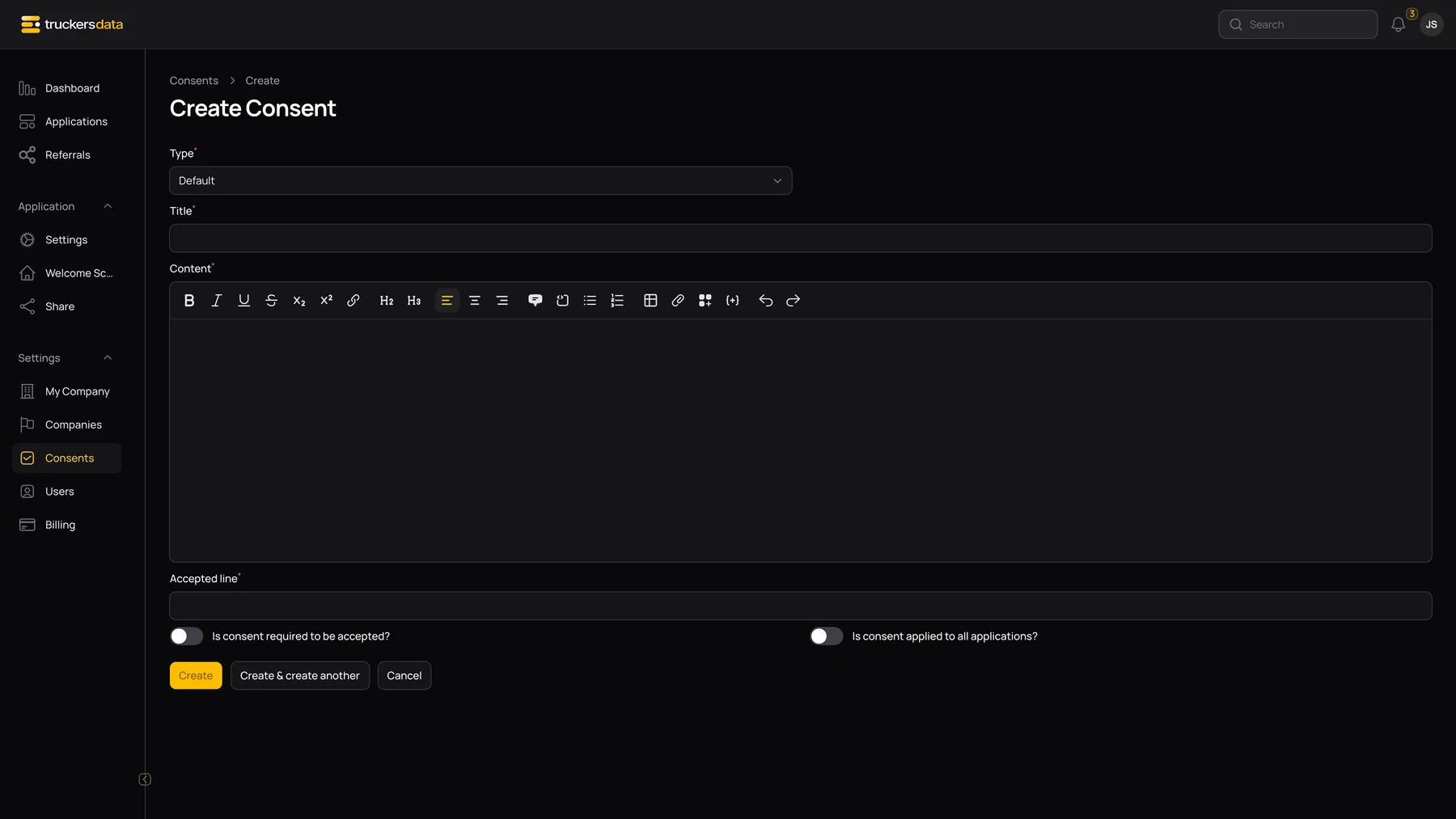
Complete the document fields
| Field | What to enter | Effect |
|---|---|---|
| Type | Default, Employment Verification, or Custom PDF. | Controls whether the applicant sees an edited document, employer-specific authorization pages, or an uploaded PDF. |
| Title | A clear name such as Application Certification or Employment Verification Authorization. | Appears above the public consent and is used in generated consent-file names. |
| Content | The complete document wording, formatted in the rich editor. | Used for Default and Employment Verification documents. It is hidden for Custom PDF. |
| Attachment | A readable PDF for a Custom PDF consent. | Replaces the editor as the document shown in the public consent step. |
| Accepted line | The statement displayed beneath the Agree checkbox. | Explains what checking Agree means. The standard wording says the applicant understands and agrees to the document. |
| Is consent required to be accepted? | On for mandatory affirmative agreement, off for an optional choice. | Required consents cannot be passed without checking Agree. |
| Is consent applied to all applications? | Normally leave off for a company-specific document. | When on, the active document can be presented across companies. |
| Company | A company selector may appear for platform staff while editing. | Determines ownership. Ordinary company creation uses the company selected by the workflow rather than a free-form company field. |
Asterisks identify required form inputs. Read Use the consent editor and merge tags before adding personalized names, dates, or a signature block.
Save the draft and turn it on
- Complete the visible fields for the selected type.
- Select Create to save the new consent. A create-another option, when shown, saves the current record and keeps you in a new-record workflow.
- Return to the Consents list or the company’s Consents tab.
- Find the saved title and turn its Active switch on.
- Confirm that Required and Global show the intended values.
Preview the real applicant experience
Open your company’s full public application link and use a fresh test application. Complete the application and Review step, then inspect the consent stage. Check the title, document text or PDF, acceptance wording, and whether Agree is mandatory. Employment authorizations need employment-history entries before there are employer-specific pages to inspect.
Before the final signature, signature and signed-date placeholders can be blank. After a signed submission, inspect the saved files in the application. This checks the completed document rather than only the unsigned preview.

Edit an existing consent
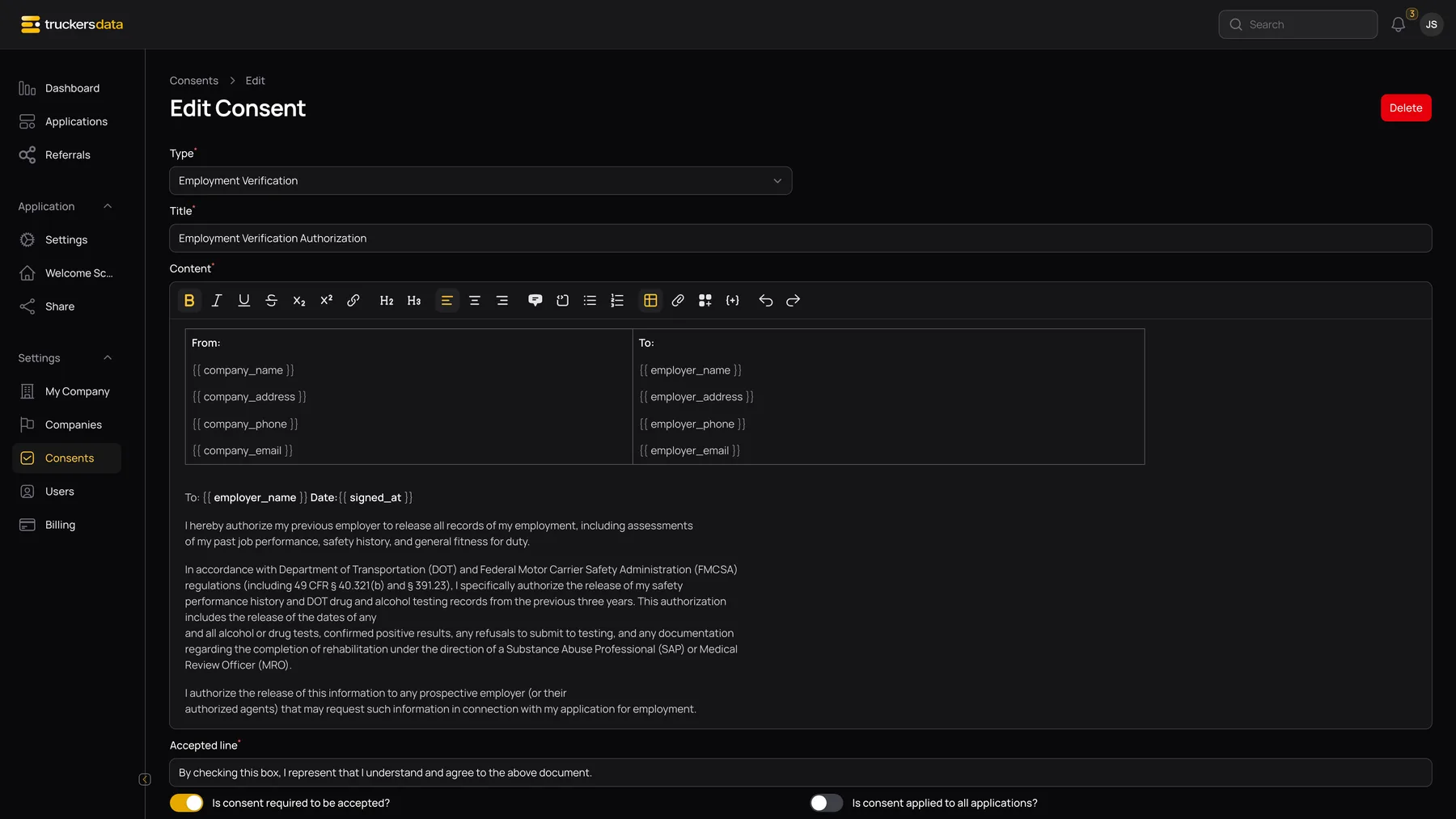
- Open the consent’s row menu and choose Edit.
- Update the title, wording, accepted line, or settings.
- Select Save changes to persist the edit, or Cancel to leave the form without saving those form edits.
- If availability needs to change, use the Active switch in the library.
- Test the public flow again with an application that has not already processed this consent.
Do not assume an edit will ask previous applicants to agree again. Read Change or retire an existing consent for versioning and existing-file behavior.
If the new consent does not appear
| Check | What to do |
|---|---|
| The document is inactive | Turn Active on in the library after reviewing the draft. |
| Wrong company | Check the company library or carrier company page used during creation. |
| The test application already processed it | Use a fresh test application; editing the same consent does not clear its existing response. |
| Wrong public form | Use the full application workflow. Compact intake is a shorter submission path and does not run this full consent sequence. |
| The applicant has not reached consent yet | Finish the application and the It looks good review confirmation first. |
| A Custom PDF is empty or unreadable | Open the attachment itself and replace it with a readable PDF before testing again. |