 Help
Open the company’s billing page
Open Settings → Billing while signed in as a company admin. Billing belongs to the company you are working in. A regular team user does not manage the subscription.
The Carrier and Recruiting Agency plans both cost $49 per user per month, with full access and zero usage limits. A paid seat is capacity for one internal staff user. Applicant accounts and employer verification contacts are not additional staff seats.
For example, three paid users cost $147 per month, and two paid users cost $98 per month, before any applicable adjustments shown during billing confirmation. Always read the amount on the payment provider’s confirmation before accepting a change.
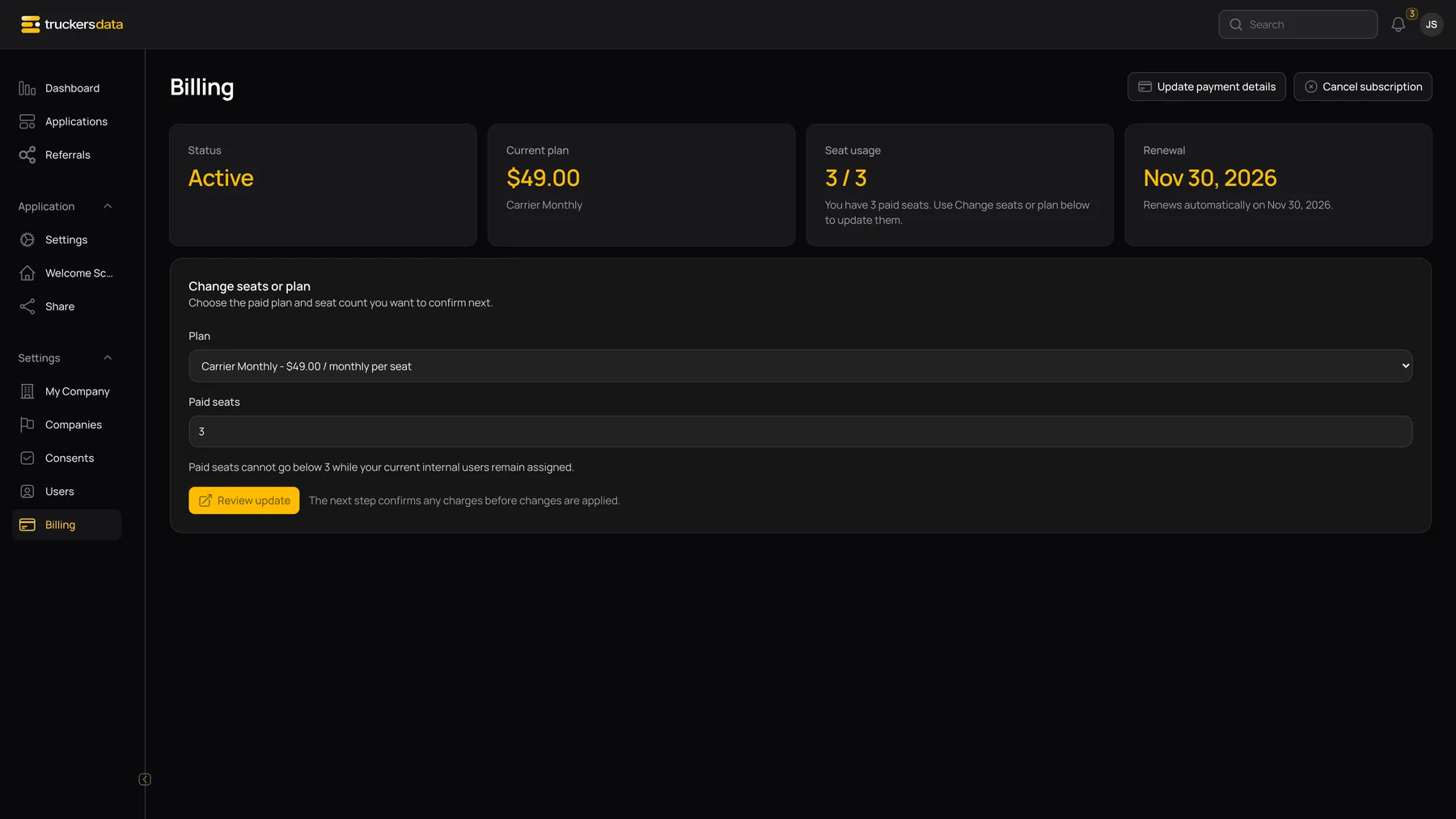
Read the billing summary
| Field | Meaning |
|---|---|
| Status | Shows the current subscription or complimentary-access state. Active, Trialing, Scheduled to end and payment-recovery states have different available actions. |
| Current plan | The plan name, billing interval and per-user rate. This rate is separate from the total for all paid users. |
| Seat usage | Internal users compared with the access capacity available to this company. Paid and any complimentary seats are explained underneath. |
| Renewal / Trial ends / Subscription ends on | The next relevant billing date. Read the explanation under the date to see whether the subscription renews, needs payment details or is scheduled to stop. |
| Scheduled update | A pending plan or seat change with its effective date. Current paid seats remain in effect until the scheduled change applies. |
Review a change to paid users
- In Change seats or plan, check the Plan selection.
- Enter the intended Paid seats count. The page states the minimum required for the company’s existing internal users after any complimentary capacity.
- Select Review update.
- Review the payment provider’s confirmation, including the total and effective timing. Confirm there only when the change is correct.
- Return to Billing and verify the current or scheduled seat quantity.
Update payment details and find invoices
Select Update payment details to open the payment provider’s billing portal. During a trial, the comparable action is Subscribe. Return to the app and check the displayed status after completing the provider’s flow.
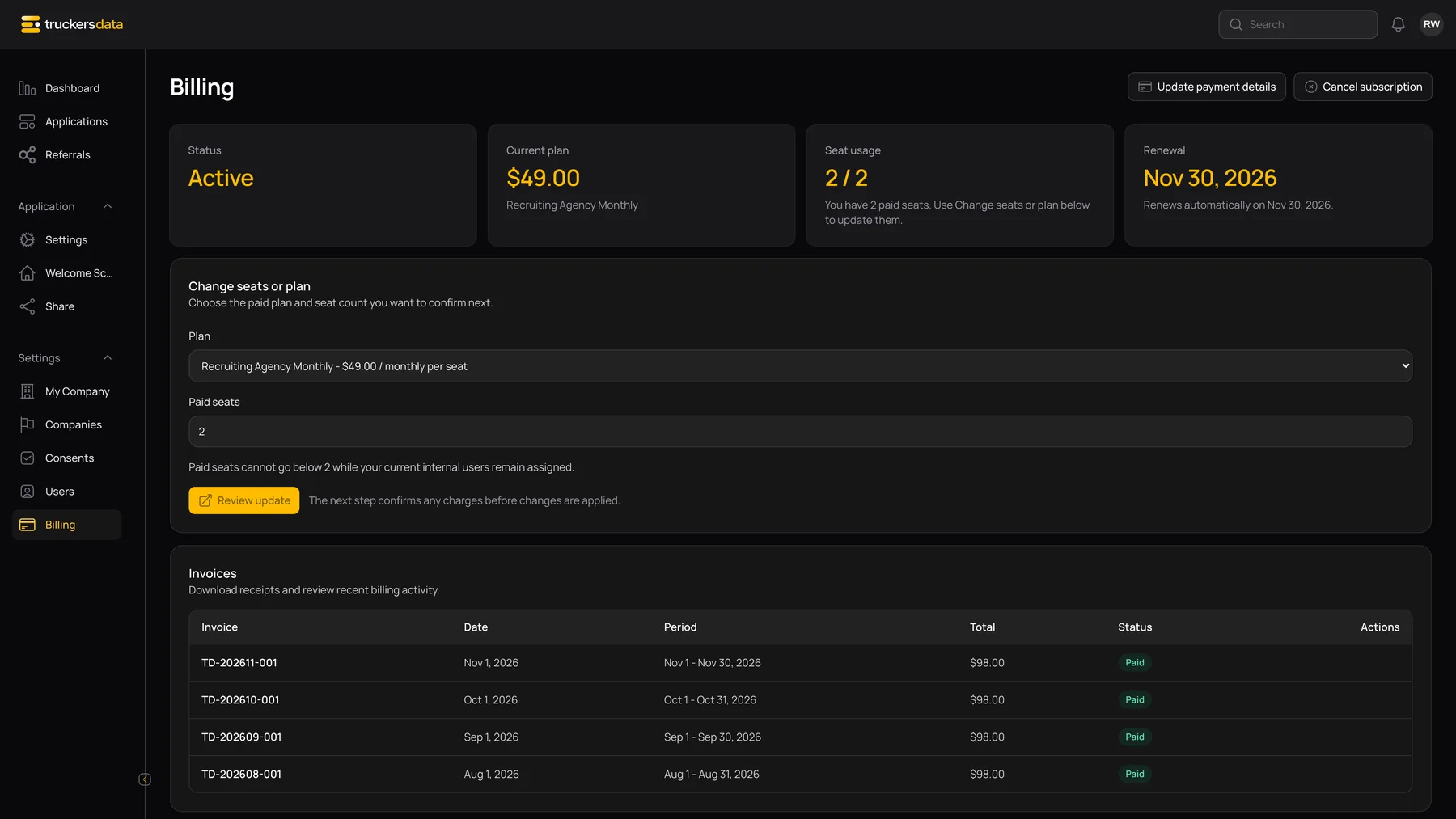
The Invoices section lists the invoice number, date, billing period, total and payment status when billing history is available. Open the receipt or download action shown for the invoice you need. If invoices are temporarily unavailable, refresh and try again; an unavailable list is not proof that an invoice has been paid or cancelled.
Screenshot invoice numbers, companies and histories are fictional examples.
Schedule cancellation or resume renewal
- Select Cancel subscription, or Cancel trial when that label is shown.
- Read the cancellation review and the date through which paid seats remain active.
- Select Keep subscription to leave renewal in place, or Confirm cancellation to schedule the cancellation.
- When the page shows Scheduled to end, verify the end date. Use Resume subscription before access ends if you intend to keep automatic renewal.
Scheduling cancellation does not immediately archive applications or delete driver documents. Access after the displayed end date depends on the company’s remaining usable subscription or complimentary access.

Recover from a payment or access problem
A past-due, unpaid, paused or incomplete subscription can make paid seats unavailable. A company admin can still use the billing page to review the problem and update payment details. Staff may be directed to limited company access until billing is restored.
- Too many internal users: review the stated seat minimum, arrange enough paid capacity and check the team roster.
- Checkout cancelled: return to Billing and start the intended action again only if you still want it.
- Scheduled update not yet active: check its effective date before treating it as the current seat count.
- Complimentary Access: seats are managed through an administrative grant; this is not a separate per-application usage limit.
Ask your company admin for help if you cannot see Billing. Do not repeatedly create payment sessions to work around an unclear status.