Help
Review before signing
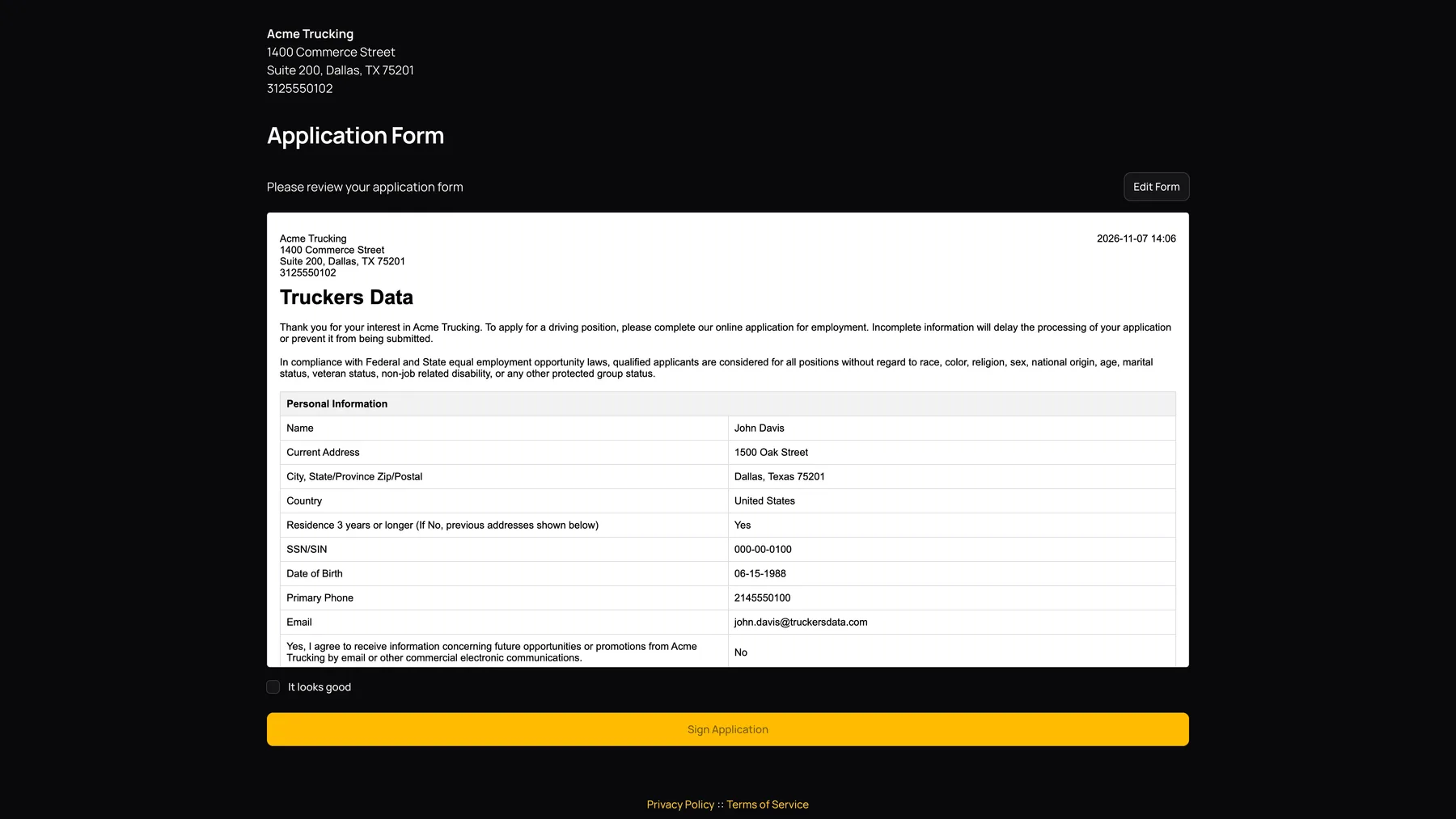
After the final wizard step, the page says Please review your application form and displays a printable review. Read it carefully.
| Control or field | What it does |
|---|---|
| Edit Form | Returns to the application form so you can correct answers before final submission. |
| It looks good | A required confirmation that you have reviewed the application. |
| Sign Application | Continues from review to the consent/signature stages. This review button is not the final signed submission. |
Read each presented consent
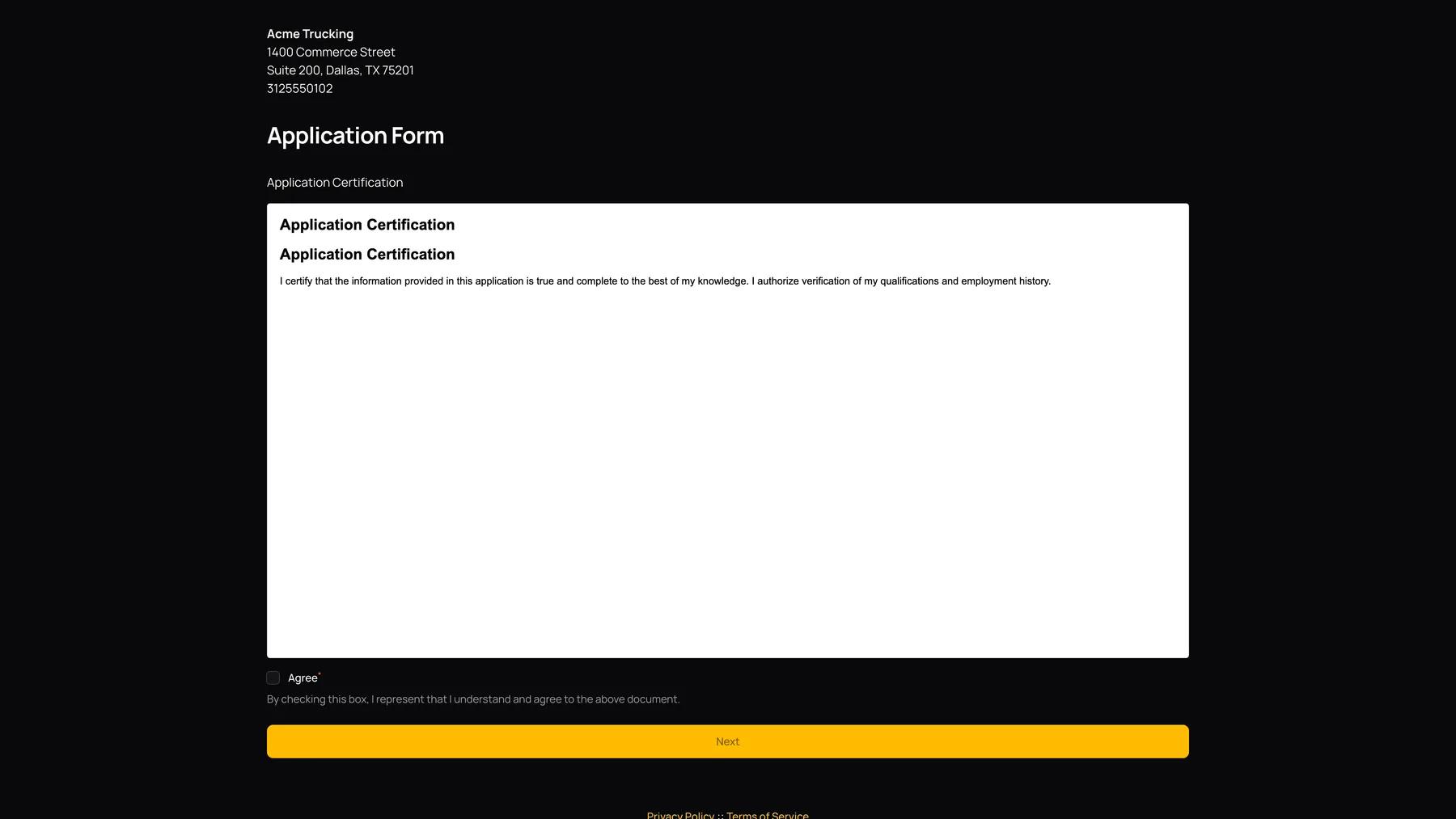
The application presents the company’s applicable active consent documents and any applicable global consents that still need an acceptance record for this application. Follow the displayed Agree/acceptance controls. Required and optional behavior depends on how the consent was configured.
See what applicants see when accepting consents for the individual controls and what happens when an admin changes a consent for the effect on returning applicants.
Apply the electronic signature
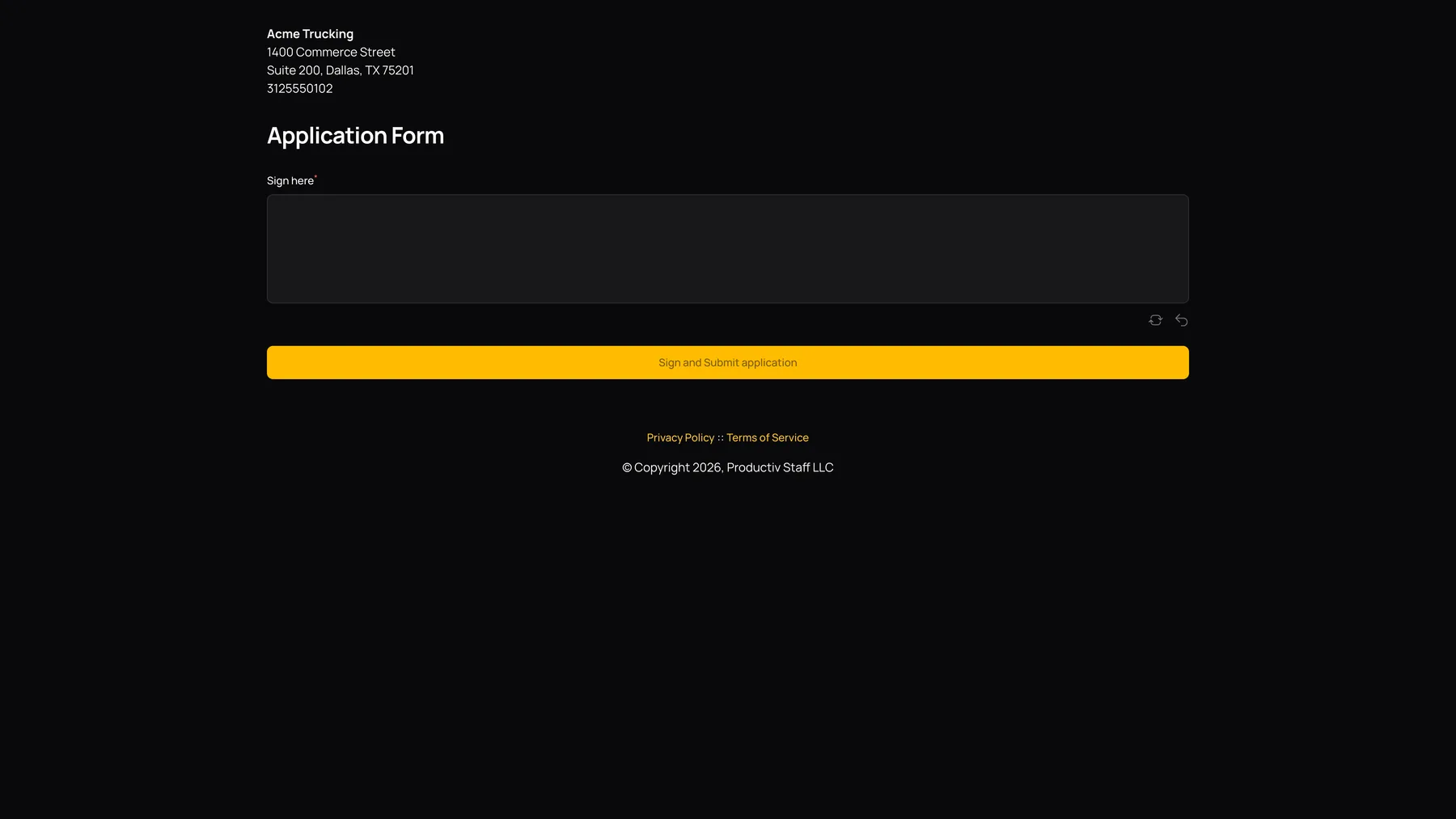
On the signature stage, use the displayed signature control and complete the final Sign and Submit application action. The final submission records the signature and signing time, changes the application to Submitted, generates the application/consent documents and triggers the configured submission communications.
After submitting
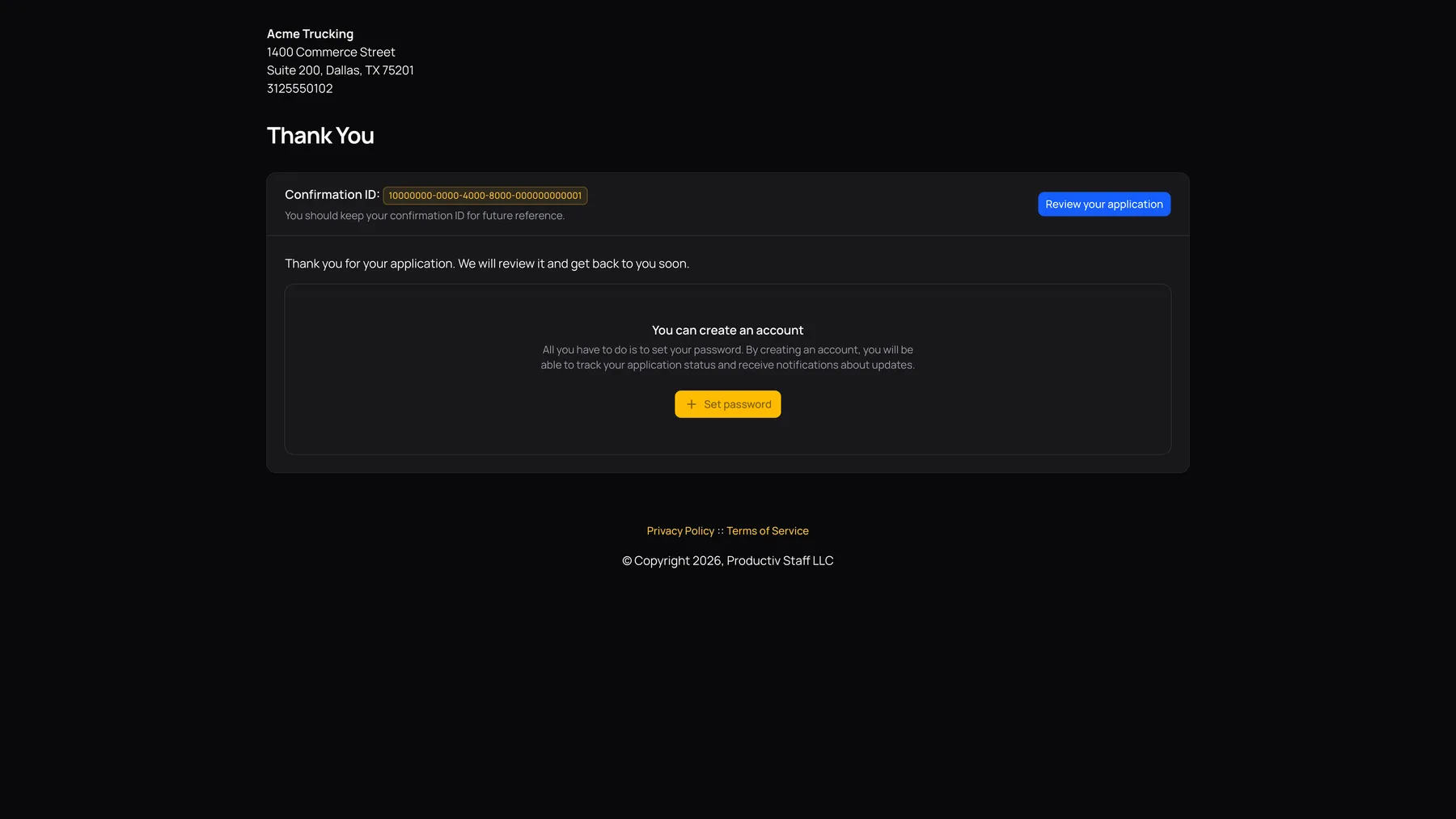
The Thank You page displays a Confirmation ID. Keep it for future reference. Select Review your application to reopen the printable application review.
When offered, Set password lets the applicant create an account for subsequent access and updates. It is separate from signing the application. An admin should check the application’s Signed at timestamp and Files tab rather than using the Registered icon alone to decide whether the full application is complete.