 Help
Understand source and target
A Source Field is a question or answer name supplied by the Facebook form. A Target Field is where that answer belongs in Truckers Data. Mapping is a translation between the two systems; it does not change the wording of your Facebook ad or add questions to your public Truckers Data application.
For example, map Facebook’s email answer to Applicant → Email. Map a question about terminal location to Application → Location, or to a company custom field if it represents information your team tracks internally.
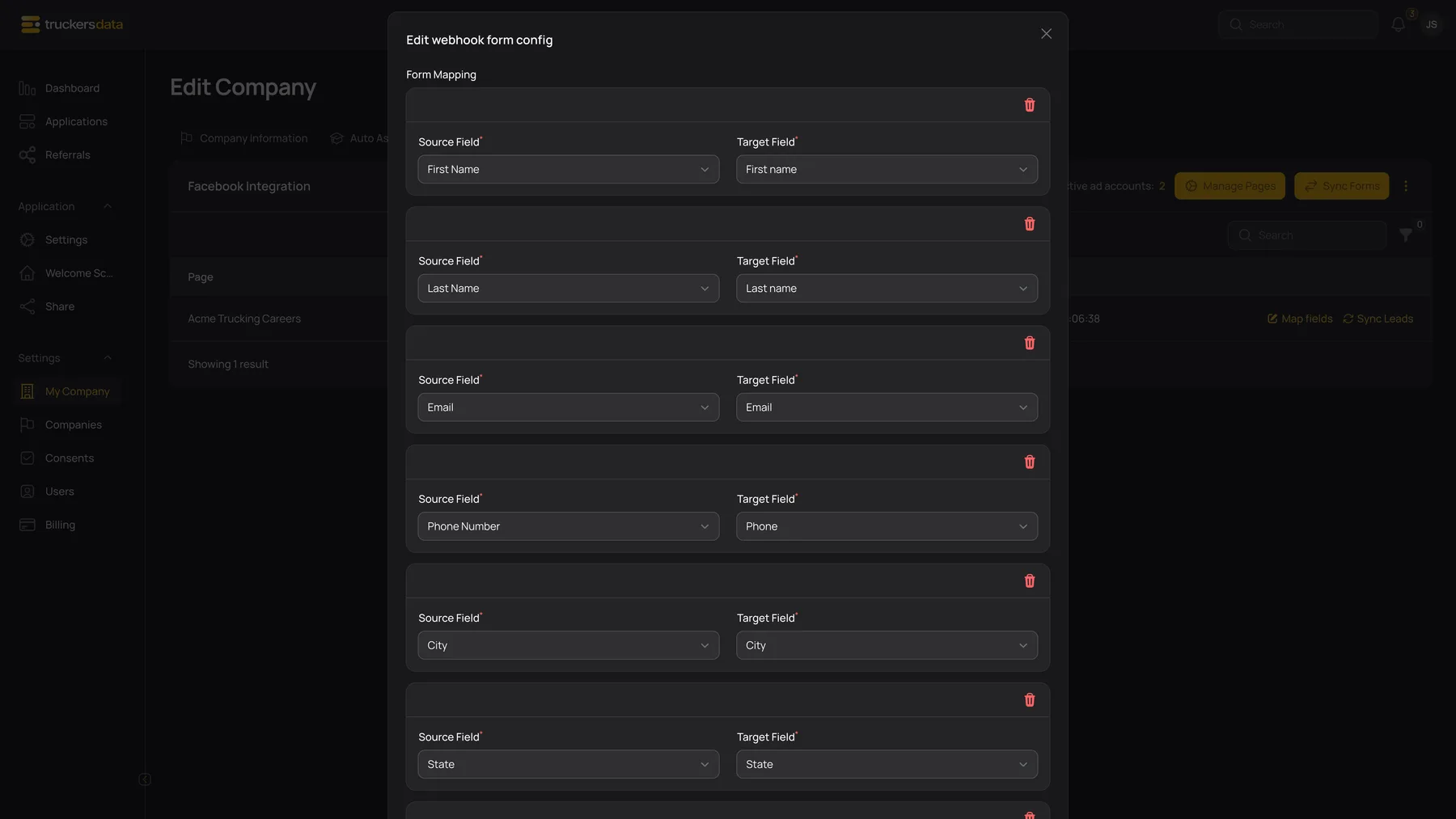
Map and save a form
- Open the intended company’s Facebook Integration tab and find the correct Page/form row.
- Choose Map fields.
- Review every mapping row. Select the source question and its matching target.
- Include Applicant → Email. Incoming records need a valid email; a mapping to Full name alone does not supply it.
- Use the repeater’s add or delete controls to manage mapping rows. Do not map two different answers to the same destination unless you intentionally want a single answer to take precedence.
- Save the mapping, then import a known lead using Sync Leads if appropriate.
- Open its application and compare the stored identity, contact details, position, and custom fields with the original Facebook answers.
Common contact and address sources have suggested destinations when the form mapping opens. Review these suggestions; they are a starting point rather than confirmation that the form is configured correctly.
Choose the right destination
| Field or button | What it does |
|---|---|
| Applicant → Full name | Splits a full name into first and last names. Use separate First name and Last name targets instead when the source already supplies them separately. |
| Applicant → First name / Last name | Applicant identity. Avoid relying on conflicting full-name and separate-name sources at the same time. |
| Applicant → Email | Required identity/contact destination. Supply the actual email answer, not a question label or unrelated reference number. |
| Applicant → Phone | Phone contact value. An incoming mapped phone must satisfy the application’s phone validation. |
| Application → Position | Looks for a matching position name among this company’s open positions. Review the position on the created application if the external wording differs. |
| Application → Address / City / State / Zip | The corresponding application address details. These do not replace the full application’s residence-history questions. |
| Application → Location | Your recruiting location or terminal detail. |
| Application → Referral details | Additional referral context. |
| Custom → your field name | An existing company custom-field definition. Create the definition first under Custom Fields. |
| Meta → Source ID | A source identifier used to record the incoming source context; it is not the applicant’s email. |
Match the answer’s format to the field type
Text and single-select destinations accept text values; numbers need numeric input; date fields need a parseable date. Yes/No custom fields recognize values such as yes/no, true/false, and 1/0. Multi-select custom answers can be supplied as arrays or a comma-separated list. Test the format your external form actually returns.
The custom-field Required switch controls the internal application editor. It does not make an unmapped Facebook custom answer automatically required during lead import. Map every answer that your workflow needs and verify it on the application.
What happens after you change a mapping
Saving a mapping changes how subsequent processing reads that form’s answers. It does not bulk rewrite existing application records. Changing the Facebook question, renaming a custom-field key, or switching a target can leave older records with the earlier values.
After a change, test a known lead, check the resulting application, and make any necessary corrections to existing records separately. Do not repeatedly click Sync Leads as a substitute for diagnosing a bad mapping. Use the lead’s email to check for an existing application before starting another import.
Mapping problems and next steps
| Field or button | What it does |
|---|---|
| Email missing or invalid | Map the form’s real email answer to Applicant → Email, then test with a valid value. |
| A new question is absent from Source Field | Use Sync Forms to refresh the form definition, then reopen Map fields. |
| Custom field absent from Target Field | Confirm that its definition belongs to this company, not another carrier or the agency account. |
| Position is empty | Compare the incoming position text to the company’s available position names. |
| A mapped value did not update an old application | Mappings govern processing; they are not a bulk update tool. Inspect the existing record and correct it through the appropriate workflow. |