Help
Open your own profile
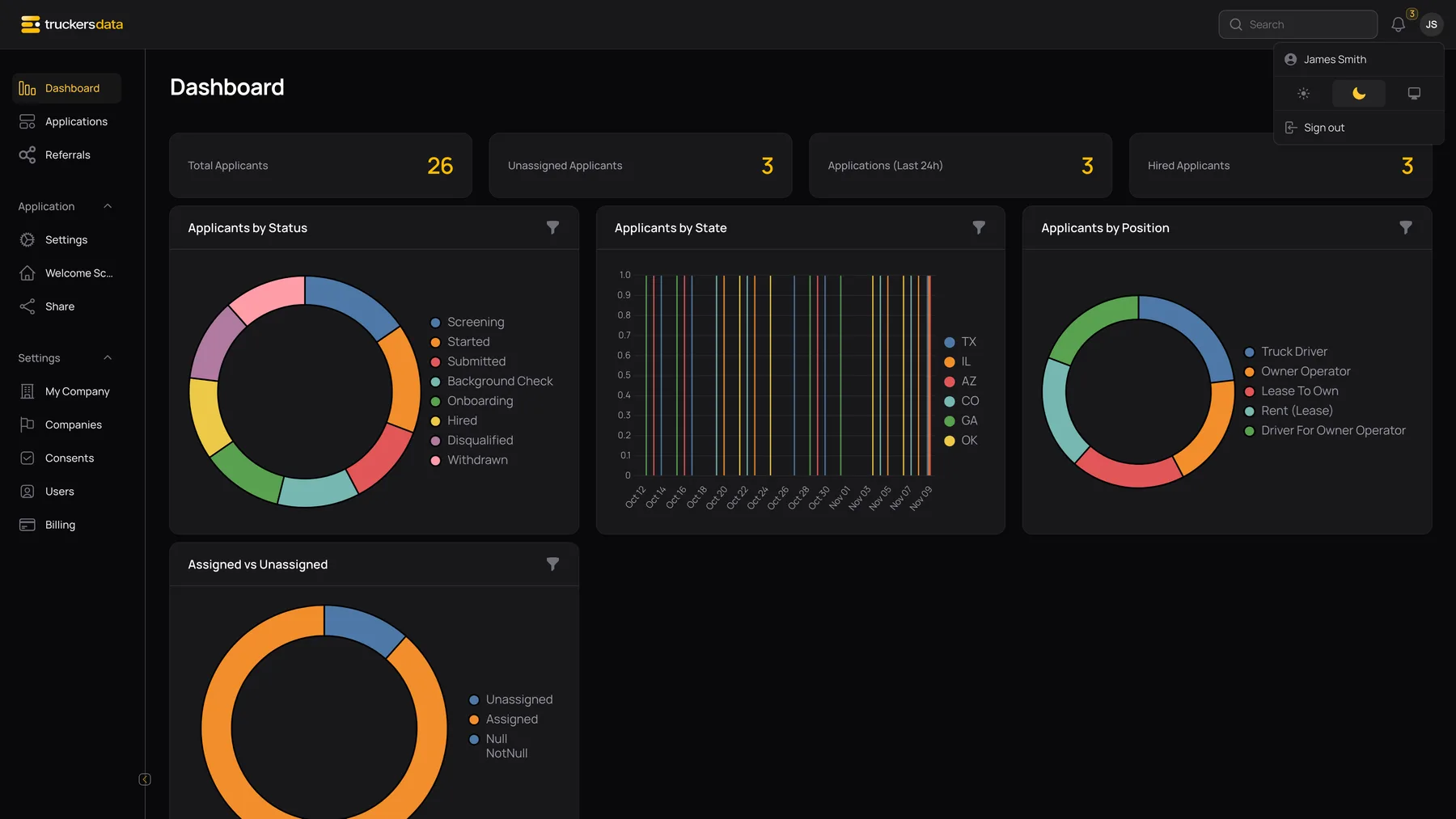
Select your avatar/user menu in the app’s top bar and open your profile. Its tabs include Personal Information, Update Password, Two Factor Authentication, API Tokens, and Browser Sessions.
These controls apply to the account you are signed in to. They do not change another staff member’s role, application visibility, or sensitive-data permission; those belong in Users.
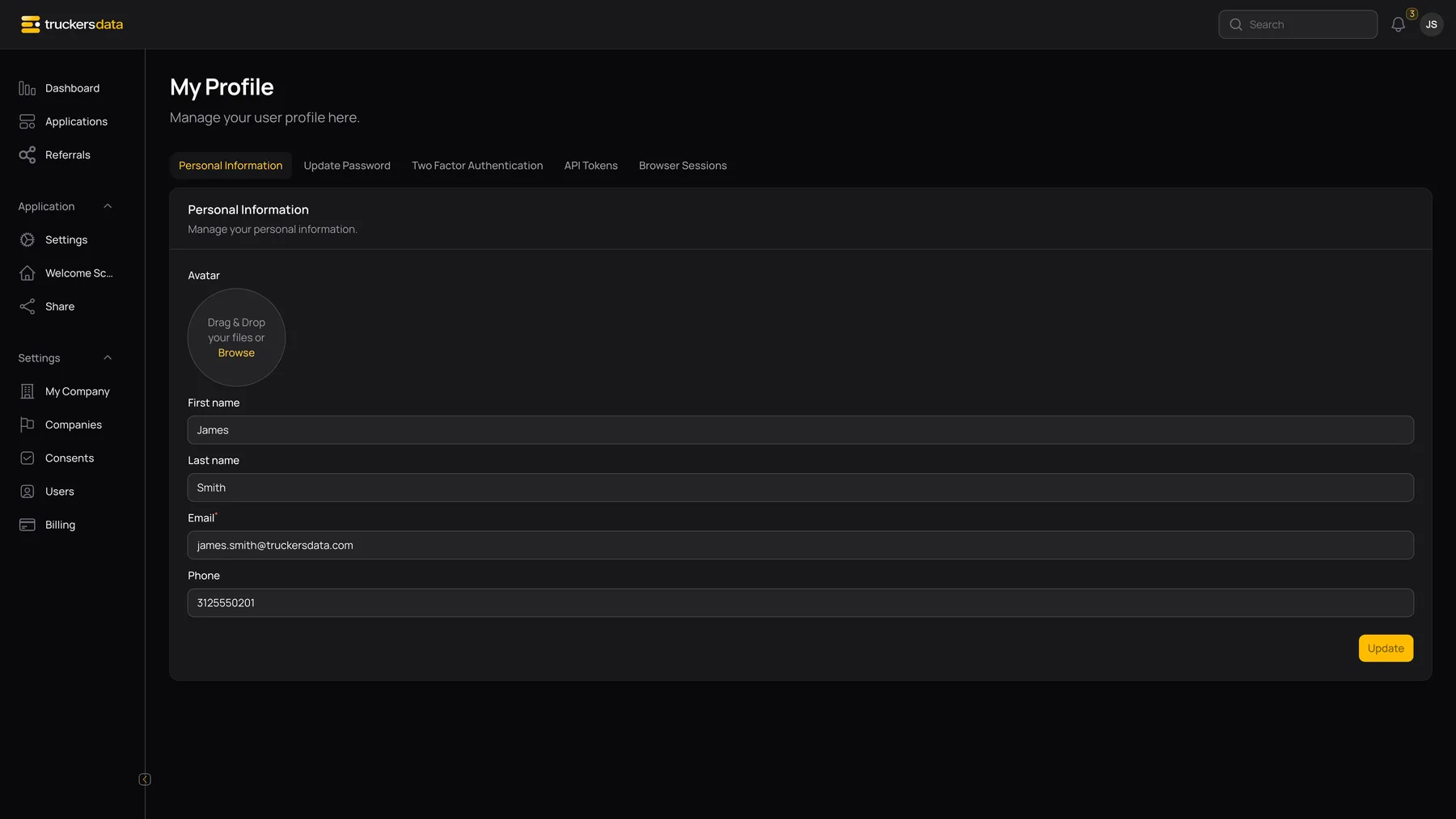
Personal Information fields
| Field or button | What it does |
|---|---|
| Avatar | Your profile image where the upload control is available. It does not change the company logo shown on public forms. |
| First name / Last name | Your own account display name. |
| Your own account email. Follow any verification prompt shown by the application when changing account access information. | |
| Phone | Your own contact number. |
| Update | Saves the profile fields on this tab and displays the result message. |
Change your password
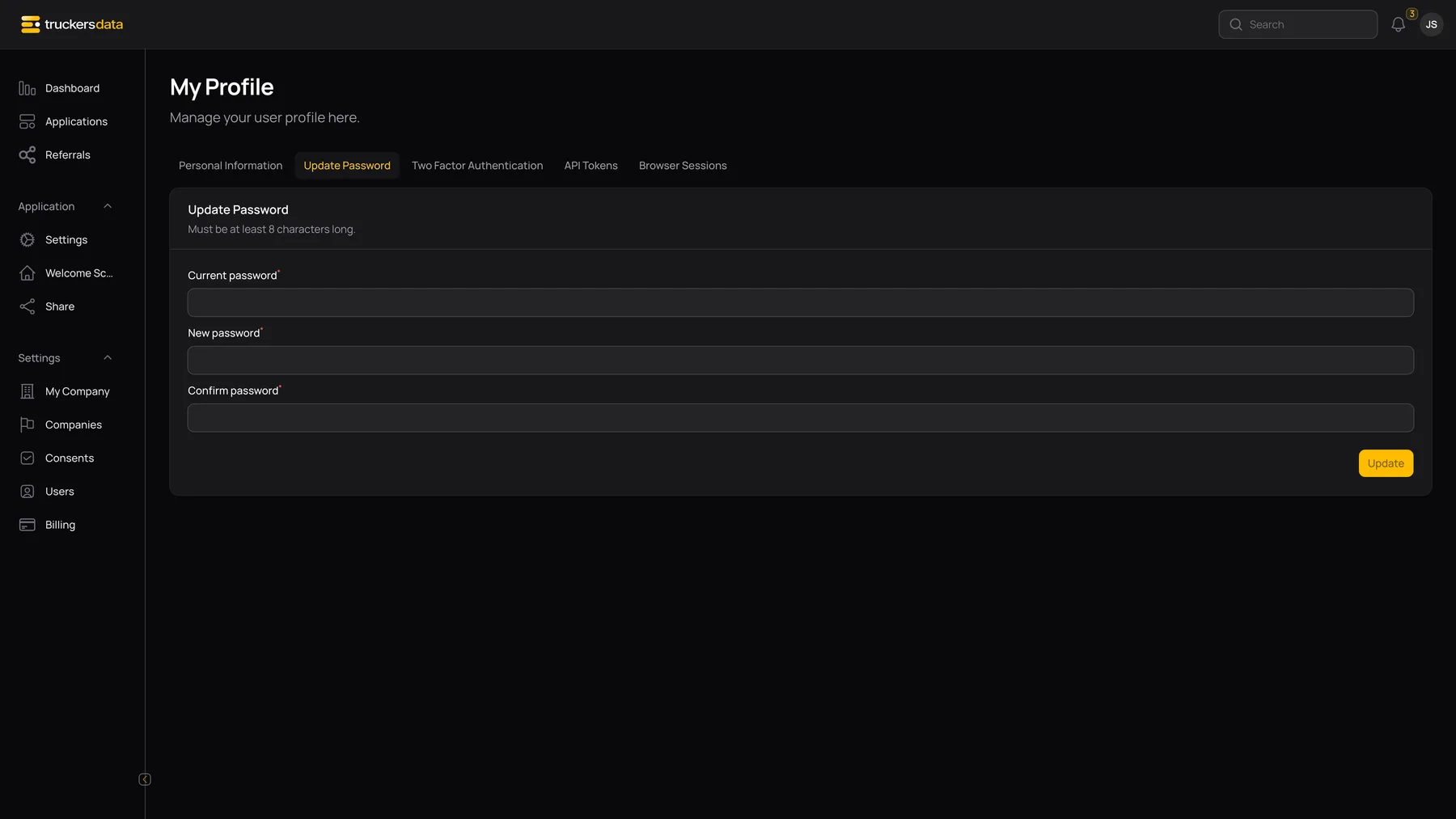
- Open Update Password.
- Enter your Current password.
- Enter a New password that satisfies the displayed requirements.
- Repeat it in New password confirmation.
- Select Update and confirm the success message.
If the current password is wrong or the confirmation does not match, correct the highlighted field. The new password is not saved merely by typing it.
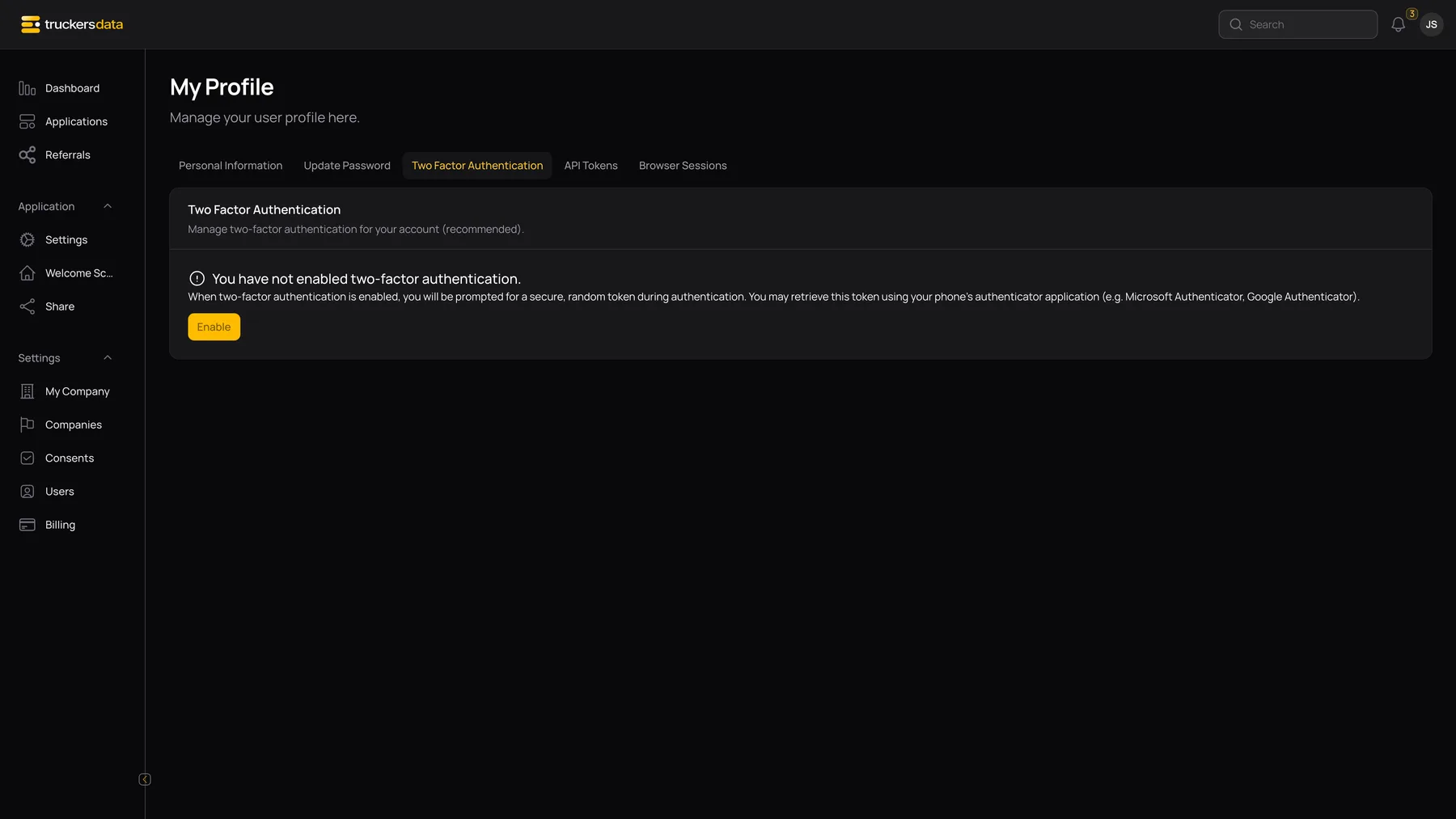
Set up two-factor authentication
- Open Two Factor Authentication and choose Enable.
- Follow the setup instructions in the app: scan the QR code with your authenticator, or enter the displayed setup key.
- Enter the authenticator’s current one-time code and choose Confirm & finish to complete setup.
- Save the displayed recovery codes in an appropriate private location. They are shown during setup so you can recover access if the authenticator is unavailable.
| Field or button | What it does |
|---|---|
| Cancel setup | Leaves an unfinished setup rather than confirming it. |
| Regenerate Recovery Codes | Creates new recovery codes; store the new set and do not rely on the old set. |
| Disable | Turns off two-factor authentication after the app’s confirmation requirements. |
| Use a recovery code | A sign-in alternative when you cannot use the authenticator device. |
Review and end other browser sessions
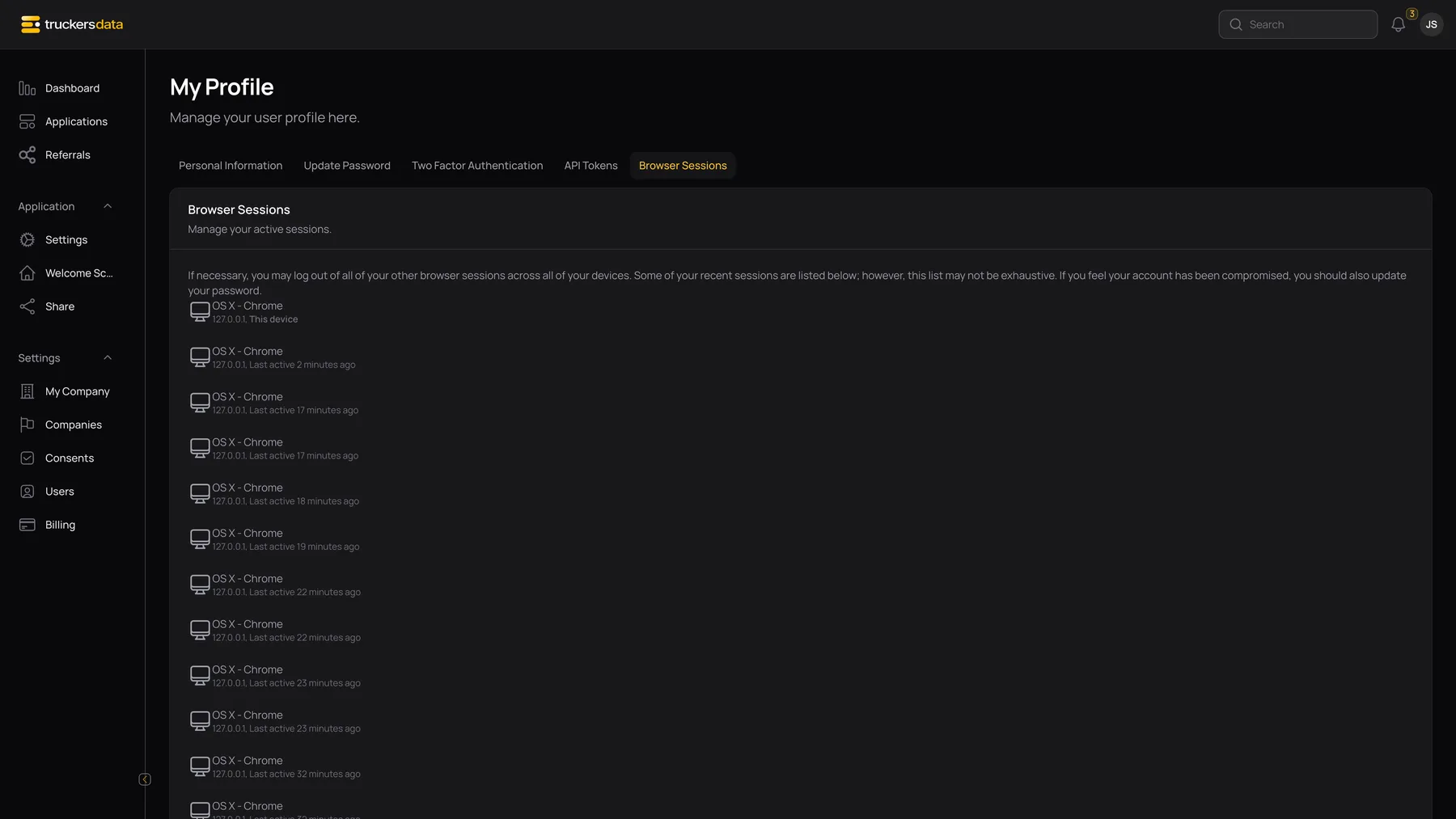
Browser Sessions lists known account sessions with device/browser information, IP address, and last-active details where available. The current session is identified so you can distinguish it from other devices.
Use the action to log out other browser sessions when needed. It opens a confirmation that asks for your password. A correct password ends other stored sessions and keeps the current session; an incorrect password produces an error. This is separate from simply signing out of the browser you are currently using.
Light and dark display preferences
The top-bar user menu offers light, dark, and system theme choices. The system option follows the device/browser preference. This changes the signed-in app’s appearance; it is separate from the company’s public-form theme setting.
Public applicants see the company’s configured form appearance, and printable application/consent documents keep their white paper layout. Changing your account’s display theme does not restyle those documents or publish new form requirements.