 Help
Before you send a request
The applicant must have an employment-history entry and a completed, employer-specific authorization file created from a consent whose Type is Employment Verification. A Default consent with “employment” in its title does not fulfill that type check, and a Custom PDF consent is not the Employment Verification type.
The company administrator prepares the authorization; the applicant signs through the full application flow. Staff who can work with the application can then use the request action on an eligible employment entry. Platform-agent accounts do not show that request action in this workspace.
If authorization setup is missing, begin with Create and activate a consent, choose Employment Verification, and test the applicant signing process.
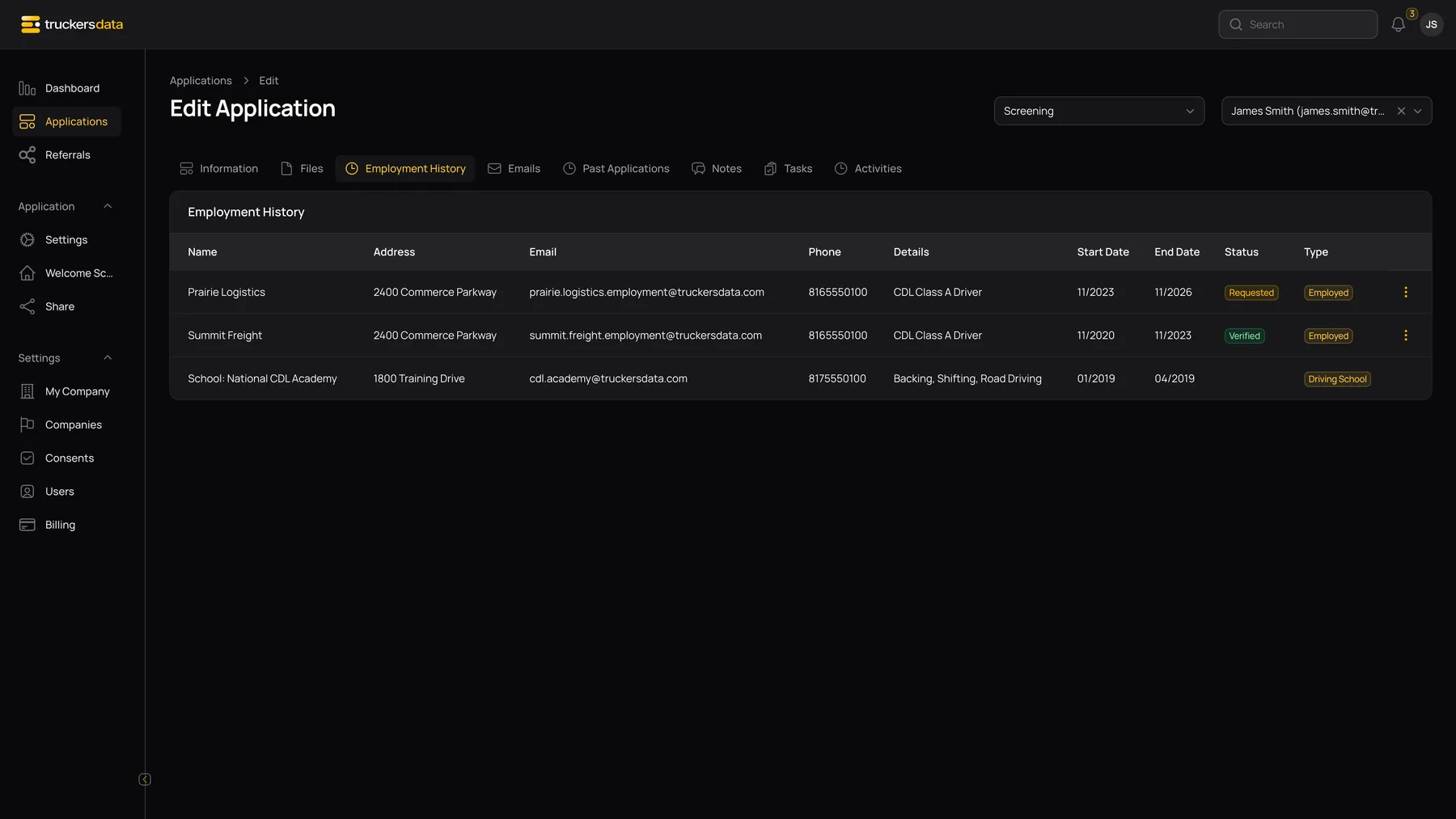
Open and check Employment History
- Open Applications and select the applicant.
- Choose the Employment History tab.
- Locate the actual employer entry, not a school, unemployment period, or military entry.
- Review employer name, email, telephone, address, dates, and current status.
- If needed, open the row menu and choose Edit to open Employer Details.
Employer Details fields
| Field | What it controls |
|---|---|
| Employer Name | Identifies the existing employer; it is disabled in this contact-details dialog. |
| The recipient for the verification request. Check it carefully before sending. | |
| Telephone | Employer contact information retained with this application’s history. |
| Address / Address Line 2 | Employer location. Address is required in this dialog; line 2 is optional. |
| City | Employer location; required in this dialog. |
| Country | Controls the available location fields and is required. |
| State/Province | Shown for a United States address. The dialog may use the generic label “where school is located,” but in this workflow it belongs to the employer entry. |
| Zip/Postal Code | The stored postal code. The visible input uses a five-digit mask. |
| Save | Updates the employer details stored in this application’s employment-history entry. |
| Cancel | Leaves the dialog without applying those form edits. |
Editing these contact details does not itself send a request or create a signed authorization. Check the stored authorization before you continue.
Send the request
- For an employment entry that has not yet been requested, open its row action menu.
- Choose the employment-verification action and read the confirmation.
- Confirm only when you are ready to send a real email to that employer.
- The application sends the request email to the entry’s Email address and changes the employer’s status to Requested.
- Check the application’s Emails and Activities tabs for communication and activity history.
What the employer receives
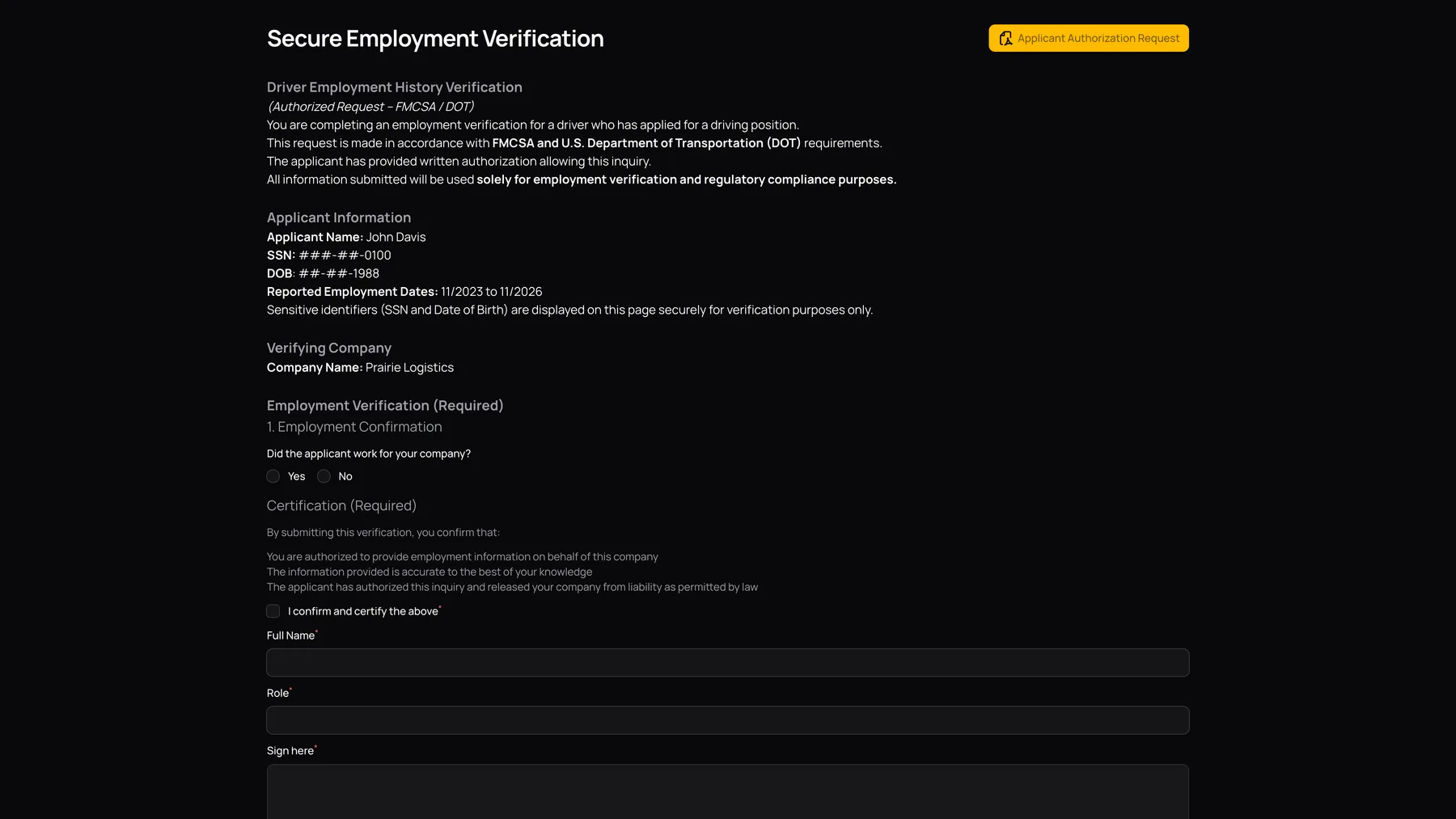
The request identifies the applicant, reported position and employment dates, and the requesting company’s name, address, email, and phone. It includes a link to the online verification form. The employer can review the signed authorization through the Applicant Authorization Request download action on that page.
The employer follows the link without needing a staff login. Treat the link as private because it opens an application-specific verification page. The employer can correct the dates when the form asks whether the reported dates are accurate.
Continue with Complete the employer verification form to see the recipient’s experience.
If the action is missing or disabled
| Symptom | Check |
|---|---|
| Request control is disabled | A signed Employment Verification consent file must be linked to this specific employer. Read the control’s tooltip and check Files. |
| No request action for a school or gap | The action is for employment entries, not every history type. |
| It says No email address | Add and save a valid employer Email in Employer Details, then try again while the entry is still eligible. |
| The row is already Requested or completed | The initial request action is only shown before the request is made. It is not a general-purpose Resend button. |
| Wrong address discovered after sending | Check the communication record and contact your administrator for the appropriate follow-up. Editing a requested entry is not a verified replacement for restarting the request sequence. |
| A stored consent file exists but the action still does not qualify | Confirm that its underlying consent still exists, has Employment Verification type, and is linked to the correct employer. A generic or orphaned file is not sufficient. |