Help
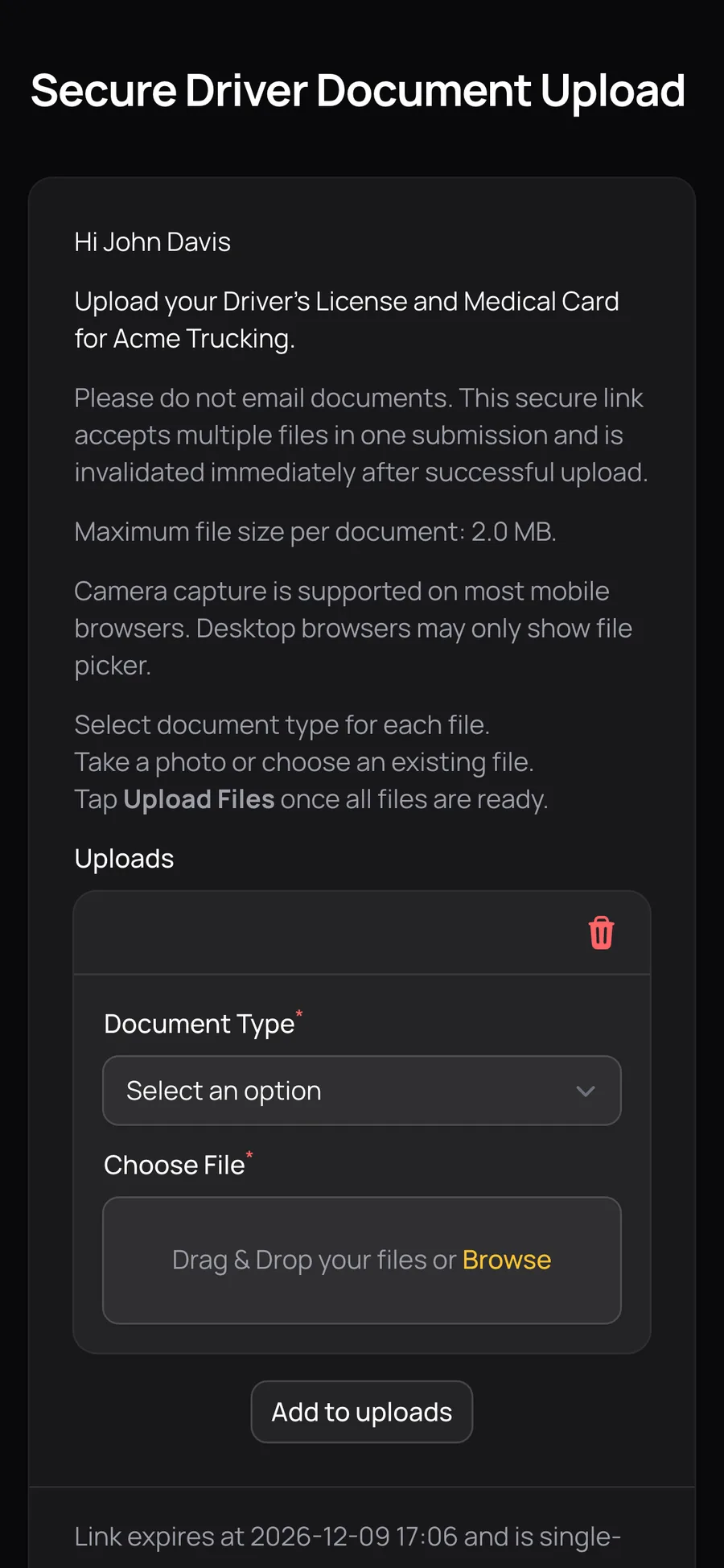
Open the Files tab
Open the application, then select Files. Review the filename and type before opening or downloading a document. Generated application and consent documents can appear alongside manually uploaded driver records.
| Control or field | What it does |
|---|---|
| View | Opens a file preview. PDFs retain their paper appearance inside the viewer; preview support depends on the document type and browser. |
| Download | Downloads the accessible version of the file. |
| Download all | Creates a ZIP of the files available to your current access context. |
| Row checkboxes / Download selected | Downloads a ZIP containing the selected accessible files. |
| Edit | Changes the file’s metadata or attachment when permitted. |
| Delete | Removes a file when permitted. Check what it is before deleting a generated or signed document. |
Some documents can be masked according to sensitive-data permissions. A different staff member may see a different accessible version. See signed documents and access for consent/PDF details.
Upload a file as staff
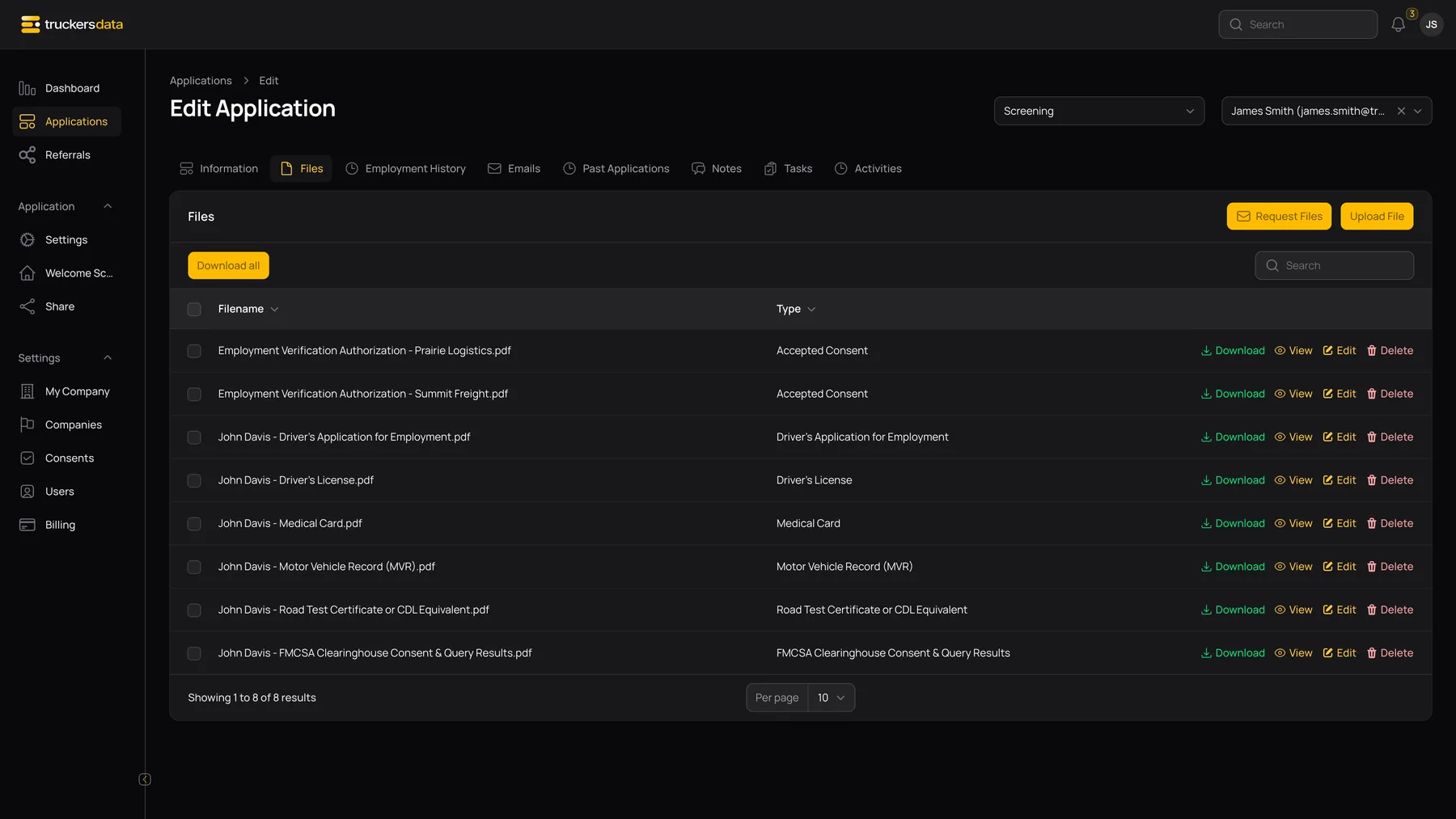
- Select Upload File.
- Choose the required Type so the file is categorized correctly.
- Choose the required Attachment. Common accepted formats include images, PDF, Word, Excel, OpenDocument and plain text.
- Review Filename, which initially follows the uploaded file name.
- Save the file. The upload is recorded in the application’s activity history.
Send the driver a secure request
- Verify the applicant’s email address on the application.
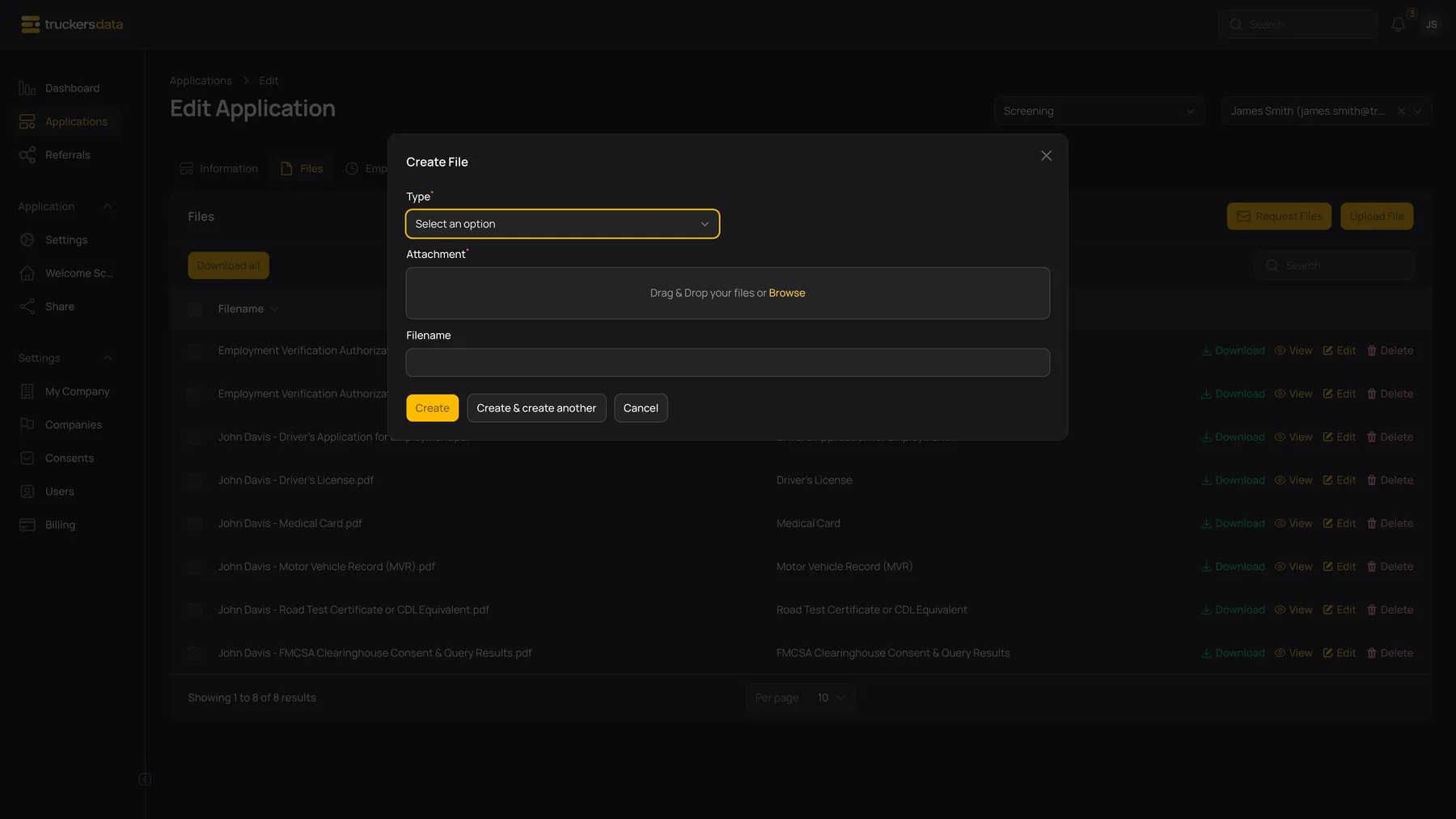
- In Files select Request Files.
- Read the confirmation, titled Request Driver’s License and Medical Card.
- Confirm only when you intend to email the driver.
The app creates and emails a secure upload link for that application. The link is one-time use and expires after 14 days. A missing driver email prevents the request; if sending fails, the app shows an error rather than treating the request as successfully delivered.
Opening the confirmation is not the same as sending the request. A successful send adds an activity entry so your team can see that the request was issued.
What the driver sees
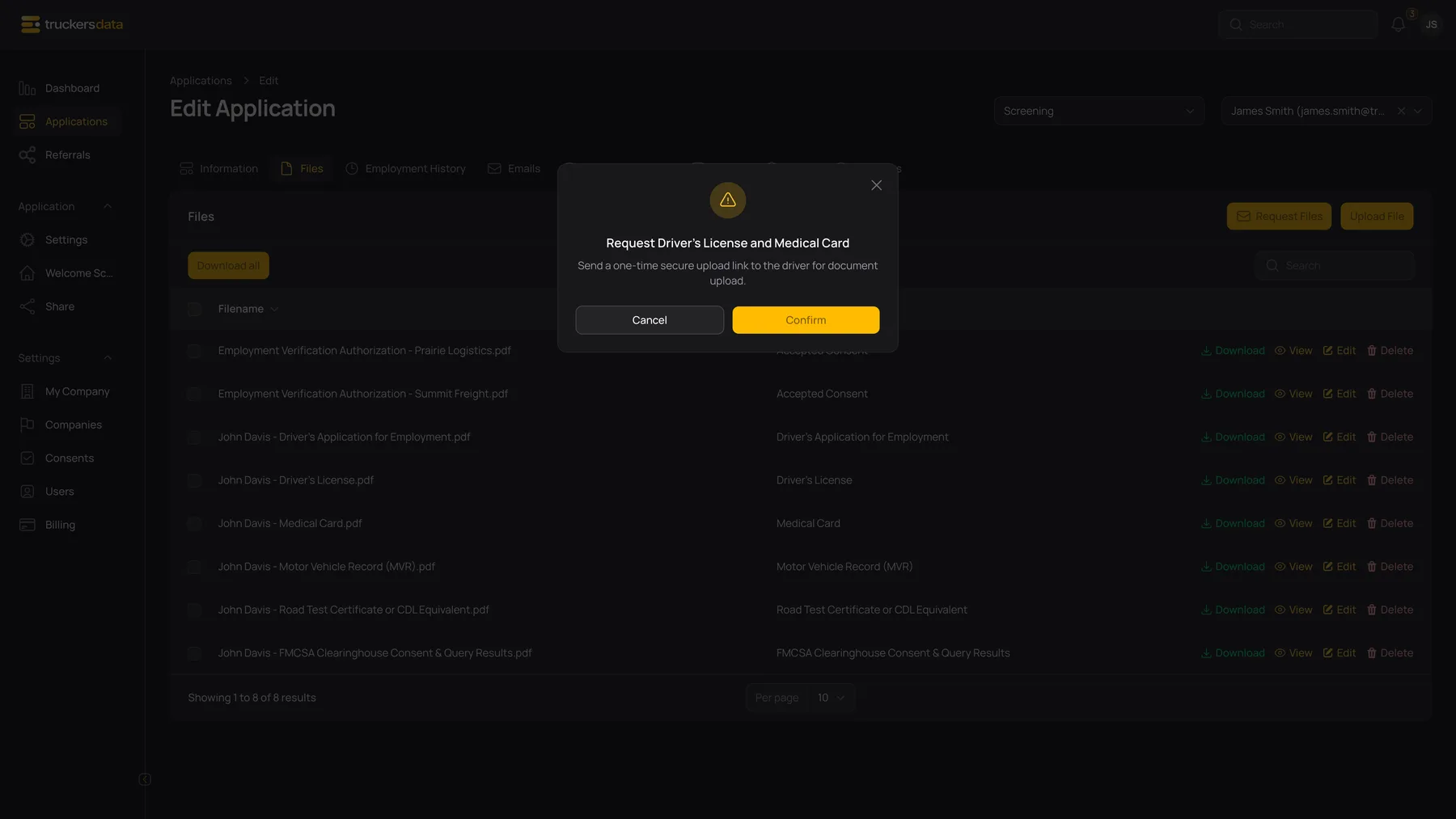
The driver opens the link from their email and uploads the requested driver-license and medical-card files on the secure upload page. The files are stored on the associated application, so staff can return to Files to review them. The upload page does not require the driver to use a staff account.
A used link or an expired link displays its corresponding state. Ask the recruiting team for a new Request Files email instead of forwarding another driver’s link or attempting to alter the URL. Keep the link private because it belongs to the specific request and application.
For each upload row, choose Document Type (Driver’s License or Medical Card) and Choose File. Add rows for additional files, up to ten in one submission, and follow the maximum file size displayed on the page. A phone may offer camera capture; desktop browsers may show only a file picker. Select Upload Files once all intended files are ready.
Successful uploads add files to the application, record activity and notify the company’s admins in-app and by email.