 Help
Understand the workflow
Truckers Data brings driver applications, documents, consent records, employment verification, notes and tasks into one recruiting workspace. A company is the carrier or recruiting organization you work in. An application is one driver’s application to a company; the same driver can have previous applications.
- An admin configures the company’s welcome information, positions and consents.
- A team member shares the company’s application link or a referral link.
- The driver completes a full application, or submits a compact intake form.
- Your team reviews the record, assigns an owner and moves it through hiring stages.
- Collect missing files, request employment verification and record follow-up tasks.
Start with form settings, consents and sharing an application.
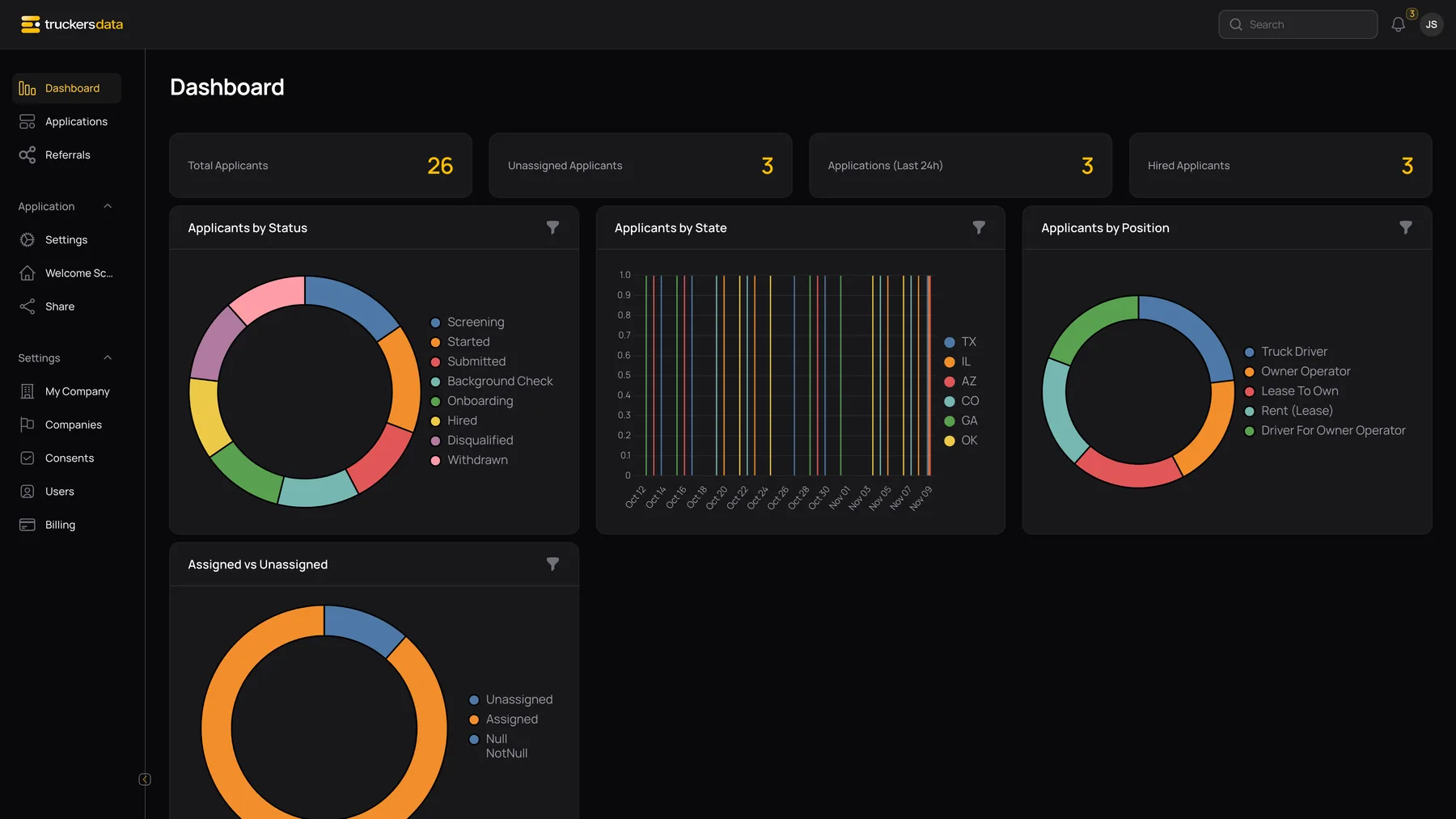
Know which workspace you are using
| Control or field | What it does |
|---|---|
| Carrier admin | Manages the carrier’s configuration, team, consents, integrations, billing and applications. Can configure collaboration with a recruiting company. |
| Carrier user | Works with applications allowed by their application-visibility setting. Company information is read-only; administration controls may be absent. |
| Recruiting admin | Manages the recruiting organization and can work with linked carriers. The company shown on an application tells you whose hiring workflow and consent set it belongs to. |
| Recruiting user | Works in the recruiting company’s application workspace according to their visibility setting. A recruiting user does not automatically receive the recruiting admin’s cross-carrier workspace. |
| Applicant | Uses the company’s public application form. Public forms are separate from staff settings and internal notes. |
| Employer contact | Uses a verification link for a particular employment-history item. They do not need your staff login. |
Find the main areas
- Dashboard: workload and pipeline summaries.
- Applications: the table, board and individual application records.
- Referrals: source-specific sharing links and the applications attributed to them.
- Application → Welcome Screen, Settings and Share: applicant-facing content, intake settings and public links.
- Settings → My Company: company information and, for admins, assignment, custom fields, connections and invitations.
- Consents: the documents and acknowledgements presented during the full application.
- User menu: your profile and display preferences. The bell opens in-app notifications.
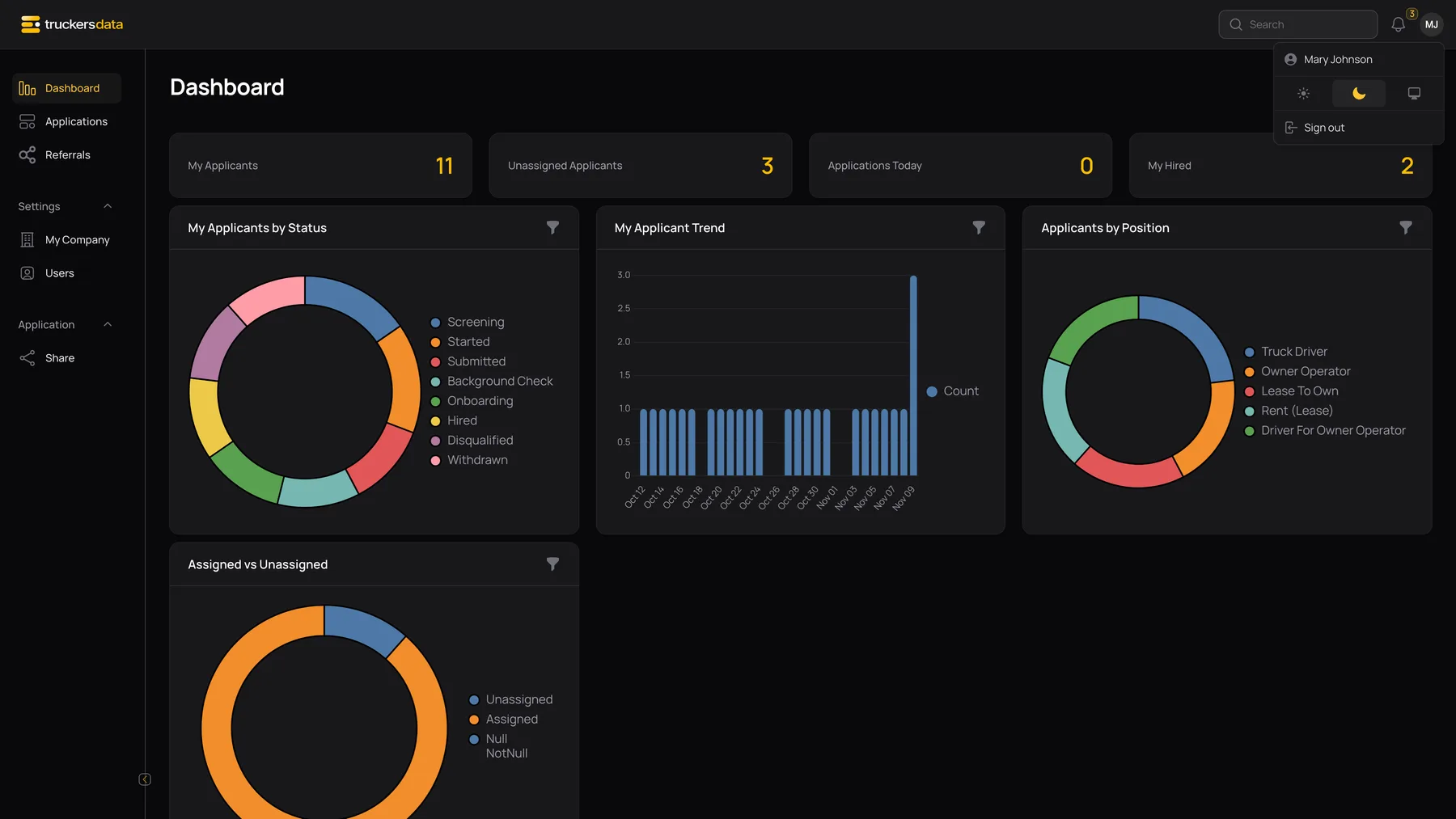
Run a small end-to-end check
- Confirm that the company name, contact information and positions are correct.
- Review each active consent before sharing a live form.
- Open the Full application link in a private browser window and check it on a phone.
- Use an authorized test identity to complete the intended path.
- Confirm the application appears under the correct company and owner.
- Check the Files, Employment History, Emails and Activities tabs.
Configuration is company-specific. If a recruiting admin is configuring a linked carrier, open that carrier’s company record rather than assuming the recruiting company’s settings apply to every carrier.