 Help
Start with the welcome and identity screens
Open the company’s Full application link. The header identifies the company and its contact information. The initial welcome screen uses the company’s Form Title and introduction. Select Next to see the Offer, Requirements and identity fields.
| Control or field | What it does |
|---|---|
| First Name / Last Name | Enter your own name consistently with any earlier application. |
| Email address | Use an email address you can access. An existing email with a different recorded name can be rejected. |
| Date of Birth | Select Month and Day and enter the four-digit Year. If your valid birth date is rejected, ask the recruiting team for assistance instead of entering an incorrect date. |
| SSN / SIN | Enter the identifier requested by the form. Returning-applicant identity checks can compare it with the earlier application. |
| Company SMS checkbox | Records whether you agree to the company’s conversational SMS consent. |
| Updates checkbox | Records the separate Productiv Staff LLC updates consent shown beside the checkbox. |
| Agree / No in an SMS dialog | Confirms that communication preference. Choosing No does not mean you have signed or declined all hiring consents; those appear later in the full application. |
Continue only with your own information. If an existing name, email, identifier or birth date conflicts, contact the recruiting team to resolve the match. Do not create a false identity to get past an error.

1. Personal Info
| Control or field | What it does |
|---|---|
| Current Street Address / City / Zip/Postal Code | Required current residence details. The postal-code input uses the displayed five-digit format. |
| Country / State/Province | Choose the country first. State/Province is displayed for US addresses. |
| Residence address for 3 or more years? | Choose Yes or No. A No answer reveals a space for all residence addresses within the last three years. |
| Previous residences | Enter the additional addresses requested by the form so the residence history is understandable. |
| Primary Phone | Enter the required contact telephone number. |
Use Next to validate and save the step. Correct highlighted errors before continuing.

2. General Info
| Control or field | What it does |
|---|---|
| What position are you applying for? | Required. The choices are the company’s selected positions. |
| Equipment Description (Tractor) | Appears for the Owner Operator position. Type, Year, Make, Model, Color and Fifth Wheel Height are required when shown. VIN, Weight and Mileage collect additional equipment details; VIN has a 17-character format check. |
| What location are you applying for? | Optional location preference. |
| Legally eligible for employment in the United States? | Required Yes/No answer. |
| Currently employed? | Required. A No answer reveals the required date your last employment ended. |
| Read, write, and speak English? | Required Yes/No answer. |
| Worked for this company before? | Required. A Yes answer requests dates, location, position and reason for leaving. |
| Current TWIC card? | Required. A Yes answer reveals a required TWIC expiration date. |
| Known by another name? | Required. A Yes answer reveals the required other name. |
| How did you hear about us? | Required source answer. Driver Referral asks for a referral name; Other asks for an explanation. |
| Driving experience | Choose an answer for Tractor and Semi-Trailer, Tractor - Two Trailers and Straight Truck. Use Other for additional experience details. |

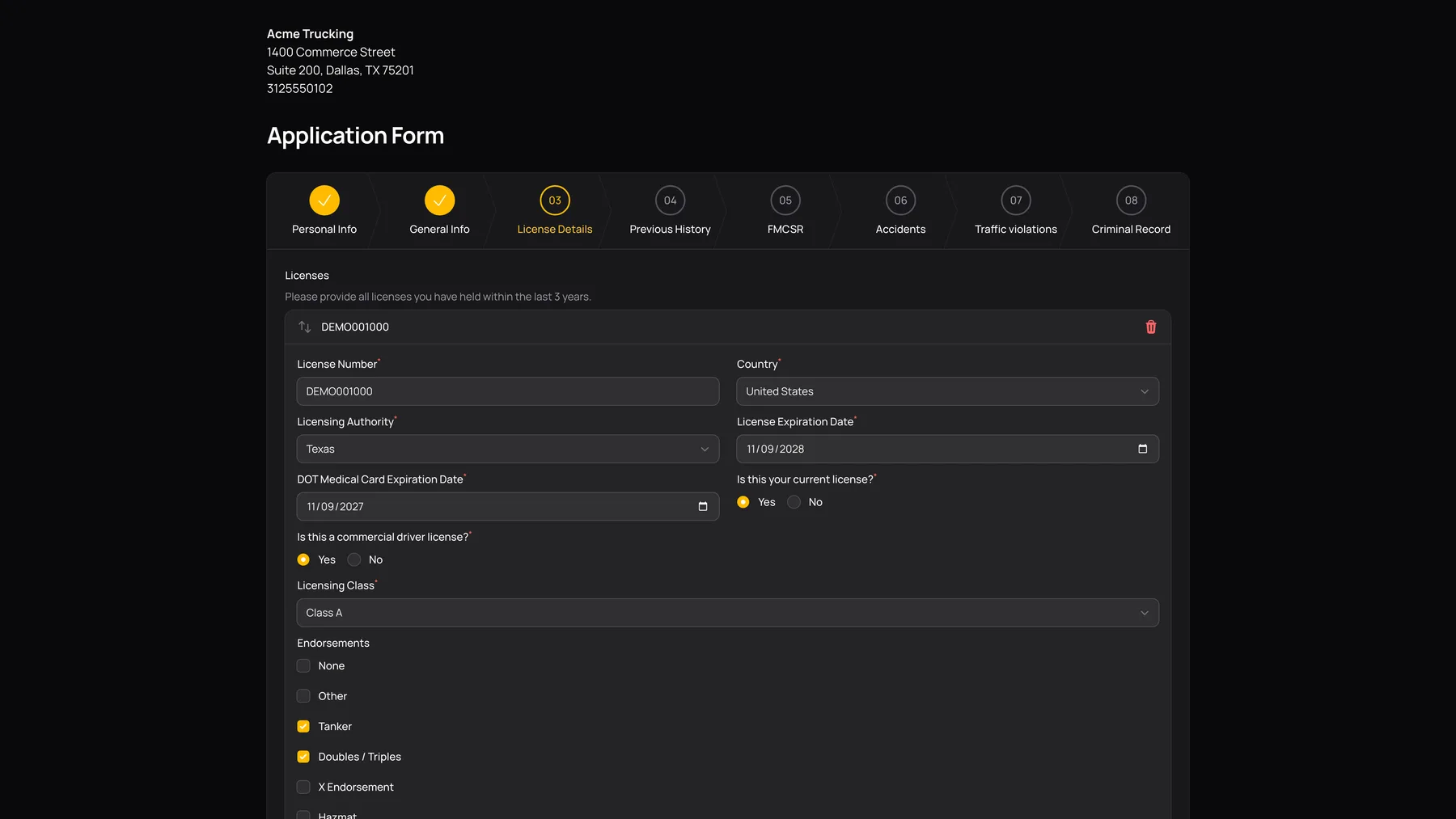
3. License Details
Provide at least one license and all licenses requested for the last three years. Select Add License or Add Another License to create another entry; do not combine unrelated license numbers into one record.
| Control or field | What it does |
|---|---|
| License Number / Country | Required for each entry. |
| Licensing Authority | Required and shown for a US license. |
| License Expiration Date / DOT Medical Card Expiration Date | Required dates for the entry. |
| Current license? / Commercial driver license? | Required Yes/No answers. |
| Licensing Class | Required when the license is commercial. Select the class shown on the license. |
| Endorsements | Select applicable options: None, Other, Tanker, Doubles / Triples, X Endorsement or Hazmat. |
| Hazmat Expiration Date | Becomes required when Hazmat is selected. |
4. Previous History
Add employment, unemployment, school, driving-school and military periods as appropriate. The progress display shows coverage of the required recent history. The app checks for uncovered months and identifies gaps when you try to continue.
See the dedicated Previous History field guide for each history-item form and how to resolve a gap.

5. FMCSR questions
Read every question as displayed and answer truthfully. This screen asks about disqualification, suspension or revocation, license denial, positive/refused drug or alcohol testing, and listed convictions. Yes answers can reveal additional required explanation or date fields. The screen also asks applicants with earlier commercial driving work to add the additional employment periods it describes.
| Control or field | What it does |
|---|---|
| Currently disqualified? | Yes reveals a required explanation. |
| Ever suspended or revoked? | Yes reveals required details including dates. |
| Ever denied a license, permit or driving privilege? | Yes reveals required details including relevant dates. |
| Positive or refused qualifying pre-employment drug/alcohol test? | Yes reveals required details and the date of the last positive/refusal. |
| Listed on-duty convictions / earlier separate convictions | Answer the displayed questions. Add the supporting details and dates the screen reveals. |

6. Accidents
The screen asks about accidents/incidents involving any vehicle during the last five years, even if not at fault. Select Add Another Accident for each incident to report. If there are no incidents to report, do not create a blank incident entry.
| Control or field | What it does |
|---|---|
| Date of Accident / Incident | Enter the requested month and year. |
| Type | Choose Non-Injury, Injury or Fatality. |
| Hazmat / Vehicle towed away? | Answer the incident-specific Yes/No questions. |
| City / State or Province | Record where it occurred; State/Province is required. |
| Commercial vehicle? | Required. A Yes answer reveals the required DOT-recordable question. |
| At fault? / Ticketed? | Required Yes/No answers. |
| Detailed information | Required incident explanation, including the chargeable/recordable/reportable/fault details requested by the form. |

7. Traffic violations
Report the moving violations or traffic convictions requested for the past three years. Select Add Another Violation for another entry.
| Control or field | What it does |
|---|---|
| Violation Date | Enter the requested month and year. |
| Charge / Description | Required. Choose the relevant charge or Other. |
| State / Commercial Vehicle? | Required location and Yes/No answer. |
| Penalty / Fine | Select applicable outcomes such as Fine, Suspension, Revocation, Community Service or Other. |
| Fine Amount | Choose the displayed amount range when applicable. |
| Additional detail | Appears when Other is selected as the charge or penalty; explain what happened. |

8. Criminal Record
Answer the six Yes/No questions concerning a crime conviction, deferred prosecution, pending charges, a felony plea/conviction, a permit to enter or exit Canada where applicable, and the misdemeanor history asked about. A Yes answer opens a description field. Include the dates, location, outcome, fine or sentence requested beside that field.
Select the final Next to save the application answers and open review. Completing the eight steps is not the final signature. Continue through review, consents and submission.

Saved progress, required fields and returning later
Validated wizard steps are saved when you move forward. A required field marked with an asterisk must be completed before the step can pass validation. Changing a Yes/No answer can reveal another required field, so check the visible fields again before selecting Next.
Use the company’s continuation link for the same application when returning later. A team member can provide it from Information → Application URL. Do not assume that text entered into an unfinished step has been saved simply because you typed it. Save through the step’s Next action and keep your continuation information private.