 Help
Start with a real example payload
Open the connection’s Field Mapping action. Paste a sample of the JSON object your external service will actually send into Sample Payload, then select Parse Fields. This reads possible source paths; it does not send a lead or create an application.
To try the mapping controls, copy this valid JSON into Sample Payload. The name, email, phone, and city are fictional examples. Replace them with authorized test data before sending an actual test delivery.
{
  "contact": {
    "email": "james.smith@truckersdata.com",
    "first_name": "James",
    "last_name": "Smith",
    "phone": "+12125550123"
  },
  "city": "Dallas"
}
Select Parse Fields, then add these five mappings. In Target Field, find the named group and select the field label shown below.
| Source Field | Target Field group | Target Field label |
|---|---|---|
contact.email | Applicant | |
contact.first_name | Applicant | First name |
contact.last_name | Applicant | Last name |
contact.phone | Applicant | Phone |
city | Application | City |
Save the mapping after selecting all five pairs. The email mapping is required. If your sender uses a different structure, use its actual source paths instead: an email inside a contact object becomes contact.email, while an email inside a fields object becomes fields.email. Changing the sample does not reformat the sender’s requests.
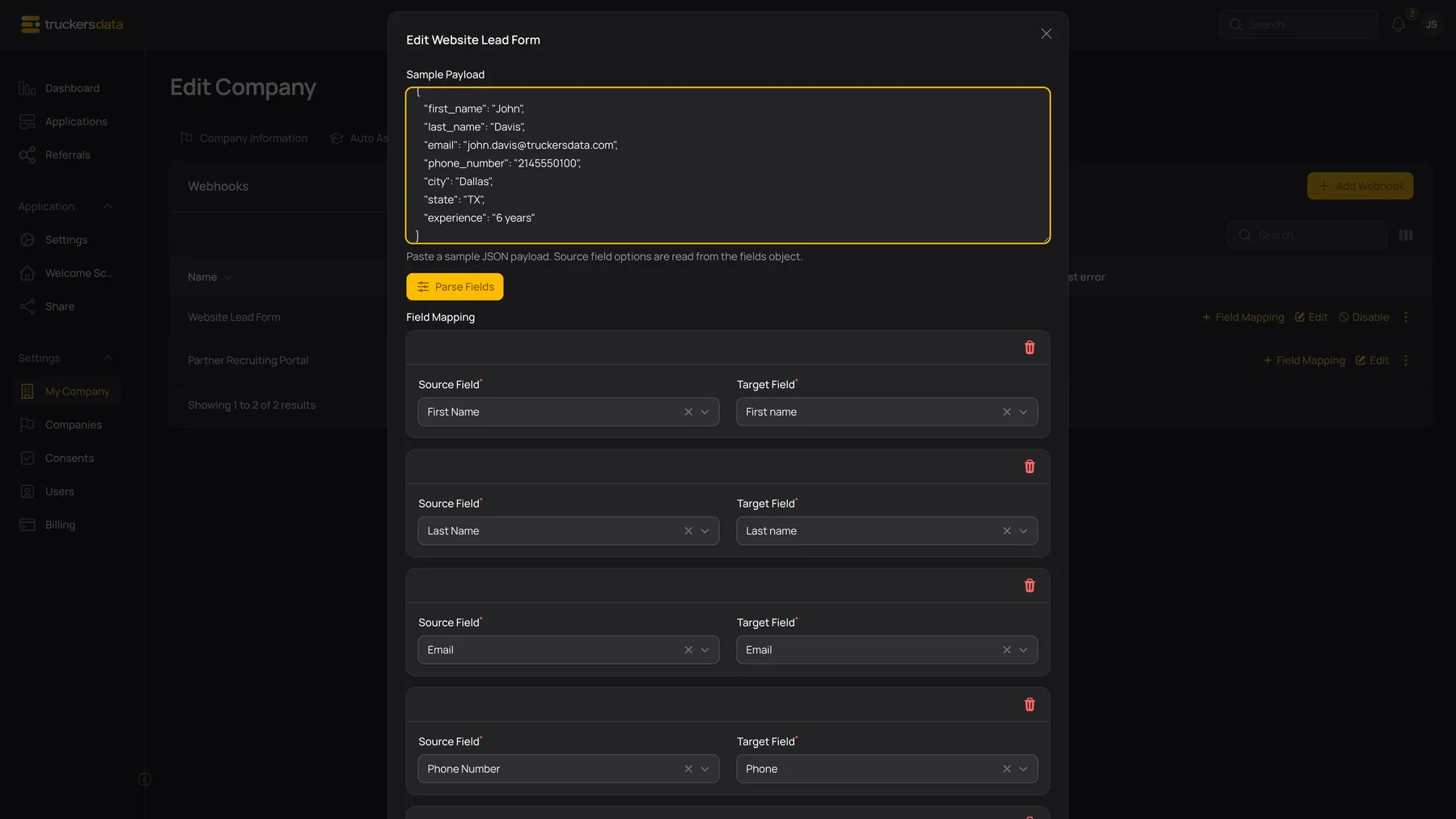
Build a mapping that can create an application
- Paste a valid sample object and use Parse Fields.
- For the first row, choose the sender’s actual email source and Applicant → Email as its target.
- Use Add mapping for each additional value. Map identity and contact fields before optional application details.
- Map custom answers under the Custom target group after creating their definitions in this company’s Custom Fields tab.
- Remove incomplete rows and check for conflicting targets. A target represents one destination value, not a list of independent answers.
- Save the mapping. The form checks that required target mappings, including Email, exist.
- Send one known lead from the external sender using the same JSON structure and authentication.
- Search Applications for that email and inspect the resulting values. Then test one deliberately invalid record so the sender’s error handling can be checked before normal use.
Understand the mapping controls
| Field or button | What it does |
|---|---|
| Sample Payload | Stores the example JSON used to discover source paths. Editing this example alone does not change the sender’s actual requests. |
| Parse Fields | Parses the example and makes source-path options available. It does not automatically choose target fields. |
| Source Field | A path in the incoming payload. Select the exact path, including nested object names where applicable. |
| Target Field | The applicant, application, custom, or source-context destination. |
| Add mapping | Adds another source-to-target pair. At least one mapping row is required. |
| Delete row | Removes that mapping row. It does not erase values already stored on old applications. |
| Save changes | Persists the sample and mapping for subsequent processing. Missing required destination mappings produce a validation message. |
Targets and suitable values
| Field or button | What it does |
|---|---|
| Applicant → Email | Required and must be a valid email. It identifies or reuses the applicant. Do not send a staff member’s company account as an applicant email. |
| Applicant → Full name, or First name / Last name | Use the incoming name structure you actually have. Full name is split; separate names can be mapped separately. |
| Applicant → Phone | The applicant’s contact phone, not a source identifier. |
| Application → Position | A position name that matches an available position in the receiving company. |
| Application → Address, City, State, Zip, Location | The corresponding details for this application. |
| Application → Referral details | Additional description of the referral source. |
| Custom → Text / Textarea / Single Select | A text value appropriate for that company field. |
| Custom → Number / Date / Yes-No / Multi Select | A numeric value, a parseable date, a recognized Yes/No value, or multiple answers, respectively. |
| Meta → Source ID | A source reference for tracing the incoming lead. |
What a successful lead import does
A processed lead creates a submitted application for the company that owns this connection. Its applicant is matched by email, and configured values are used to fill supported details. A matching previous application can supply prior information, so inspect the complete result rather than assuming that every displayed value came from this one request.
An imported lead is not proof that the driver completed the full application wizard, provided complete employment history, accepted every consent, or drew a signature. Your recruiting team must review those items. See employment verification and consent workflows for the next steps.
Changing a mapping affects subsequent processing. It does not revise every existing application. Required custom-field flags in the internal editor are not automatically required import rules; the import still requires its configured email target and validates supported mapped types.
Interpret processing outcomes
| Field or button | What it does |
|---|---|
| Received | The delivery was accepted for processing. It may still be waiting for its queued work. |
| Retrieved | A delivery was retrieved from a source such as Facebook for processing. |
| Processed | Processing completed. Check the application rather than assuming this means the full driver form is complete. |
| Skipped | The delivery was intentionally not processed, for example because a suitable active/selected form configuration was unavailable. |
| Duplicate | A matching active delivery had already been received or processed, so another copy was not processed again. |
| Failed | Processing encountered an error. Use Last Error and the sender’s response to identify invalid mapping, missing fields, or unsupported values. |
| Ignored lead | A previously handled matching lead/application was reused rather than creating a new independent application. |