 Help
Open the request and review the context
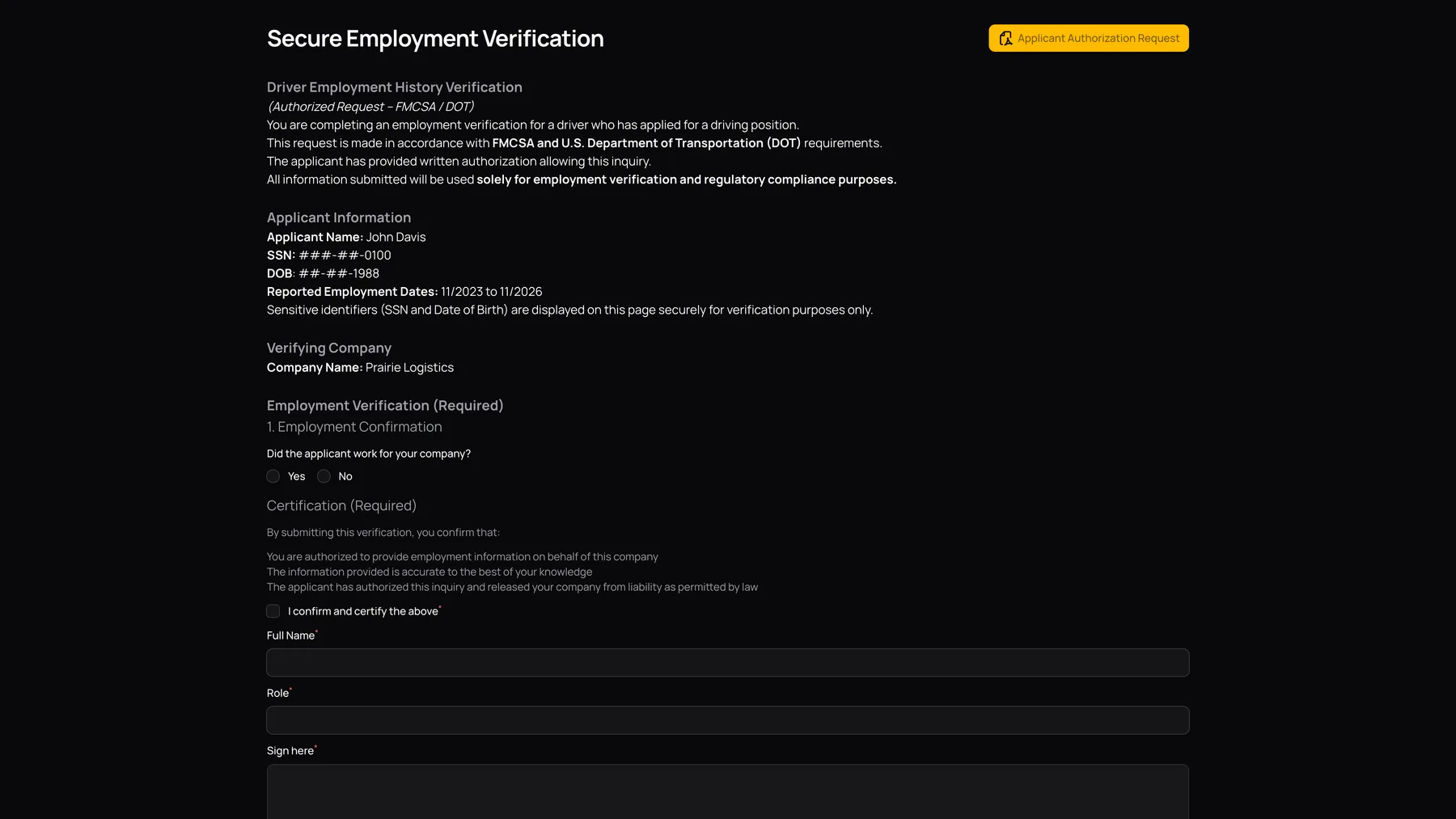
Open the verification link from the request email. The page shows Driver Employment History Verification, applicant name, masked Social Security number and birth date, reported employment dates, and the verifying company’s name.
Use Applicant Authorization Request to download the applicant’s employer-specific authorization. This downloads a document; it does not submit your verification. Confirm that the applicant and company context are the ones you expect before completing the form.
Confirm whether the applicant worked for you
Under 1. Employment Confirmation, answer Did the applicant work for your company? Choose Yes or No. Yes reveals the employment-detail sections. No leaves those employment-detail sections hidden; you still complete the certification, name, role, and signature.
A Yes response results in a Verified status after submission. A No response results in Not Verified. The resulting status is about this employer entry, not an automatic decision to hire or reject the applicant.
Complete the employment-detail fields
| Section / field | What to provide |
|---|---|
| Employment Dates → Are the employment dates listed above correct? | Compare the dates shown at the top of the page with your records. |
| From / To | If you select No for the dates, enter the corrected month and year for each date. |
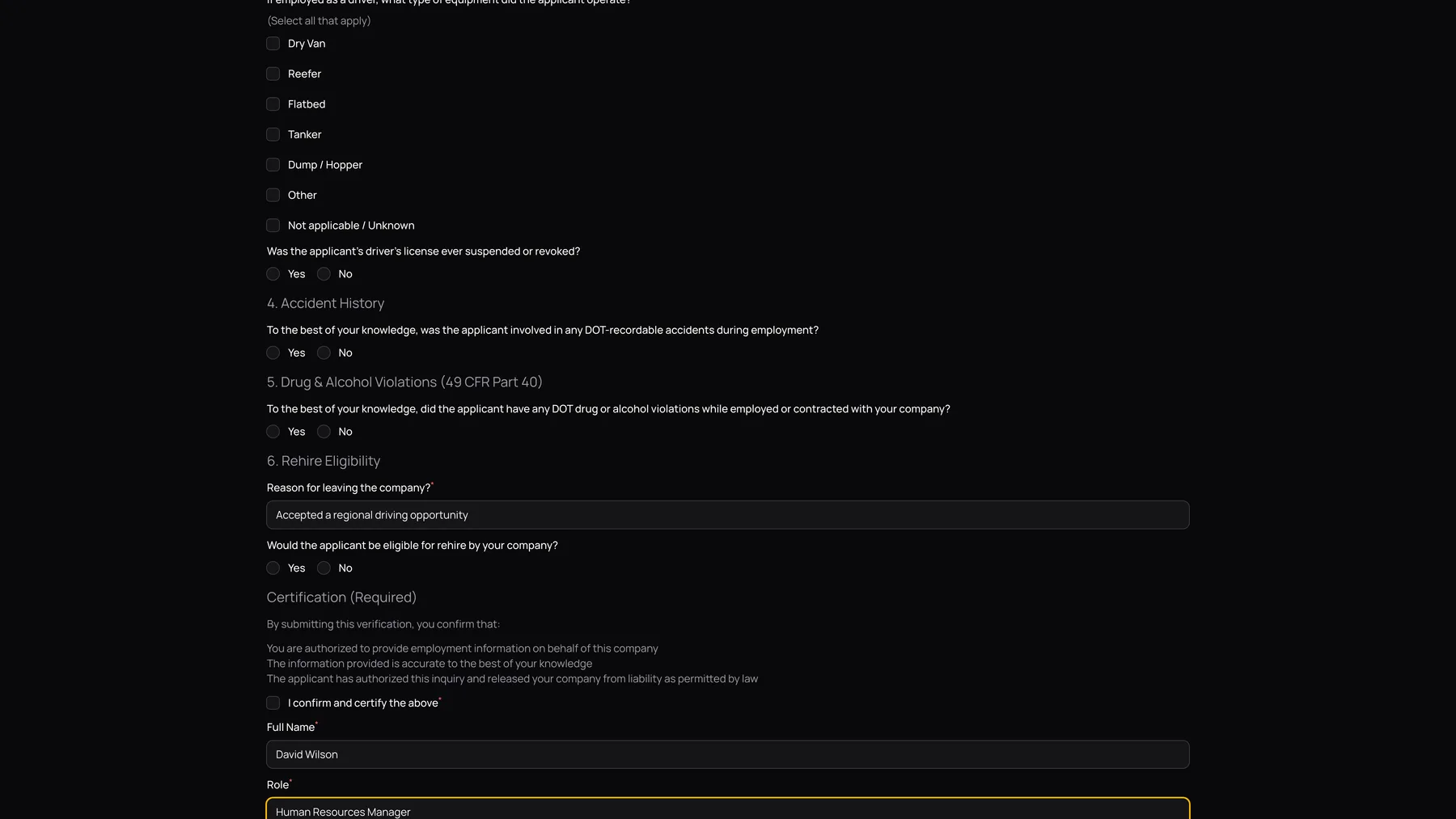
| Position / Equipment | Select every applicable equipment category: Dry Van, Reefer, Flatbed, Tanker, Dump / Hopper, Other, or Not applicable / Unknown. |
| Was the applicant’s driver’s license ever suspended or revoked? | Select the answer supported by your records. |
| Accident History | Answer whether the applicant was involved in DOT-recordable accidents during employment to the best of your knowledge. Yes reveals the incident list. |
| Drug & Alcohol Violations | Answer the displayed question about DOT drug or alcohol violations while employed or contracted with your company. |
| Reason for leaving the company? | Enter the reason from your records. |
| Rehire Eligibility | Answer whether the applicant would be eligible for rehire by your company. |
Answer the questions shown on your form. These instructions explain the application controls; they do not replace your organization’s records or its procedures for responding to an inquiry.
Add an incident when Accident History is Yes
Use [+] Add Incident for the first incident and [+] Add Another Incident for another. Complete the Date, Location, Number of Injuries, Number of Fatalities, Hazmat Spill, and Preventable fields for each entry. The Description field adds context.
Use the date picker for the incident date. Enter numeric injury and fatality counts, including zero when appropriate. Use the individual row’s available removal control only when that row was added in error; review every retained row before submitting.
Changing the parent accident answer controls whether the incident section is shown. Before submission, make sure the answer and any visible incident details agree.
Certify and submit
| Control | What to do |
|---|---|
| I confirm and certify the above | Read the displayed certification and check the box when you can make that certification. |
| Full Name | Enter the name of the person providing the response. |
| Role | Enter that person’s position or job title. |
| Sign here | Draw the responding person’s signature. Use the pad’s available reset control if you need to redraw it. |
| Submit | Saves the employer response and changes the employer status. This is the final response action, not a preview. |
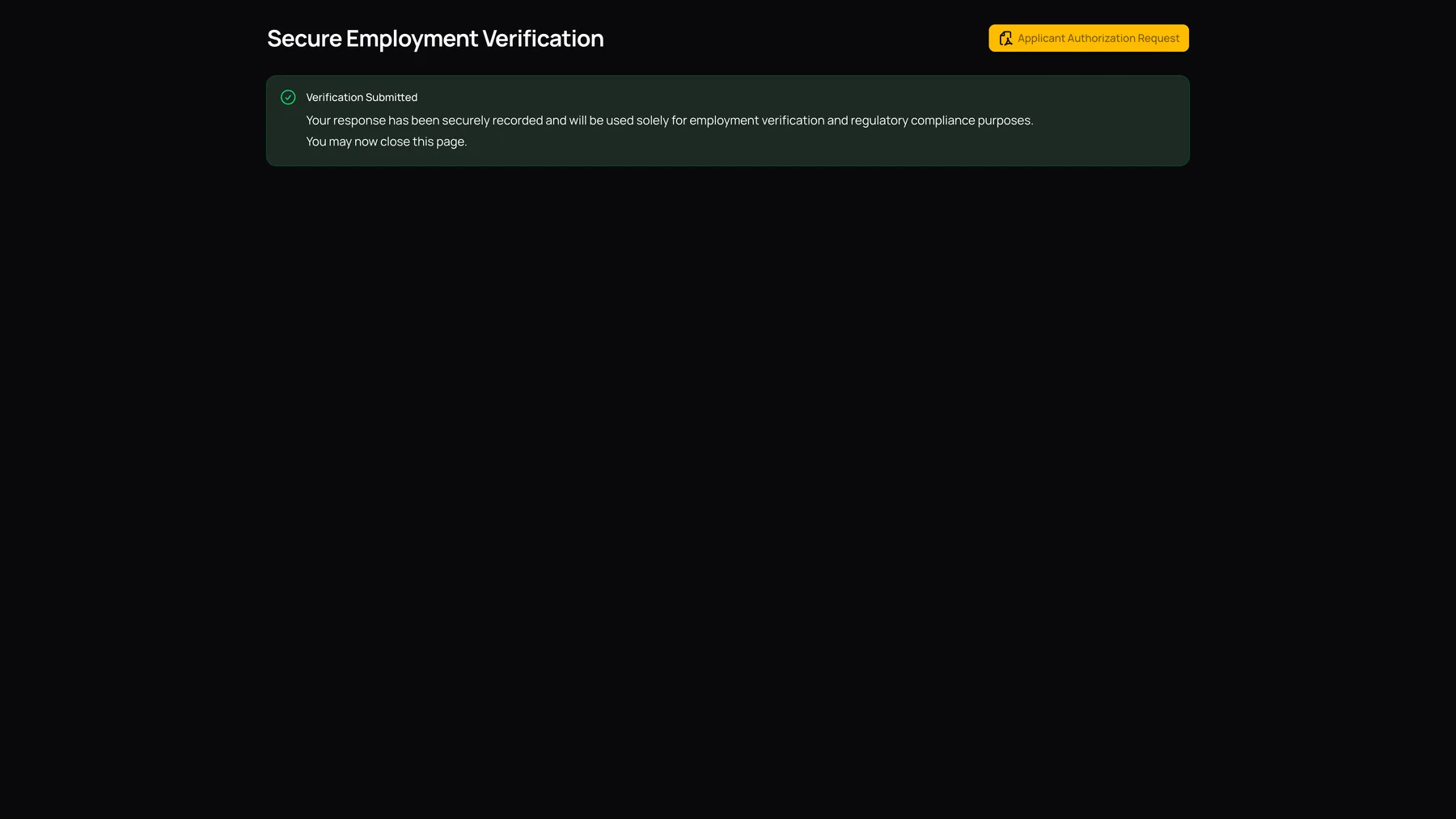
Review all answers and complete the fields marked as required before choosing Submit. After submission, the screen changes to Verification Submitted and says the page can be closed.
What happens after Submit
The response is stored with the employer entry. The app creates a response PDF in the application’s Files tab, sends a completion email to the requesting company’s company email address, sends a thank-you email to the employer address, and creates an in-app completion notification for company administrators.
When a link is opened for an entry that is already completed or has timed out, the page shows the submitted state rather than an editable form. If a submitted answer needs correction, contact the requesting company using its contact details; this page does not provide a public Edit response control.
For staff follow-up, read Understand verification statuses and reminders.