 Help
Prepare the right company email
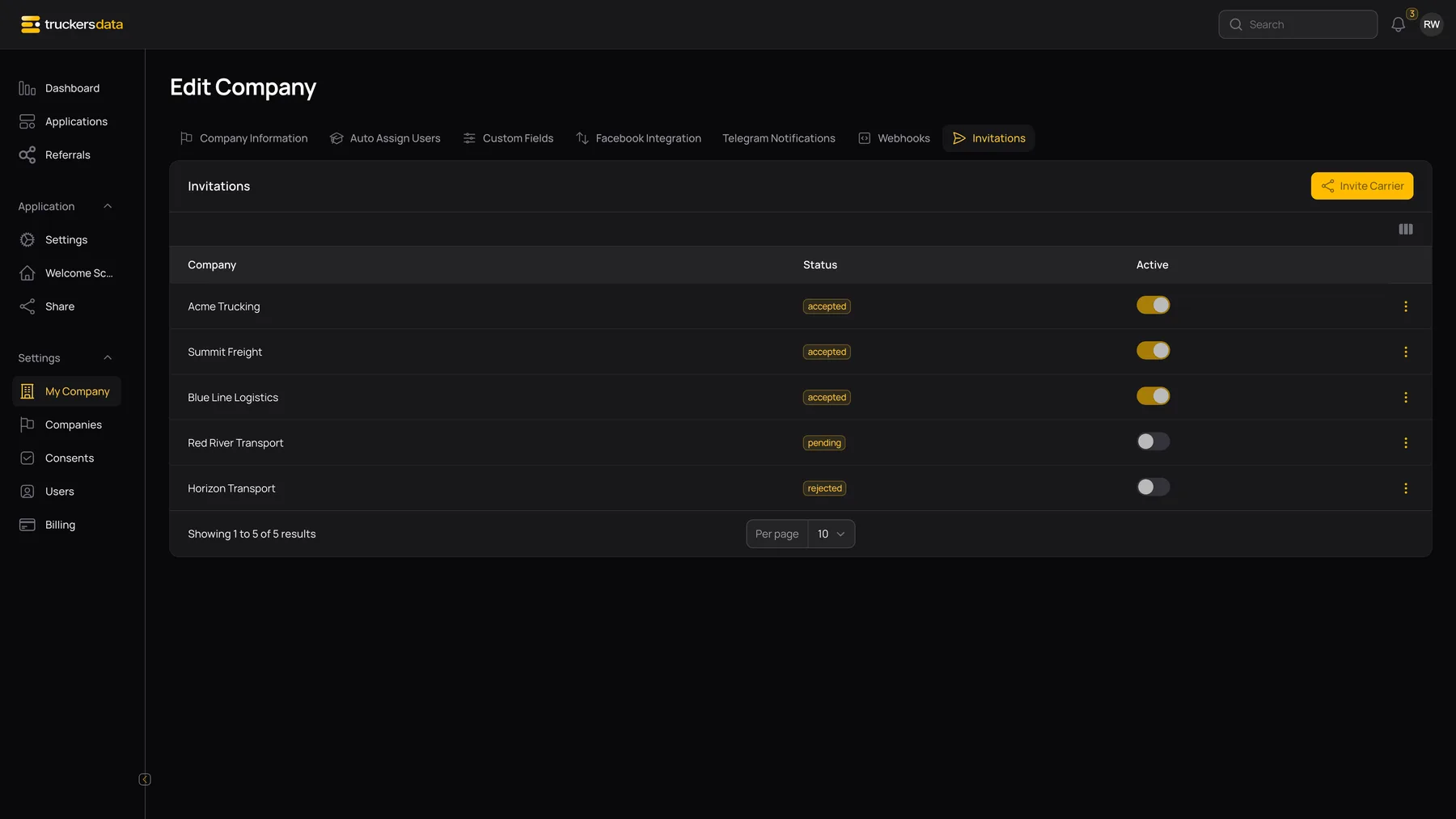
Open Settings → My Company → Invitations as a company administrator. A recruiting company sees Invite Carrier; a carrier sees Invite Recruiter.
The dialog’s Company admin email is used to find the other company’s registered company email. It is not a general invitation to create an arbitrary new company. Ask the other company which email is listed on its company profile before sending.
Send an invitation
- Open Invitations in your own company workspace.
- Select Invite Carrier or Invite Recruiter.
- Enter the other company’s registered company email.
- Send the invitation. If the company is found with the expected company type, its administrators receive a notification.
- The receiving company’s administrator opens their own Invitations tab and reviews the pending request.
If the screen reports Company not found, check the company email and its carrier/recruiting type. Repeatedly sending the same incorrect address will not create the missing company.
Invitation and relationship actions
| Field or button | What it does |
|---|---|
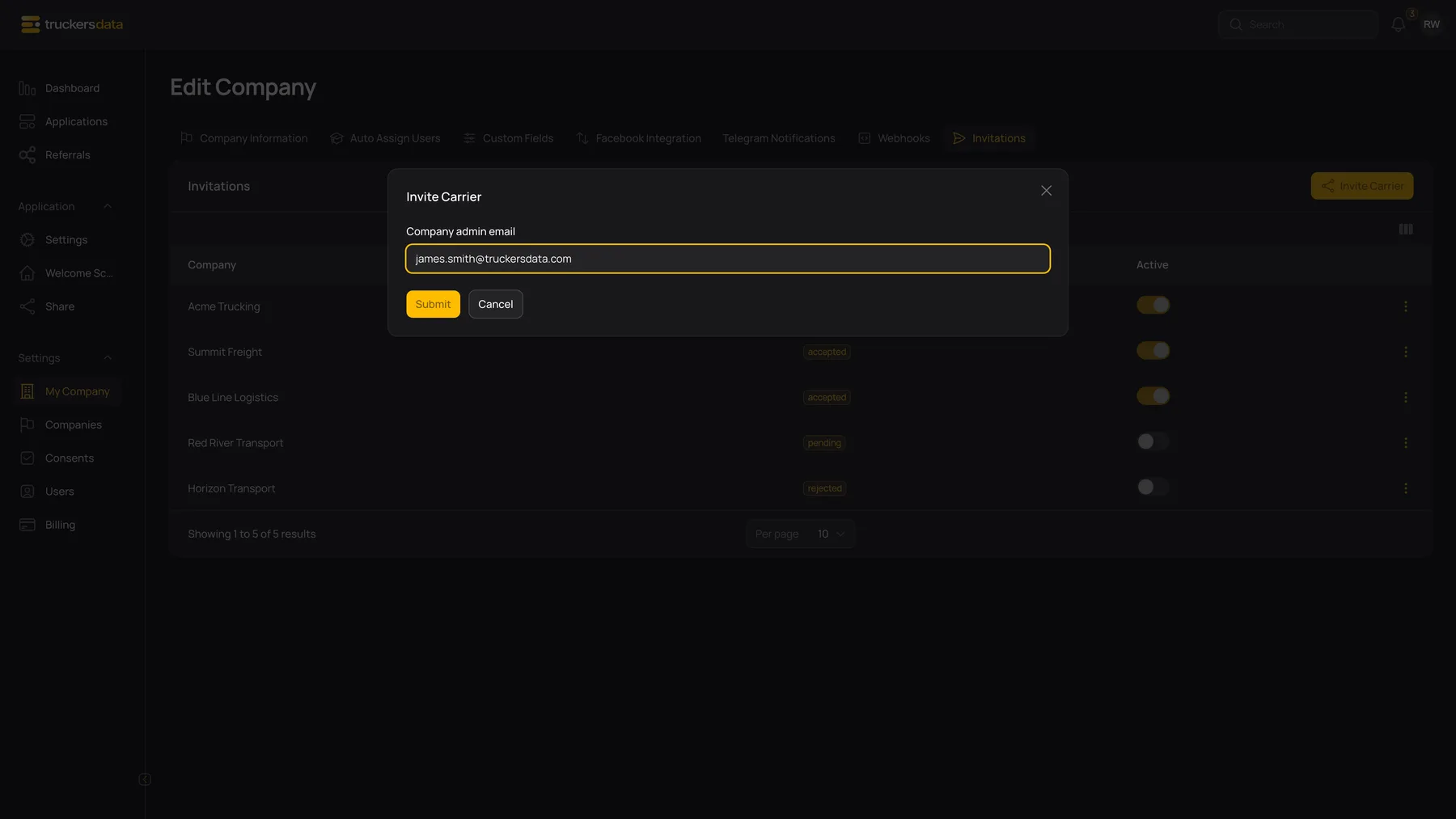
| Accept | Available to the receiving company for a pending invitation. Marks the invitation accepted and connects the carrier to the recruiting company; it notifies the sender’s administrators. |
| Reject | Available to the receiving company for a pending invitation. Marks it rejected and notifies the sender’s administrators. |
| Active indicator | Shows whether the carrier currently points to this recruiting company as its active recruiter. This indicator is read-only. |
| Withdraw | Available for an active relationship in the action menu. Removes the carrier’s current recruiting-company link, marks the invitation rejected, and notifies the recruiting company’s administrators. |
| Delete | Available for an inactive invitation record. It removes the invitation record; it is not the active relationship’s disconnect control. |
What accepting and withdrawing change
An accepted active relationship gives the recruiting administrator the linked-carrier workspace supported by their role. It does not make every person in the recruiting company an administrator, share everyone’s sign-in, or automatically grant sensitive-data visibility.
A carrier has one current recruiting-company link in this workflow. Accepting a different recruiting company changes that current link, so review the existing active relationship before accepting a new one. Read the Active indicator as the current relationship state; an older invitation’s status alone is not sufficient proof that a relationship is active now.
Withdrawing removes the active company link. It does not delete the carrier’s applications or erase their activity history. After changing the relationship, both sides should check the relevant company/application workspace and their team permissions.
Common collaboration questions
| Field or button | What it does |
|---|---|
| Accept / Reject is missing | Only the receiving company sees those actions for a pending invitation. Check that you opened the recipient company’s workspace. |
| Accepted but not active | Check whether the carrier’s current recruiting relationship has changed since this invitation was accepted. |
| Cannot delete an active invitation | Use Withdraw to disconnect the active relationship first; Delete is for inactive invitation records. |
| Recruiting staff cannot see a carrier | Check that the relationship is active and that the person has the recruiting administrator role needed for the cross-carrier workspace. |
| Sensitive data remains hidden after acceptance | Collaboration and sensitive-data sharing are separate controls. Review both companies’ applicable settings and the individual user permission. |