 Help
Build a continuous timeline
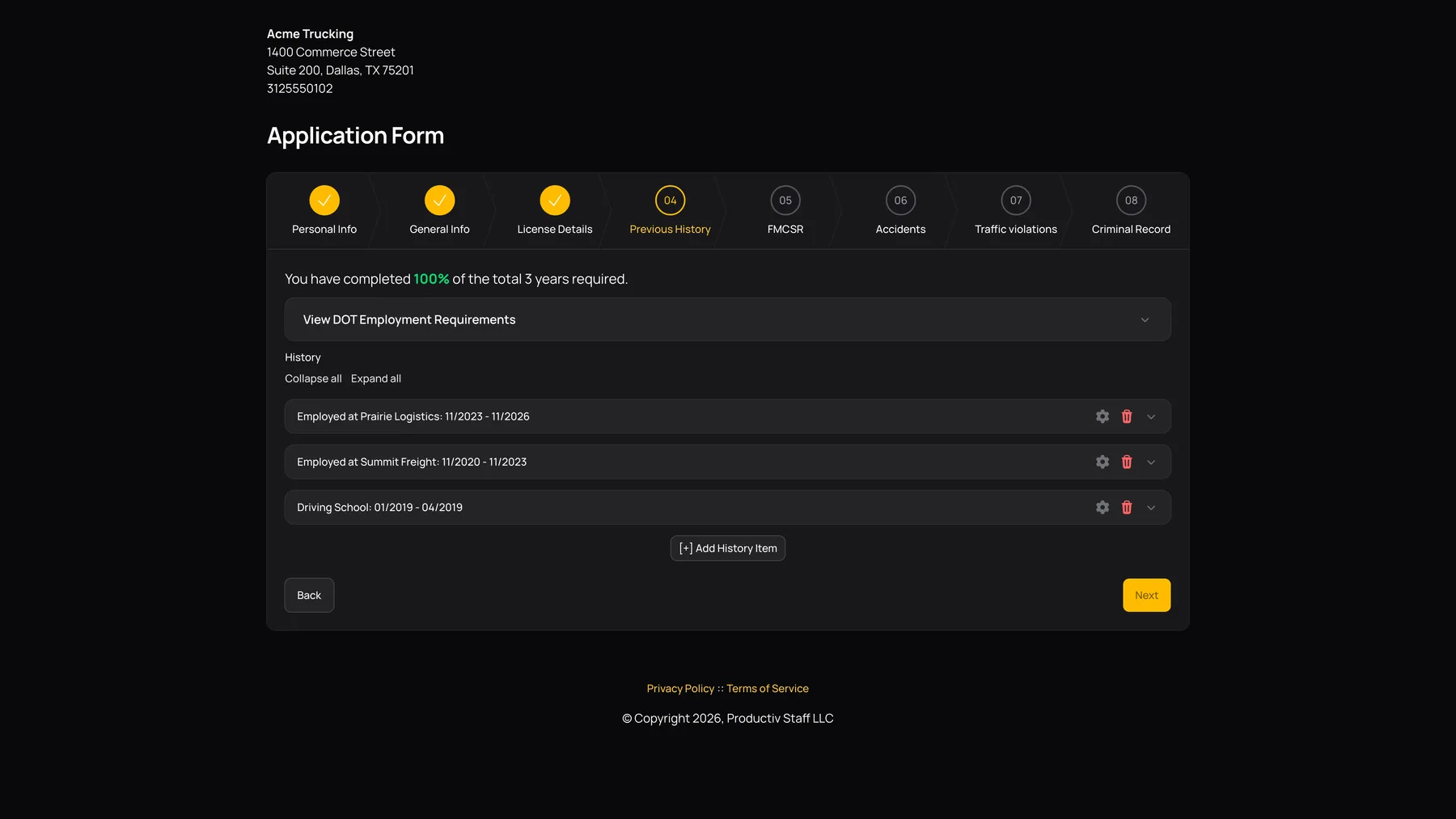
In Previous History, use Add History Item and choose the period type. Include work, time out of work, study, driving school or military service where applicable. The coverage check works by month and includes the current month plus the preceding three-year period.
- Enter complete start and end months/years for every period.
- Review the coverage percentage above the list.
- Select Next. If the app lists missing months, add or correct periods that genuinely cover those months.
- Recheck until the timeline can continue.
Employment item fields
| Control or field | What it does |
|---|---|
| Employer / company name | Search existing employer information and select the intended organization. Review any prefilled details; similar names do not guarantee the same employer. |
| Address / Address Line 2 / City / Country / State/Province / Zip | Enter the employer’s location. Address, City and Country are required; US State/Province is displayed when appropriate. |
| Telephone / Email | Enter an employer contact your recruiting team can use. A correct email matters for verification requests. |
| Start Date / End Date | Enter the required start and end month/year. The current-employer answer does not remove the End Date fields. For ongoing work, make sure the entered period covers the current month. |
| Position Held | The job performed. |
| Terminated/discharged/laid off? | Required. A Yes answer reveals a required reason. |
| Current employer? | Required. Keep it accurate so the timeline reflects ongoing employment. |
| May we contact this employer? | Required Yes/No permission answer. |
| FMCSA / DOT safety-sensitive questions | Required answers about the work performed, as described in the form. |
| Operated a commercial motor vehicle? | Required. A Yes answer reveals driving details such as Areas Driven, Most common truck, Most common trailer, Trailer length and Miles driven weekly. |
| Pay Range (cents/mile) | Optional pay-range detail. |
The staff Employment History tab uses these employer periods for verification. Completing an employment item does not itself send a verification email. See requesting employment verification.
Other history-item fields
| Control or field | What it does |
|---|---|
| Unemployment | Start Date, End Date and Comment. Use the comment to explain the period. |
| School | School Name, City, Country, displayed US State/Province, Telephone, Start Date, End Date, subject studied, and optional Graduation Date. City, Country and subject are required. |
| Driving School | School Name and contact/location details; Start/End dates; required answers for graduation, safety-regulation exposure and DOT safety-sensitive functions; optional GPA, Hours of Instruction and trained skills. |
| Driving-school skills | Select the applicable displayed training options: Border Crossing, Log Books, Federal Motor Carrier Regulations and Hazardous Materials. |
| Military | Country, Branch of Service, Start Date, End Date, Rank at discharge and whether you can obtain your DD214. Complete the required fields for the entry. |
Use the item’s Edit control to correct an existing period instead of creating a second copy. Review the item preview before continuing. If you remove a period, run the coverage check again because its months may no longer be covered.
Earlier commercial-driving work
The following FMCSR screen asks about additional commercial motor vehicle employment in the earlier period it displays. Return to Previous History and add those employers where applicable. The visible three-year progress indicator is not a statement that every earlier-work question has already been answered.
If an employer’s prefilled details are wrong, correct the application entry and tell the recruiting team. Autofill is a convenience for data entry; it is not a completed employment verification.