 Help
Edit the welcome content
- Open Application → Welcome Screen.
- Update the fields below.
- Select Save changes and wait for the success message.
- Open the public Full link in a new/private window and check the initial welcome and the following Offer/Requirements screen.
| Control or field | What it does |
|---|---|
| Form Title | The heading used by the initial public welcome section. It does not rename the company or the saved application records. |
| Offer | Rich text shown in the Offer section beside the identity step, after the initial Next action. Use it for the opportunity, pay, home time and benefits you actually offer. |
| Requirements | Rich text shown in the public Requirements section beside the identity fields. Use it to explain your company’s qualifications and expectations. |
| Rich-text tools | Format the displayed content. Their output is welcome-page content, not an added question or a validation rule. |

Requirements text versus required fields
For example, changing “12 months of experience” to “24 months of experience” updates what the driver reads. It does not make the experience selector enforce a 24-month minimum. Your team must review the application against the stated qualifications.
The full form’s built-in required fields and conditional questions are defined by the application flow. Company custom fields are separate internal recruiting fields; adding one does not add a new public-form question. Use custom fields for internal tracking and consent configuration for required acknowledgements.

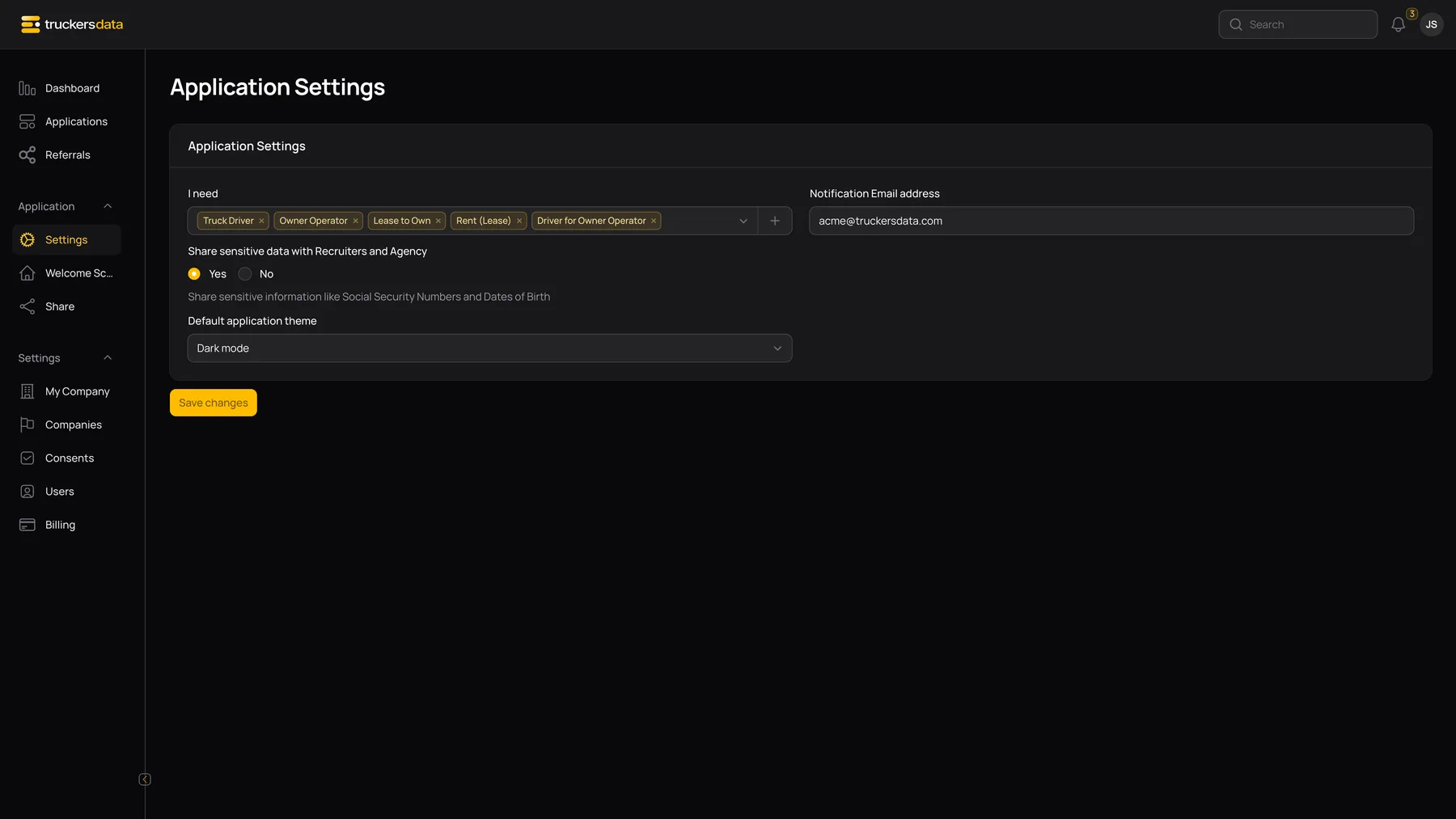
Edit Application Settings
| Control or field | What it does |
|---|---|
| I need | Choose one or more open positions. These are the choices shown by “What position are you applying for?” in the Full form. The create-option control adds a position when available. |
| Notification Email address | The company notification destination used for application communications. Enter a valid address monitored by the recruiting team. |
| Share sensitive data with Recruiters and Agency | Controls company-level sharing of sensitive information such as SSN and date of birth with the external recruiting/agency context. This is not a checkbox the applicant accepts. |
| Default application theme | Light mode, Dark mode or System default for the company’s public application presentation. |
| Save changes | Persists the company settings. Reopen the public form to check the result. |
What changes for new and existing applications
| Control or field | What it does |
|---|---|
| Save new Offer, Requirements or Form Title | The public welcome reads the current company content on its next load. It does not rewrite previously generated application or consent PDFs. |
| Add or remove an open position | Changes the position choices available on newly loaded Full forms. It does not rewrite the position already stored on an existing application. |
| Change the default application theme | Changes the company public page presentation when reloaded. Staff display preferences remain a separate user-menu control. Printable documents and embedded PDFs retain their paper layout. |
| Change the notification address | Affects subsequent communications that use that company destination. It does not resend older emails. |
| Change sensitive-data sharing | Changes access behavior for sensitive information; it does not collect a new applicant signature or modify the driver’s original answers. |
Do not assume a driver’s already-open browser tab updates instantly after an admin saves. Test with a reload/new window. When changing positions during active recruiting, verify any in-progress draft and manually review its owner and selected position.
If an in-progress driver had selected a position that is no longer offered, they may need to choose from the current options before continuing. Check a draft after changing the open-position list.
Configure the intended company
For your own company, use the Application menu. A recruiting admin configuring a linked carrier can open Companies → that carrier → Welcome Screen / Application Settings. Changes there belong to that carrier; the recruiting company’s welcome content is not automatically copied to every connected carrier.