 Help
Open the application’s Files tab
Open Applications, select the applicant, and choose Files. The list identifies each item by Filename and Type. It can contain the application PDF, consent files, employer-specific authorizations, employer response PDFs, driver-uploaded documents, and files uploaded by staff.
The signed application workflow creates stored application and consent artifacts. An Employment Verification consent produces an authorization for each employment-history entry. An employer’s later response creates another PDF; it is separate from the applicant’s authorization.
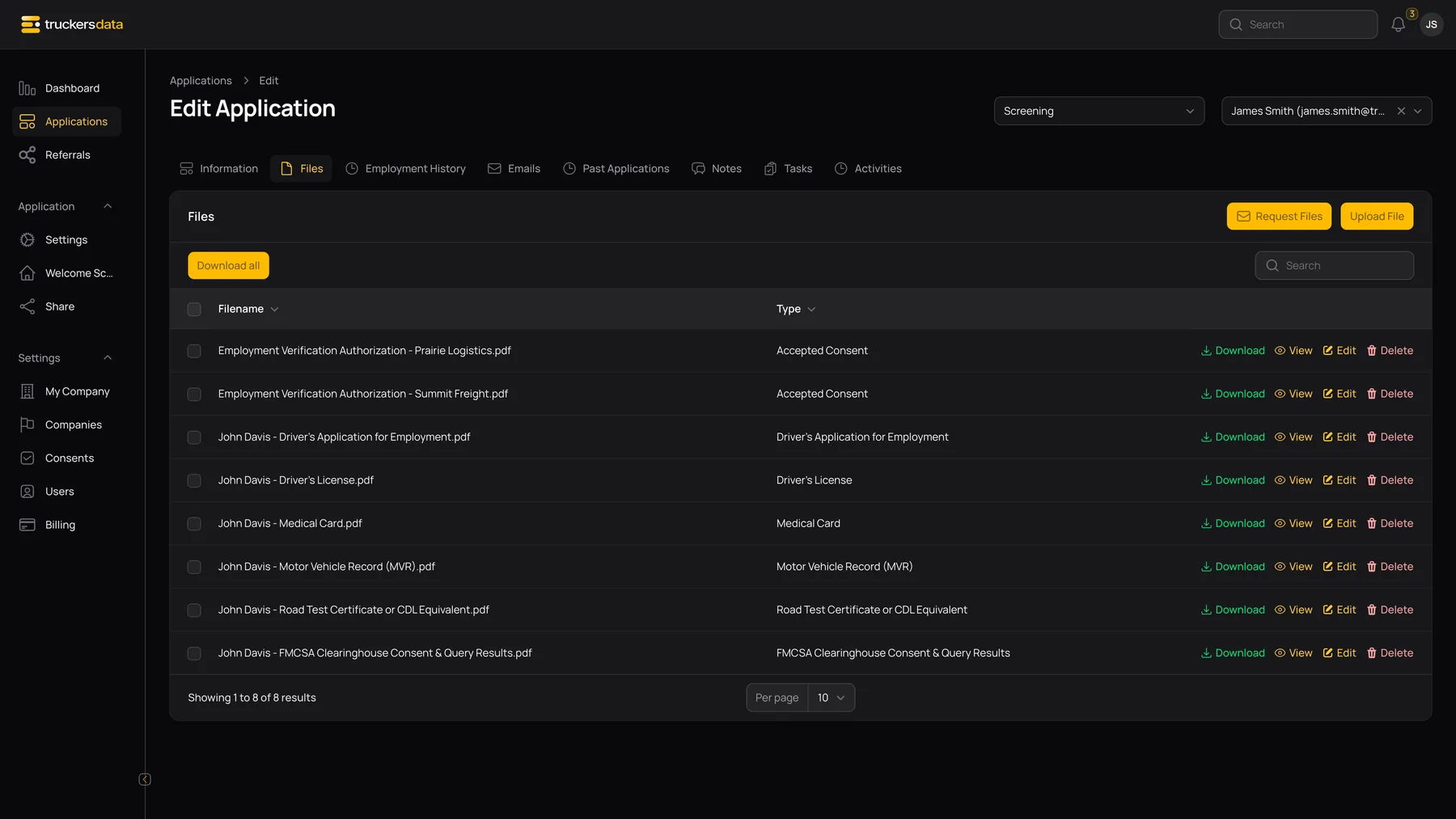
Use the file controls
| Control | What it does |
|---|---|
| Search | Narrows the list using the available searchable file fields. |
| Filename / Type column headings | Sorts the list when that column’s sort control is used. |
| View | Opens File preview. PDFs use the browser’s PDF reader; images use an image preview. |
| Download | Downloads the file version available to your account. |
| Row checkboxes / Download selected | Builds a ZIP of the selected accessible files. |
| Download all | Builds a ZIP from the accessible files in this application’s file scope. It is not a cross-company export. |
| Upload File | Opens Type, Attachment, and Filename fields for a staff upload. Select the correct document type and save the upload. |
| Edit | Changes the file record’s editable metadata or attachment when your role permits it. |
| Delete | Removes the file record when permitted. Treat generated authorizations carefully because verification eligibility depends on them. |
| Request Files | Opens the confirmation for emailing a one-time driver-license and medical-card upload link. Confirming sends the request; opening the dialog does not. |
Read a preview or download the artifact
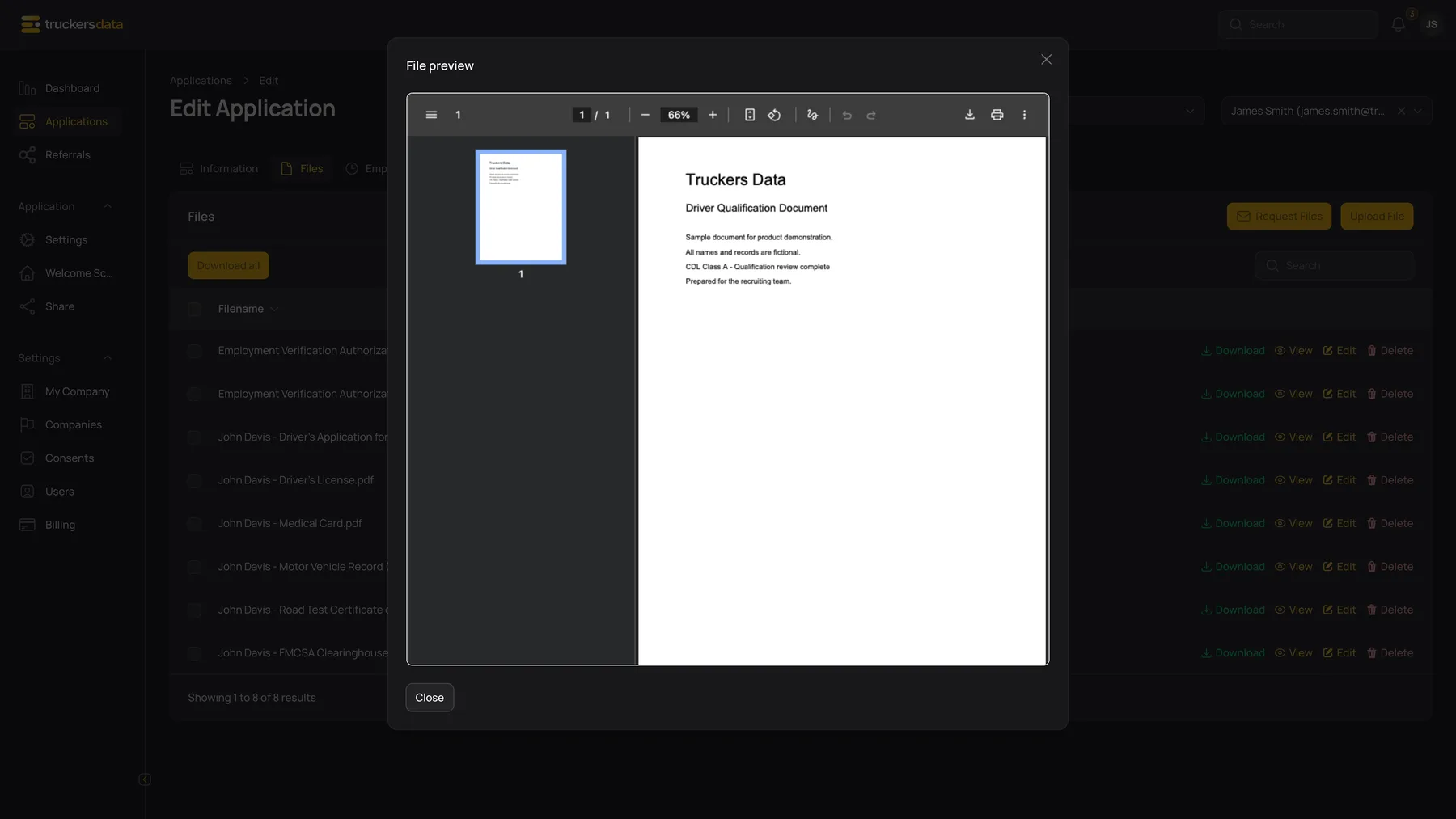
Choose View next to the item you need. The Close button returns to the Files list. The embedded reader may provide its own zoom, print, or download controls; their appearance depends on the browser and device.
For a durable copy, use the application’s Download action. A staff file preview or download is recorded in the application activity history. A printable document keeps a white page inside the app’s dark interface.
Why some staff see masked information
File access uses the account’s User can see sensitive data? setting. For a recruiting-company viewer, the carrier’s sensitive-data sharing setting also matters. An authorized full-data view uses the original file; a restricted view uses the available masked version.
The generated application, edited consent, and verification response workflows produce original and masked variants. Masking in those generated documents hides portions of fields such as the applicant’s Social Security number and birth date.
If a file has no version suitable for the account, access can be refused rather than silently providing the unrestricted original. Ask the company administrator to review the account and sharing settings; do not treat an access error as proof the underlying document was deleted.
Understand company and role scope
Company staff see files allowed by the application and consent scope. Recruiting administrators can work with linked-carrier applications, while ordinary recruiting users have a narrower own-company application view. A connection does not make all sensitive documents public or give every regular user the administrator’s access.
Actions such as Edit and Delete also depend on the staff role. If an expected control is absent, check that you opened the correct company’s application and that your user has the required role and application visibility.
Keep historical evidence separate from template edits
A saved PDF represents the artifact generated or copied for that application. Editing the current consent template does not rewrite that file. Renaming the template also does not rename every historical file.
Use Change or retire a consent before replacing a used document. For verification, keep both the applicant’s employer authorization and the employer’s response or attempt log so the team can follow the sequence from permission to outcome.