 Help
Choose Custom PDF
Open Settings → Consents → Create → Custom consent, then set Type to Custom PDF. The Content editor is hidden and an attachment upload replaces it. Use this when you already have a finished PDF that should be read as-is.
Give the document a clear Title, upload the PDF, and enter the Accepted line that describes the applicant’s acknowledgment. Set Required according to whether Agree must be checked to continue, and normally leave Global off for a company document.
Prepare the attachment
- Open the PDF yourself before uploading it.
- Check every page, page order, and legibility at normal zoom.
- Use a PDF that is ready to be read without the applicant editing its fields.
- Include the attachment before saving; an empty Custom PDF record cannot provide the document the public step needs.
- Keep sensitive information out of a generic reusable attachment.
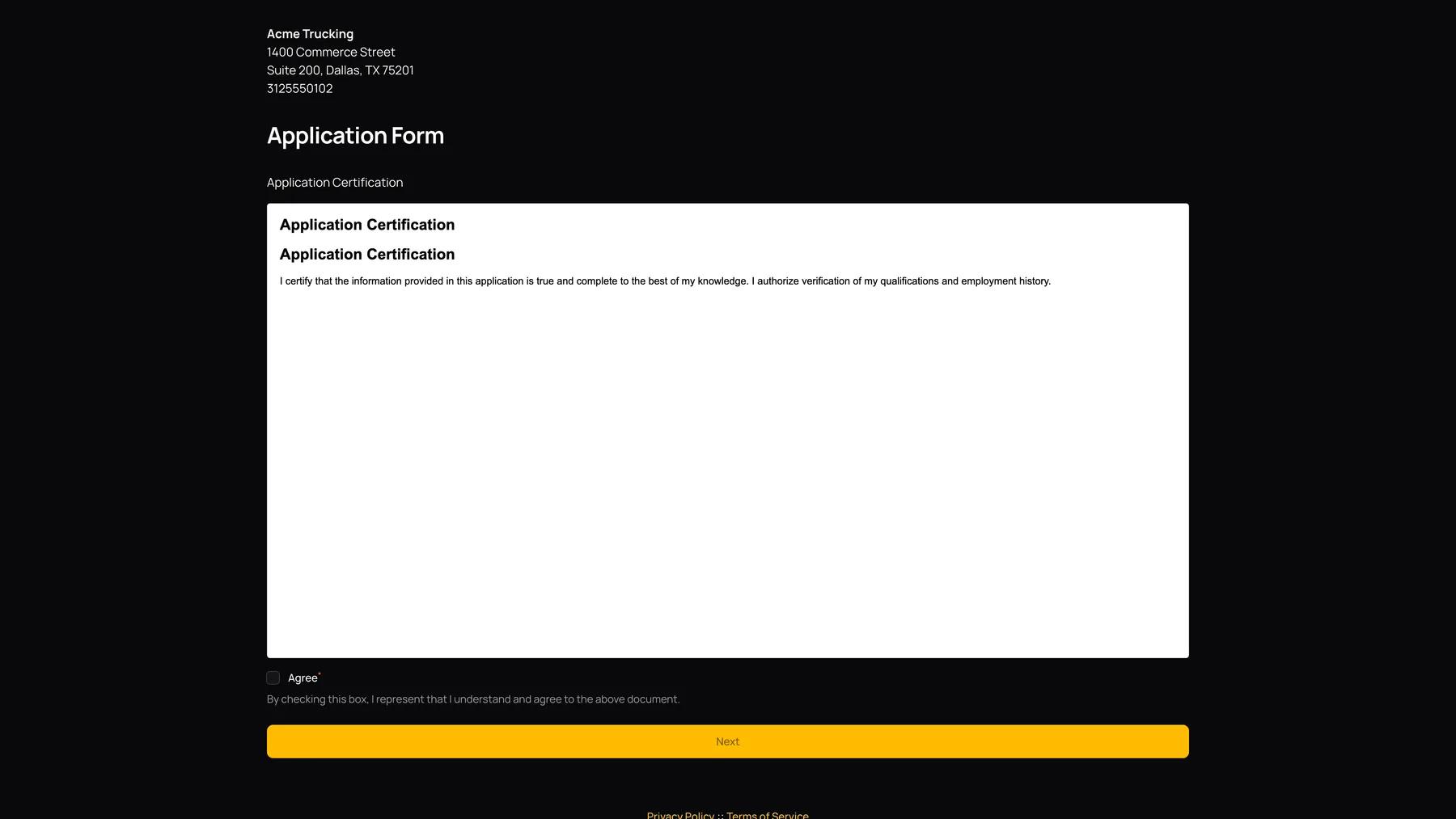
Save the record, then turn Active on in the Consents library. The public consent step embeds the uploaded PDF above the Agree choice.
What the applicant does
- Read or scroll through the embedded PDF in the consent stage.
- Read the Accepted line below the Agree checkbox.
- Check Agree when required or when choosing to accept the optional document.
- Select Next to record that choice and continue.
- Complete the final signature screen for the application.
The browser may show native PDF zoom, download, or print tools. Their placement varies between desktop and phone browsers. Those PDF-reader tools do not submit the consent; the application’s Agree and Next controls do.
What happens to the PDF after submission
The application records the consent choice separately. For a Custom PDF consent, the saved consent file is a copy of the uploaded PDF. The current workflow does not merge applicant fields into that uploaded file, fill its form fields, or stamp the final signature onto its pages.
If the PDF needs personalized names, employer details, signing time, or an in-document signature block, use a Default or Employment Verification consent built with the editor instead. Read Use the consent editor.
Replace a PDF safely
For a new document version, create a new consent rather than overwriting an old attachment that has already been used. Previously generated consent files remain stored copies, while a new public preview uses the record’s current attachment. Applicants who already processed that same consent are not automatically asked again.
The uploaded PDF is copied without content-aware redaction. Restricted-data handling does not remove personal information that you have placed inside the uploaded PDF itself. Use a clean reusable source and test access with the intended staff role.
See Change or retire a consent for the complete versioning checklist.