 Help
Choose a webhook when another system sends the lead
An inbound webhook receives a lead from another service. The sender makes a request to an endpoint generated for your company, authenticates that request, and supplies JSON data. You then map that data into applicant, application, and custom-field destinations.
Open Settings → My Company → Webhooks. A recruiting administrator working on a linked carrier should open the carrier’s Webhooks tab instead. The company that owns the webhook is the company that receives the application.

Create the connection
- Select Add Webhook.
- Enter a descriptive Name, such as the name of the form or partner sending leads.
- Leave Direction at Inbound and choose the appropriate Status.
- Copy the generated Endpoint URL and Auth Secret into the sending service’s configuration. Keep the values in a suitable credential store.
- Create the webhook. The success message prompts you to add field mappings.
- Open Field Mapping, paste a real sample JSON object, and map its fields. Follow the webhook mapping guide.
- Send one controlled test lead from the external service and verify the returned response and the application it creates.
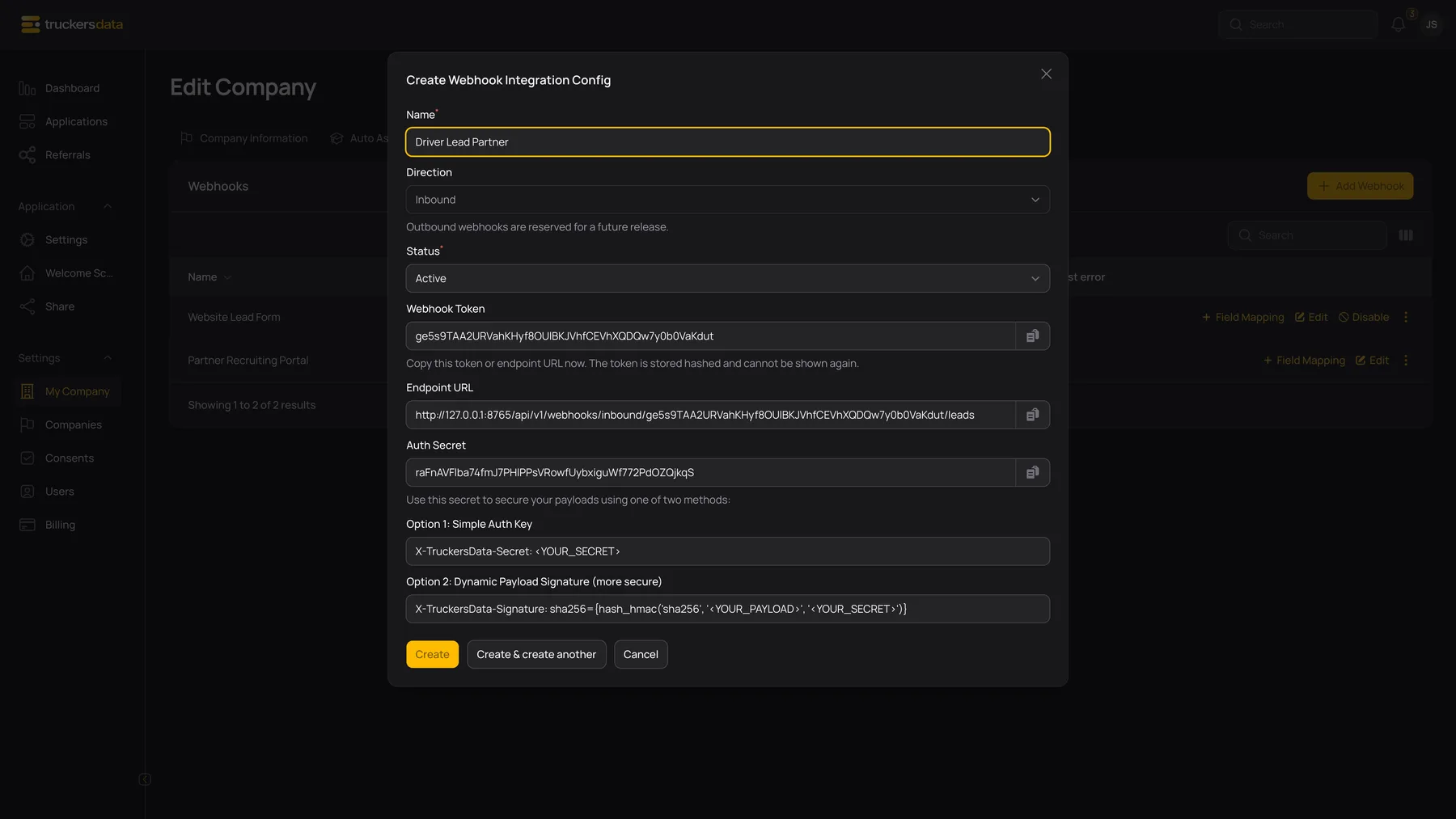
Creation and editing fields
| Field or button | What it does |
|---|---|
| Name | A recognizable label for this source. It helps your team distinguish several partner forms. |
| Direction | Inbound; fixed in this release. |
| Status: Active / Inactive | Active accepts an enabled connection’s requests. Inactive stops it being accepted as an active inbound source. The table displays Connected / Disconnected status names. |
| Webhook Token | The generated secret URL token. Copy it when shown; existing tokens cannot be revealed later. |
| Endpoint URL | The URL the sender must call. Copy the complete URL generated by your own account. |
| Auth Secret | The secret the sender uses to authenticate its payload. This is separate from the URL token. |
| Option 1: Simple Auth Key | Shows the header name for direct secret authentication. |
| Option 2: Dynamic Payload Signature | Shows the signature-header method, which signs the raw request body with the secret. |
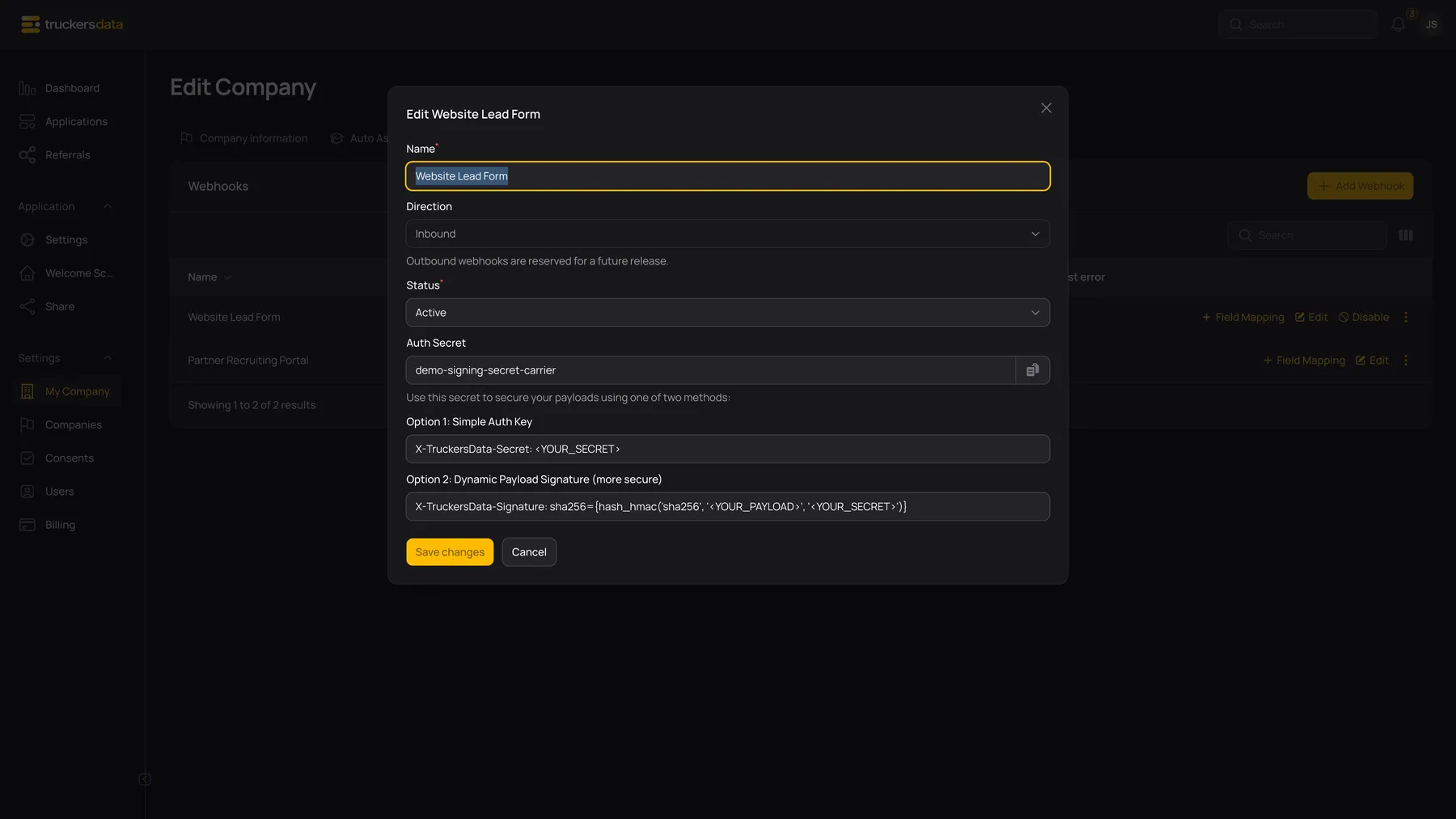
What the sending system must configure
Ask the person configuring the sending system to use an HTTP POST to the copied endpoint, with the actual JSON data in the request body. Set Content-Type: application/json. Authentication can use either X-TruckersData-Secret containing the generated secret, or X-TruckersData-Signature containing sha256= followed by the HMAC-SHA256 of the exact raw request body using that secret.
The signature must match the bytes that are sent. Reformatting JSON after calculating the signature changes those bytes. The sender should calculate the signature only after it has finalized the body.
The endpoint has a 64 KiB body limit and a request rate limit of 60 per minute. A successful acceptance response includes a status and a delivery reference. Keep that response for troubleshooting; acceptance and later application processing are separate steps.
Connection buttons and maintenance
| Field or button | What it does |
|---|---|
| Field Mapping | Edits the sample payload and source-to-target mapping for future processing. |
| Edit | Changes the connection’s label, Active/Inactive status, and editable configuration. |
| Disable | Asks for confirmation, then marks the inbound connection disconnected. It does not delete applications already created. |
| Enable | Marks a disconnected inbound connection connected again. Confirm that the sender still uses its current URL and secret. |
| Regenerate Token → Save new URL | Replaces the URL token. The old endpoint URL stops identifying the active connection; update every sender using it. |
| Regenerate Secret → Save new Secret | Replaces the authentication secret. Update the sender’s secret or signature configuration at the same time. |
| Last Used | The connection’s most recently recorded delivery activity. |
| Last Error | The latest recorded processing error, if present. Read it with the sender’s response or delivery reference. |
If the sender gets an error
| Field or button | What it does |
|---|---|
| 403 / unauthorized | Check Active status, the copied endpoint, the secret, and the signature calculation. A regenerated token or secret invalidates the old sender configuration. |
| 413 / payload too large | Reduce the request body to the mapped lead fields and keep it within the body limit. |
| 422 / invalid data | Read the returned validation details. Check required email mapping and the actual values supplied for each mapped target. |
| 429 / too many requests | Slow down the sender and retry with an appropriate delay rather than repeatedly posting immediately. |
| 503 / missing form configuration | Finish Field Mapping and save it so the inbound form configuration exists. |
| Accepted response but no application | Check Last Error, mapping configuration, and whether the form is active/selected. A queued delivery may not yet have finished processing. |