 Help
What a consent does
A consent is a document that an applicant sees after reviewing the full application and before signing. The administrator prepares the wording or uploads a PDF; the applicant reads it, makes the requested choice, and continues to the final signature. The resulting application keeps a record of the consent step.
Start in Settings → Consents. A company administrator manages their company’s documents. A regular user works with the resulting application and files, but does not have the administrator’s consent-library controls. Recruiting administrators may also reach a connected carrier’s documents from that carrier’s company page.
Choose a document type
| Type | Use it for | What the applicant sees |
|---|---|---|
| Default | A document written in the editor, such as an application certification or disclosure. | One formatted document followed by Agree and the acceptance wording. |
| Employment Verification | An authorization connected to the employers entered in Previous History. | A separate rendered authorization for each employment-history entry, followed by the consent’s Agree control. |
| Custom PDF | An existing PDF that you want applicants to read and acknowledge. | The uploaded PDF in the consent step, followed by Agree and the acceptance wording. |
Default is a document type. It does not mean the document is automatically active or required. Global is a separate scope setting, not a substitute for selecting the document type.
The complete consent path
- An administrator creates a consent, checks its wording, and saves it.
- The administrator turns Active on in the library when the document is ready.
- The applicant completes the full application and confirms the review.
- The public form presents applicable active consents, one at a time.
- The applicant makes the Agree choice and selects Next.
- The applicant draws the final signature and selects Sign and Submit application.
- The application stores the application PDF and the consent files. Employment authorizations are generated for the individual employers.
Creating or activating a template does not send an employer request. The verification request is a separate action after the applicant has signed. Read Request employment verification for that handoff.
Understand the three control flags
| Control | Meaning | Recommended check |
|---|---|---|
| Active | Makes this consent eligible to appear in the public consent stage. An inactive consent is not selected for that stage. | Keep drafts inactive. New blank consents start inactive; activation is controlled in the list. |
| Required | Requires the applicant to check Agree before continuing past that consent. | Turn it on only when your process requires affirmative acceptance. |
| Global / Is consent applied to all applications? | Makes an active consent eligible across companies, rather than only for applications belonging to the consent’s company. | Leave off for a company-specific document. Confirm that cross-company use is intended before turning it on. |
Find and manage a consent
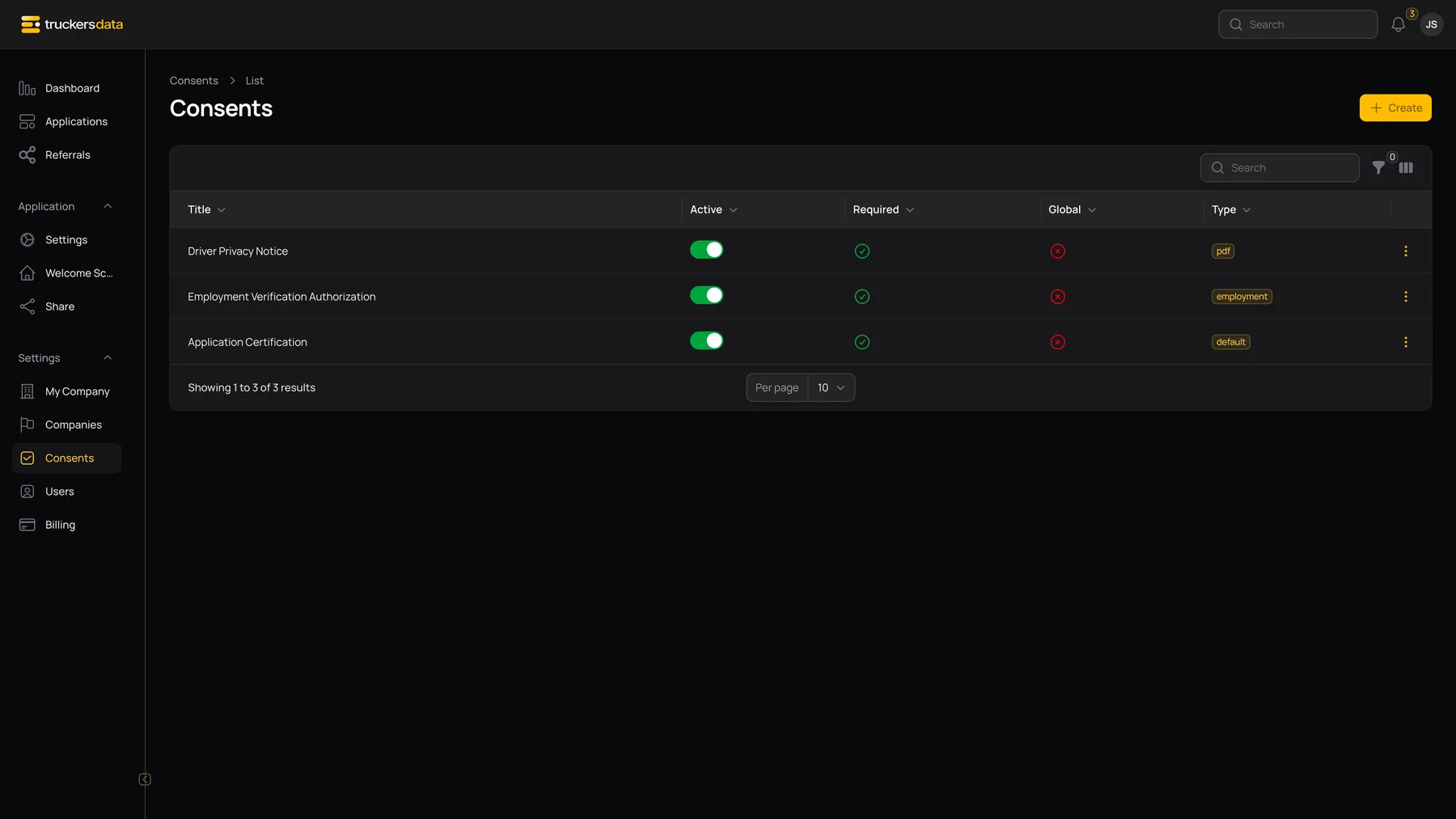
Use the library’s search to find a title. Filter lets you narrow the list by company, type, and active state; available company controls depend on your account. Column controls can show created and updated dates. The Required and Global icons describe the stored settings; the Active switch changes availability directly.
| Action | What happens |
|---|---|
| Create → From template | Opens a new consent form prefilled with an available platform template. Review it before saving it for your company. |
| Create → Custom consent | Opens a blank document form. |
| Row menu → Edit | Opens the existing document and its settings. |
| Row menu → Replicate | Makes a copy of the document. Check the copied settings and activation state before using it. |
| Row menu → Delete | Deletes the consent and its acceptance associations. It can also remove the authorization association used by employment-verification controls. Prefer deactivation when retiring a document. |
The Type filter may include an older Global (for all companies) option. For current documents, check the separate Global column to understand actual scope.
Before you make a document live
- Confirm that you are editing the correct company’s document.
- Choose the intended type and scope.
- Read the accepted line as an applicant would read it.
- Test a fresh application through Review, consent, and Signature.
- For employment authorization, include at least one employment-history entry in the test.
- After signing, open the stored file from the application’s Files tab.
Use Create and edit a consent for the exact steps, and Change or retire an existing consent before replacing wording already used by applicants.