 Help
Open Applications
Select Applications in the main menu. The table normally sorts by the most recent submission and then creation date. An application can be present in Started status before the driver has signed or submitted the full form.
Use the applicant’s linked name or the available View/Edit action to open their record. A company name may link to that company’s settings when you have permission to edit it.
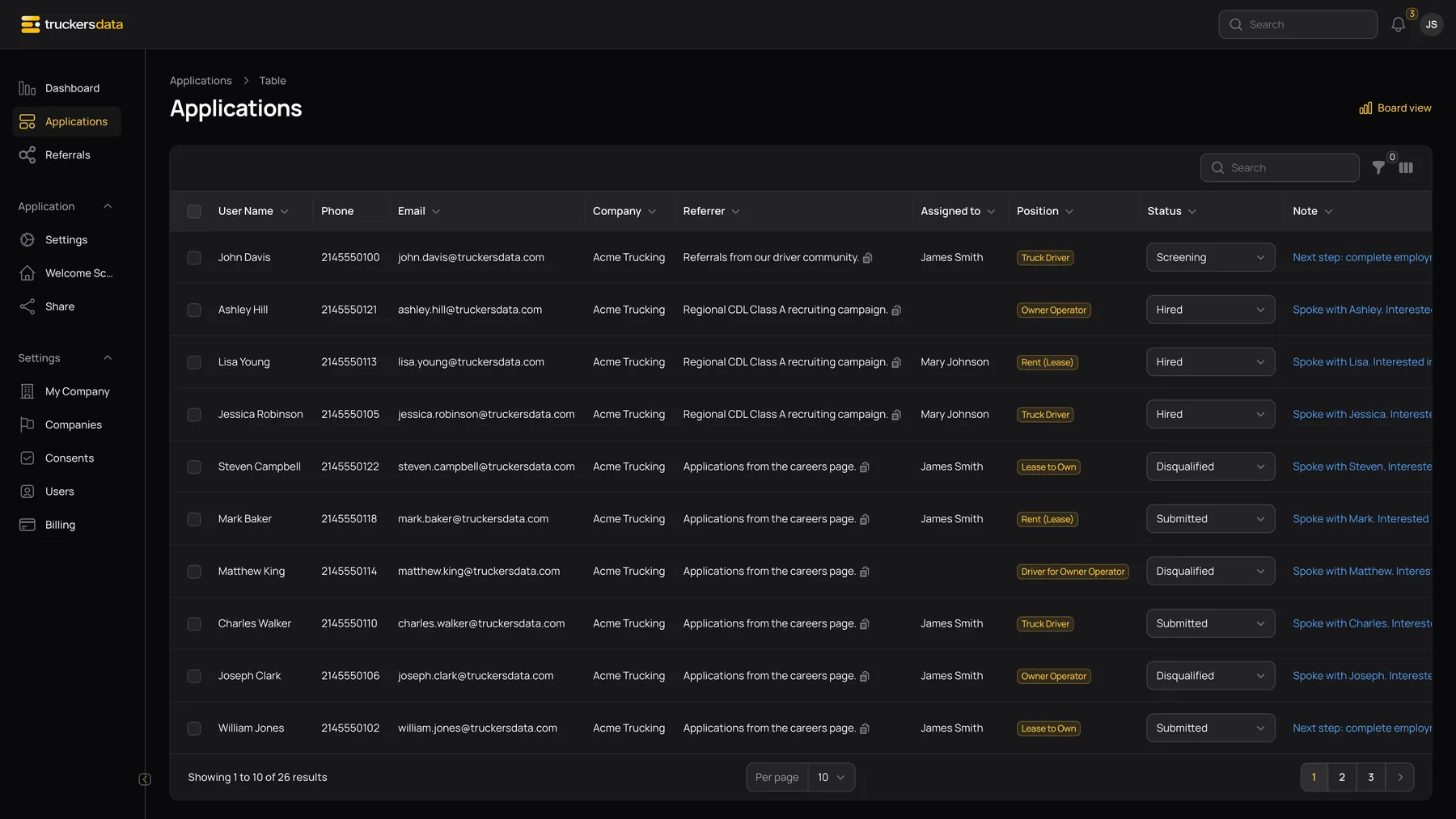
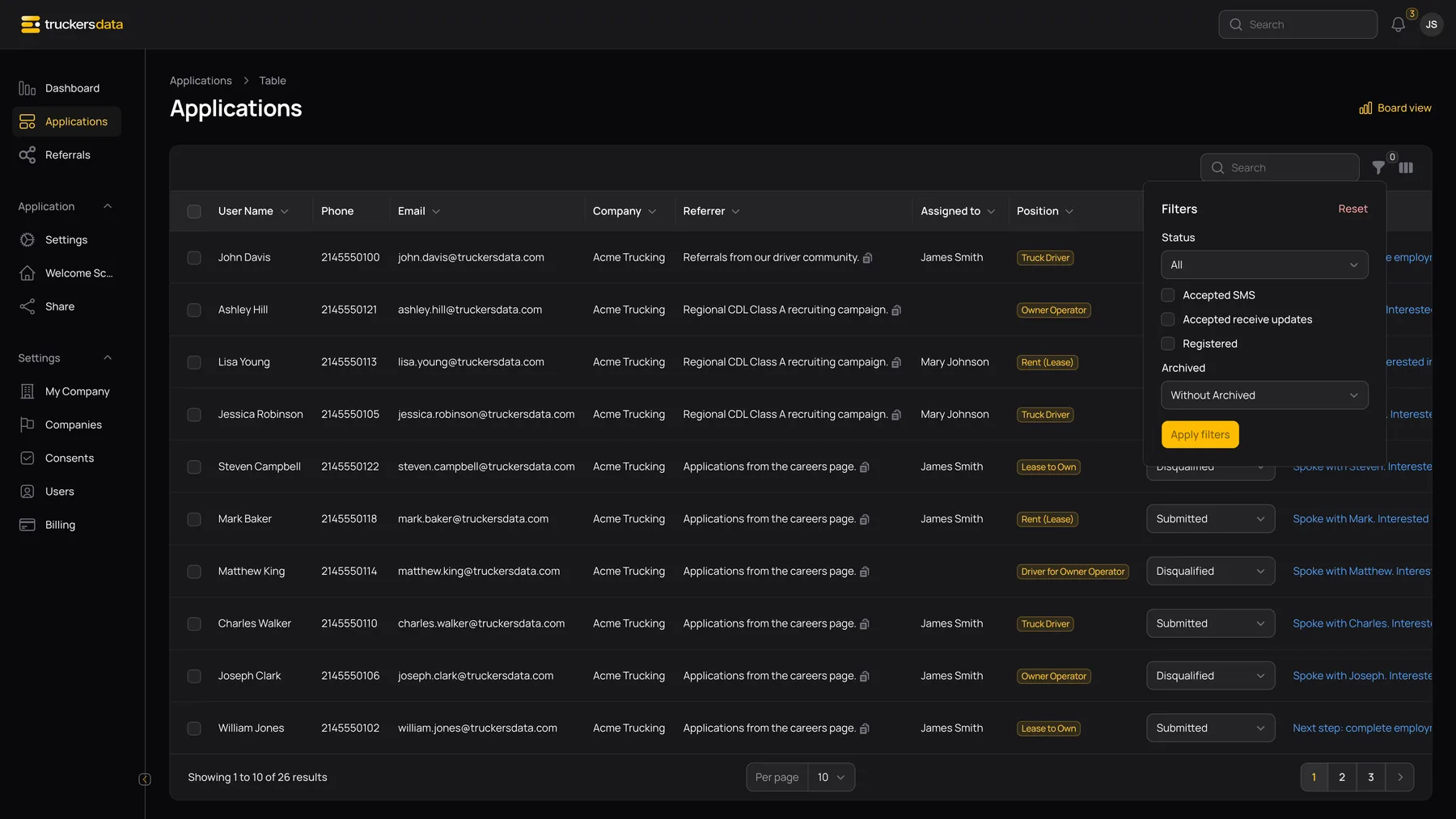
Search and filter
| Control or field | What it does |
|---|---|
| Search | Search supported columns such as applicant name, email, company, position, referral description and notes. It is not a full-text search of every answer or uploaded document. |
| Filter → Status | Limit the list to a hiring stage such as Started, Submitted or Screening. |
| Accepted SMS | Find applicants whose company SMS-consent flag is accepted. This is a communication preference, not the signed hiring-consent documents. |
| Accepted receive updates | Filter the separate updates-consent preference. |
| Registered | Find applicants who have set an account password. This is different from submitting or signing an application. |
| Archived filter | Switch between current records, archived records and the combined view using the available options. |
| Apply filters | Apply selections from the filter panel. |
| Reset / clear a filter | Remove the relevant restriction. If an expected driver is missing, clear both the search and all active filters. |
Table filters and sorting are remembered in your session. A filter left on earlier can explain why a new visit appears to have fewer applications.
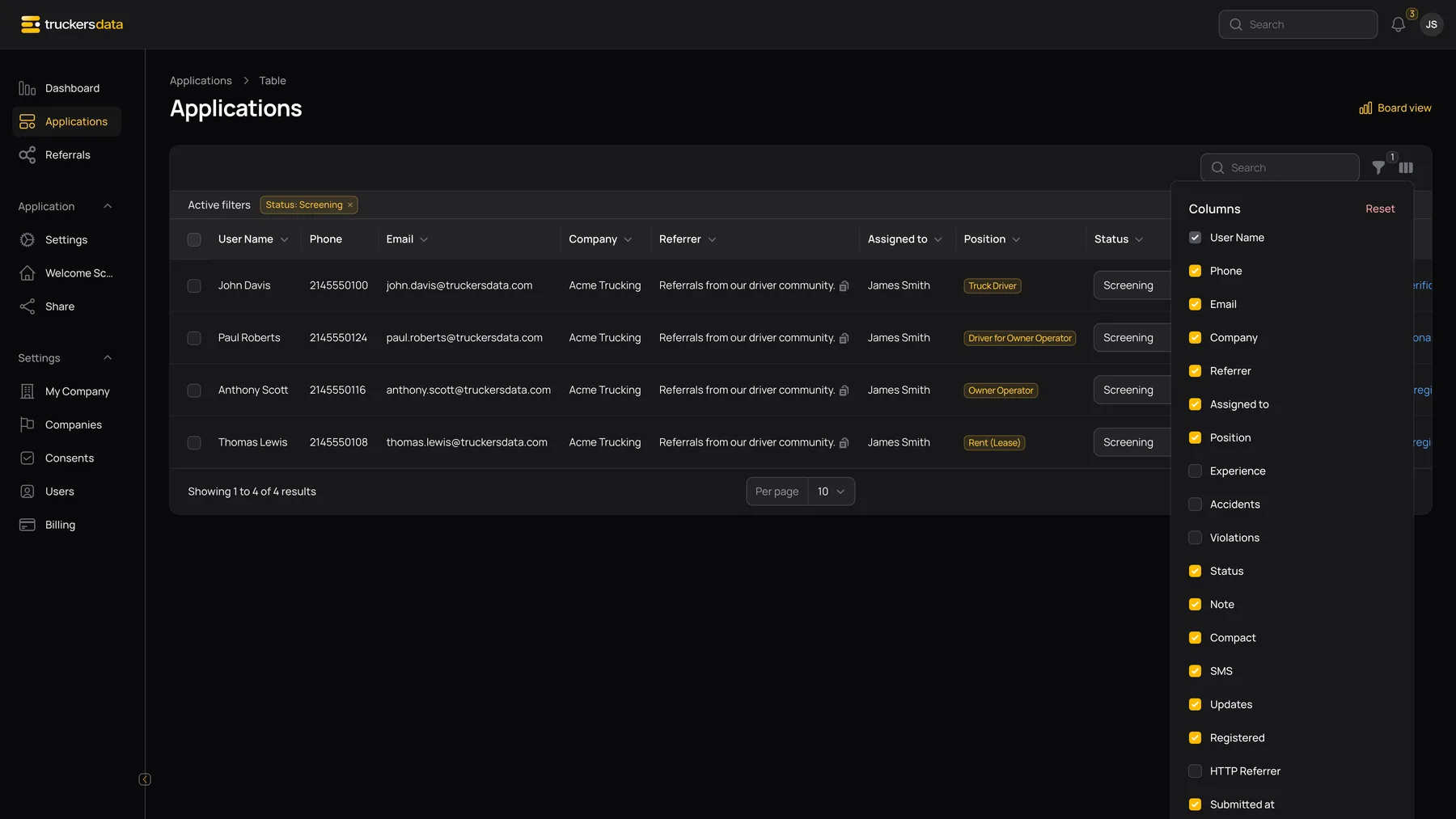
Understand and customize the columns
| Control or field | What it does |
|---|---|
| User Name, Phone, Email | Applicant contact and identity information. Sensitive information can be restricted by access settings. |
| Company | The company attached to this application; important when a recruiting admin works across carriers. |
| Referrer | The referral description. The copy icon copies the attributed public application URL. |
| Assigned to | The staff member responsible for follow-up. |
| Position | The role selected or recorded for the application. |
| Status | The current hiring stage. Changing an enabled status selector saves directly. A Withdrawn row has its table status selector disabled. |
| Note | The latest note preview. Open it for recent notes; View More opens the Notes tab when there are more than five. |
| Compact | Marks applications created through the short intake form. |
| SMS / Updates | Shows the applicant’s separate communication-consent flags. |
| Registered | Shows whether the applicant has a password, not whether the application is complete. |
| Submitted at / Signed at | Submission and electronic-signature timestamps; a compact submission can have no signature timestamp. |
| Column manager | Choose which optional columns are displayed. Additional columns include experience, accidents, violations, HTTP referrer and creation/update dates. |
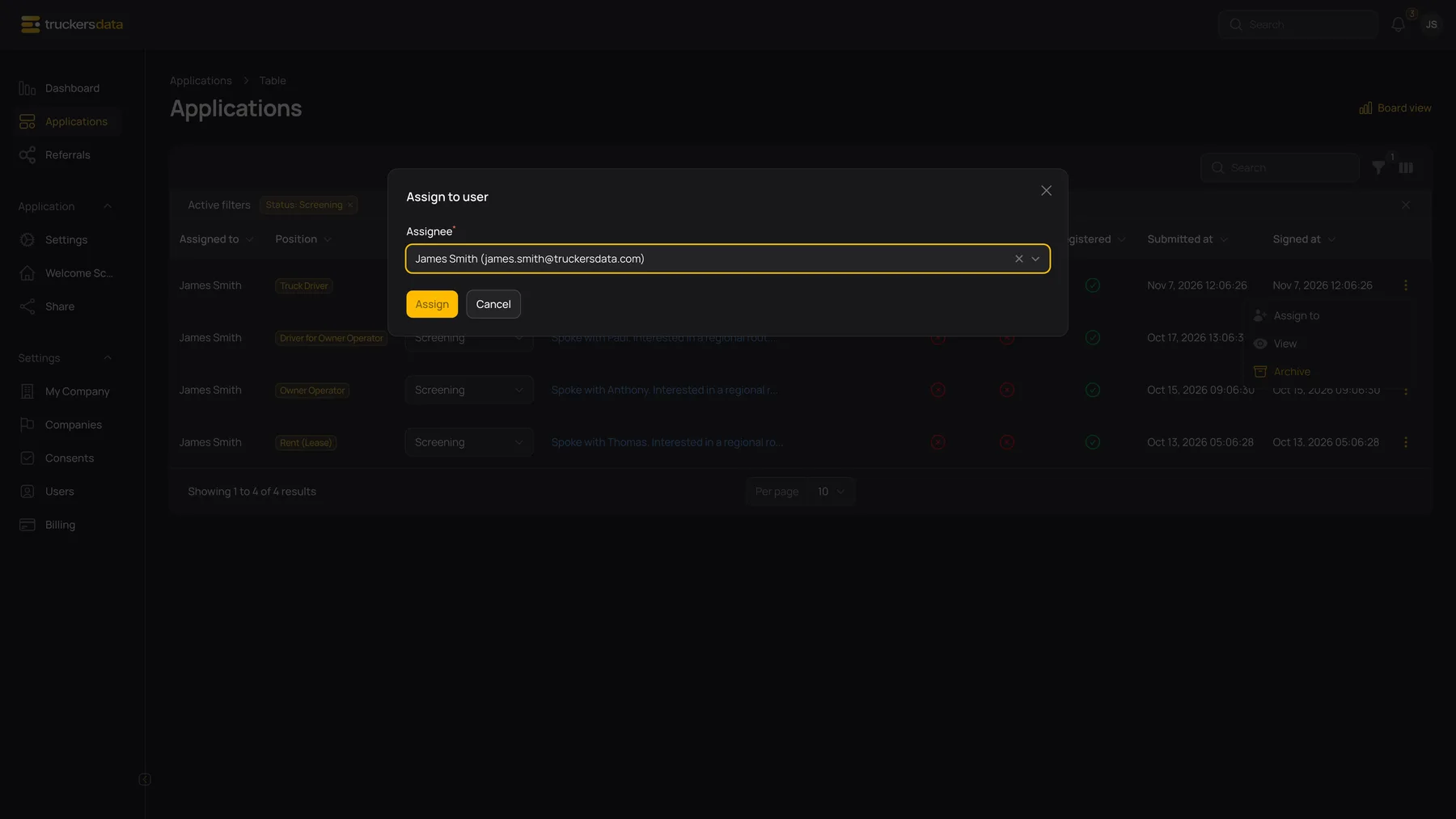
Use row actions deliberately
| Control or field | What it does |
|---|---|
| Assign to | Select an Assignee, then click Assign. It changes the application owner; it does not change the driver’s name or company. |
| View | Open the available application view. |
| Archive | Confirm moving the application out of the normal active list. It is a soft archive and can be restored. |
| Unarchive | Restore an archived record when your role permits it. |
| Delete Permanently | Permanently remove a record when permitted. Use Archive for ordinary cleanup. |
| Row checkboxes / bulk menu | Select the intended records before using the available bulk Delete action. For applications this uses soft deletion; find the result with the archived filter. |
| Per page / pagination | Change the number of rows shown and move between result pages. |
| Board view | Open the same workspace as pipeline cards. |
If an application seems to be missing
- Clear the search and filters, including the archived filter.
- Check the company on the application and whether your account is a company user or a recruiting admin.
- Ask your admin about Application Visibility. Assigned shows your assigned work; the setting labelled Unassigned includes your work and records without an owner.
- If the driver has only submitted a compact form, look for the Compact marker rather than assuming a full signed application exists.