 Help
Separate a company’s type from a person’s role
A company can be a carrier or recruiting company. Each staff account then has its own Admin or User role. A recruiting company’s ordinary User does not automatically receive the recruiting administrator’s cross-carrier workspace.
Use a separate account for each person. Open Settings → Users to review the company team. Ordinary users can have a read-only directory; creating, editing, and deleting staff accounts requires the appropriate administrator access.
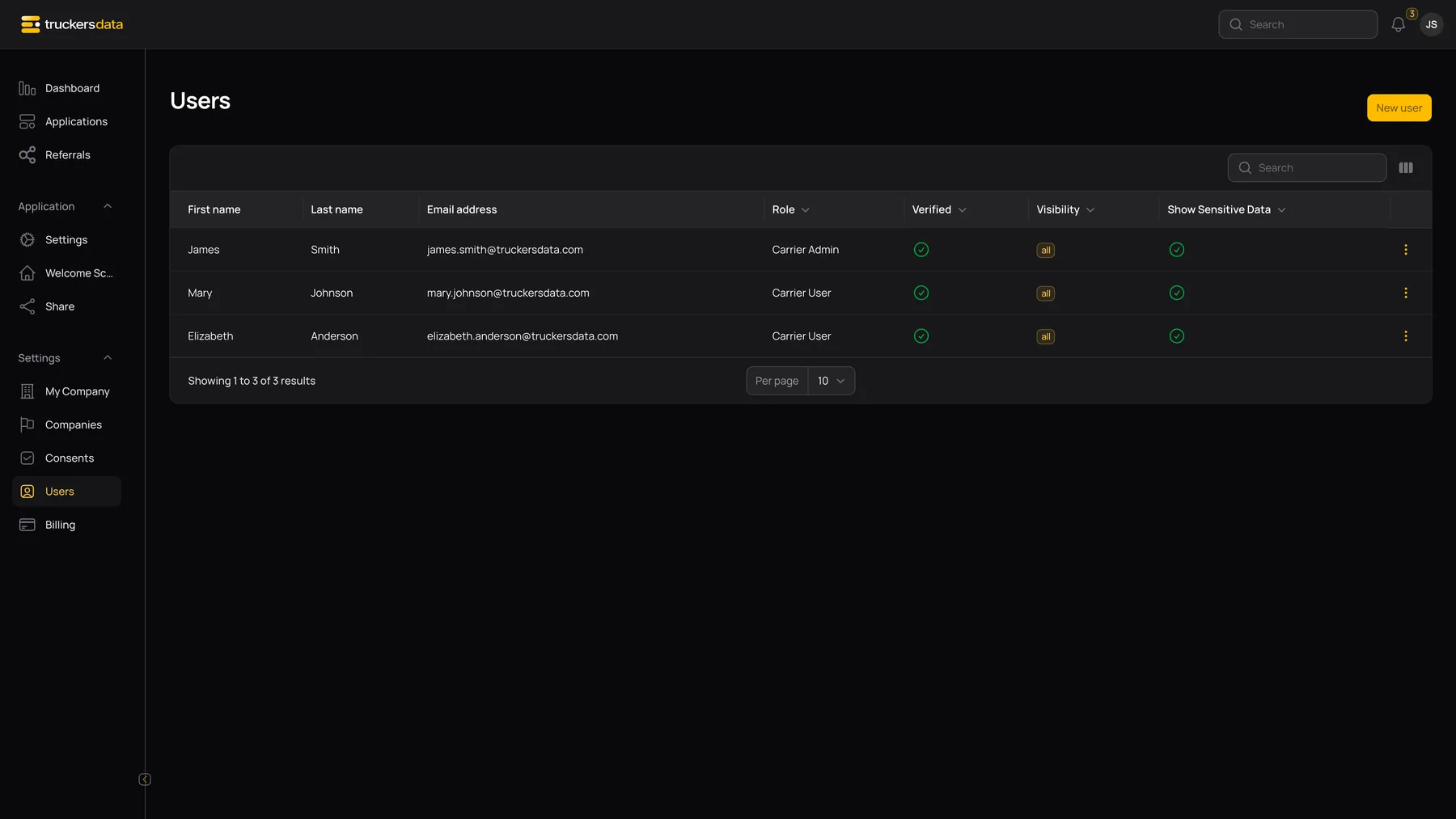
Create a staff account
- As an administrator, open Users and choose New user.
- Enter the person’s name and their own email address. Email is required and must be unique.
- Choose Role, Application Visibility, and the sensitive-data permission.
- Review the company and save the account.
- Tell the person to follow the account-verification/setup message sent to their email.
- After they sign in, check that they see the intended applications before assigning sensitive work.
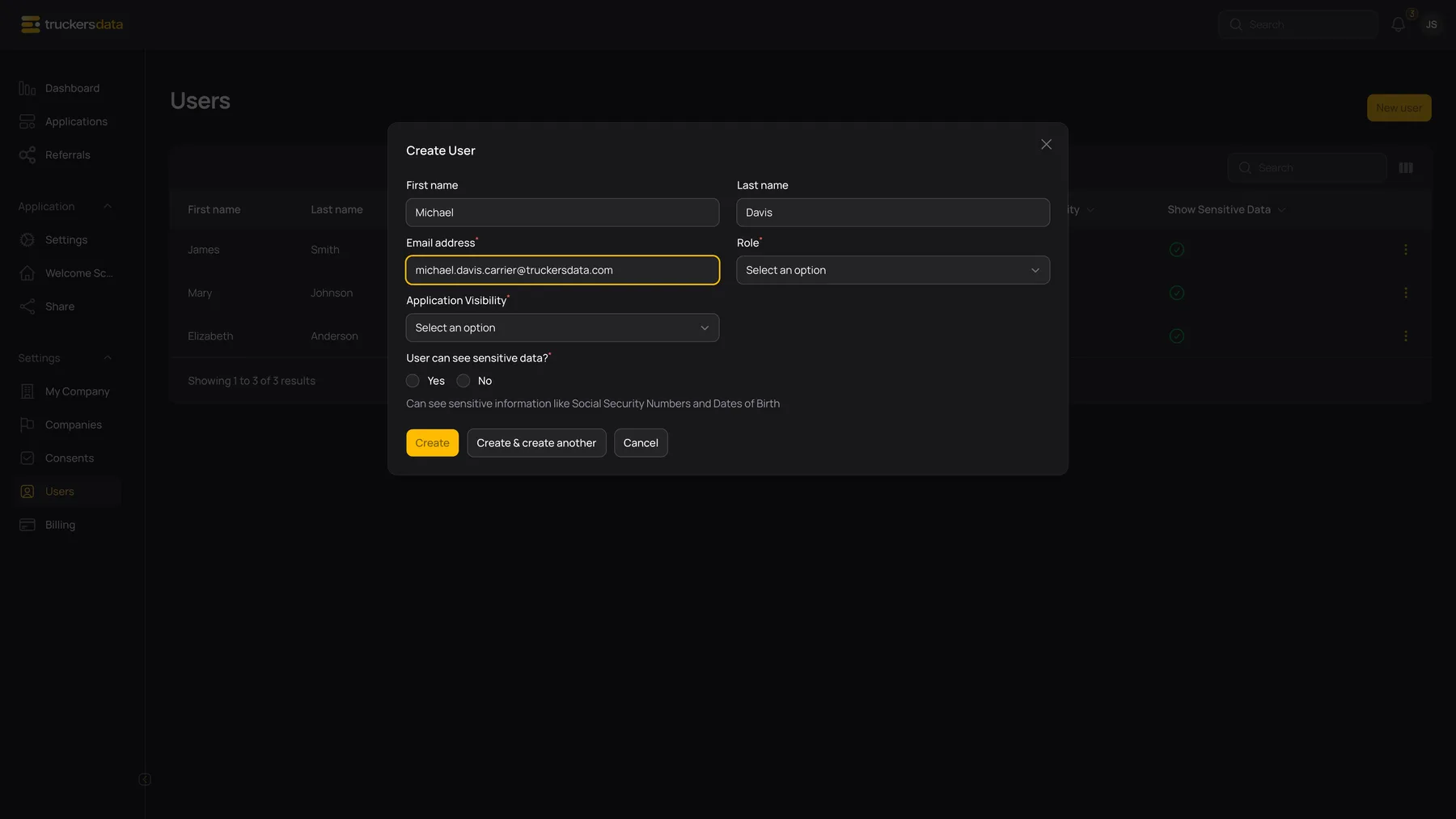
User fields and account actions
| Field or button | What it does |
|---|---|
| First name / Last name | The staff member’s display identity. |
| Email address | The staff member’s sign-in and verification address. The team editor disables this field when editing an existing account. |
| Company | The company associated with the account; displayed read-only when editing. |
| Role: Admin | Can manage company settings and team functions allowed for that company. A recruiting admin has the recruiting workspace for linked carriers. |
| Role: User | Works with permitted applications without receiving the company administrator’s configuration controls. |
| Application Visibility | Restricts which applications appear within the user’s available company scope. |
| User can see sensitive data? | Controls access to sensitive information such as SSN and date of birth where the application/file display supports masking. |
| Verified | Shows whether the email-verification state has been completed. |
| Resend invitation | Available for an unverified account, asks for confirmation, and sends another verification notification. |
| Edit / Delete | Administrative account actions, subject to role rules. You cannot use Delete to remove your own account from this team list. |
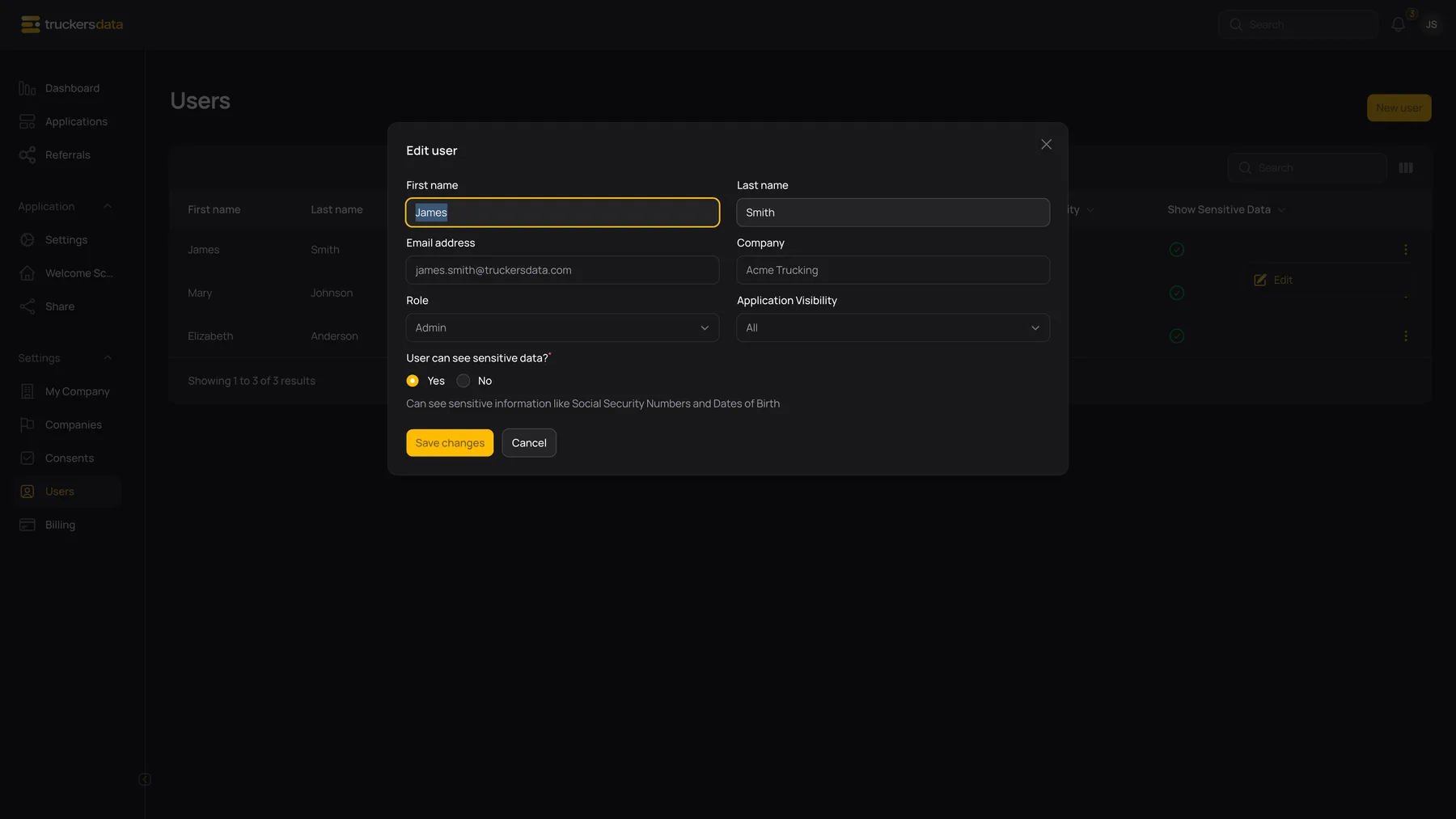
What each visibility option includes
| Field or button | What it does |
|---|---|
| All | Applications available to that person’s company/role scope. It does not grant access to every company on the platform. |
| Assigned | Applications assigned to this user. |
| Unassigned | Unassigned applications and applications assigned to this user. It is not an empty-assignee-only view. |
Sensitive information and carrier sharing controls
Application visibility decides which records a person can work with. Sensitive-data permission decides whether protected details can be displayed within permitted records. Granting sensitive access does not grant access to a different company.
For sensitive application/consent/MVR files, the individual permission and the carrier’s sensitive-data sharing setting both matter for recruiting-company users. Where originals are not permitted, a masked version may be used. If no suitable permitted version exists, access can be refused rather than exposing the original.
Check one permitted record after changing access. Do not use a screenshot from an administrator’s session as proof of what a particular User can see.
When an expected control or record is missing
| Field or button | What it does |
|---|---|
| Settings tab is missing | Check whether the person is an Admin and whether they are working in the intended company. |
| Applications list looks empty | Check visibility, assignee, company scope, and the table’s own search/filter settings. |
| Sensitive values are masked | Check the individual permission and, for a recruiting user viewing carrier files, the carrier’s sharing setting. |
| Cannot change your own role or visibility | Those fields are disabled for the current user in the team editor. Ask another authorized administrator to review the setting. |
| Invitation not received | Confirm the address, check verification state, and use Resend invitation only if appropriate; it sends another email. |