 Help
Read the employer’s status in context
Open the application’s Employment History tab. Verification status belongs to each employer entry. School, unemployment, driving-school, and military entries are not displayed as employer verification statuses.
| Displayed status | What the app has recorded | Your next check |
|---|---|---|
| Not Verified before a request | The entry has not yet been requested, or it does not have a positive verification result. The same label can cover more than one situation. | Check whether the request action is available and review Emails and Activities. |
| Requested | A verification request has been sent and the employer entry is awaiting a response. | Monitor communication history and wait for an actual response or the configured reminder processing. |
| Verified | The employer submitted a response indicating the applicant worked for that company. | Read the response details and PDF; do not use the badge alone to assess every answer. |
| Not Verified after a response | The employer submitted a response indicating the applicant did not work for that company. | Inspect the response PDF and follow your organization’s next-step procedure. |
| Verified by Timeout | The no-response sequence reached its timeout and the app recorded the timeout result. | Review the attempt log. This is not an affirmative employer confirmation. |

How scheduled reminders work
The application includes a scheduled process for pending verification requests. With that process running, it checks for a reminder around day 3 after the initial request, another around day 7, and a timeout around day 10 if the entry is still Requested.
These are scheduled checks, not instant browser timers. The actual processing time depends on the hosted application’s scheduled-task service and its configured time zone. Leaving an application tab open does not run the reminders.
What timeout means
At timeout, the app changes the history status to Verified by Timeout and attempts to save an employment-verification attempt-log PDF in Files. That log records the request-attempt evidence available to the workflow.
The phrase describes a system outcome after no recorded employer response. It does not say the employer confirmed dates, equipment, safety answers, or rehire eligibility. Read the attempt log and follow your organization’s verification policy before making a decision.
Find the response and notification
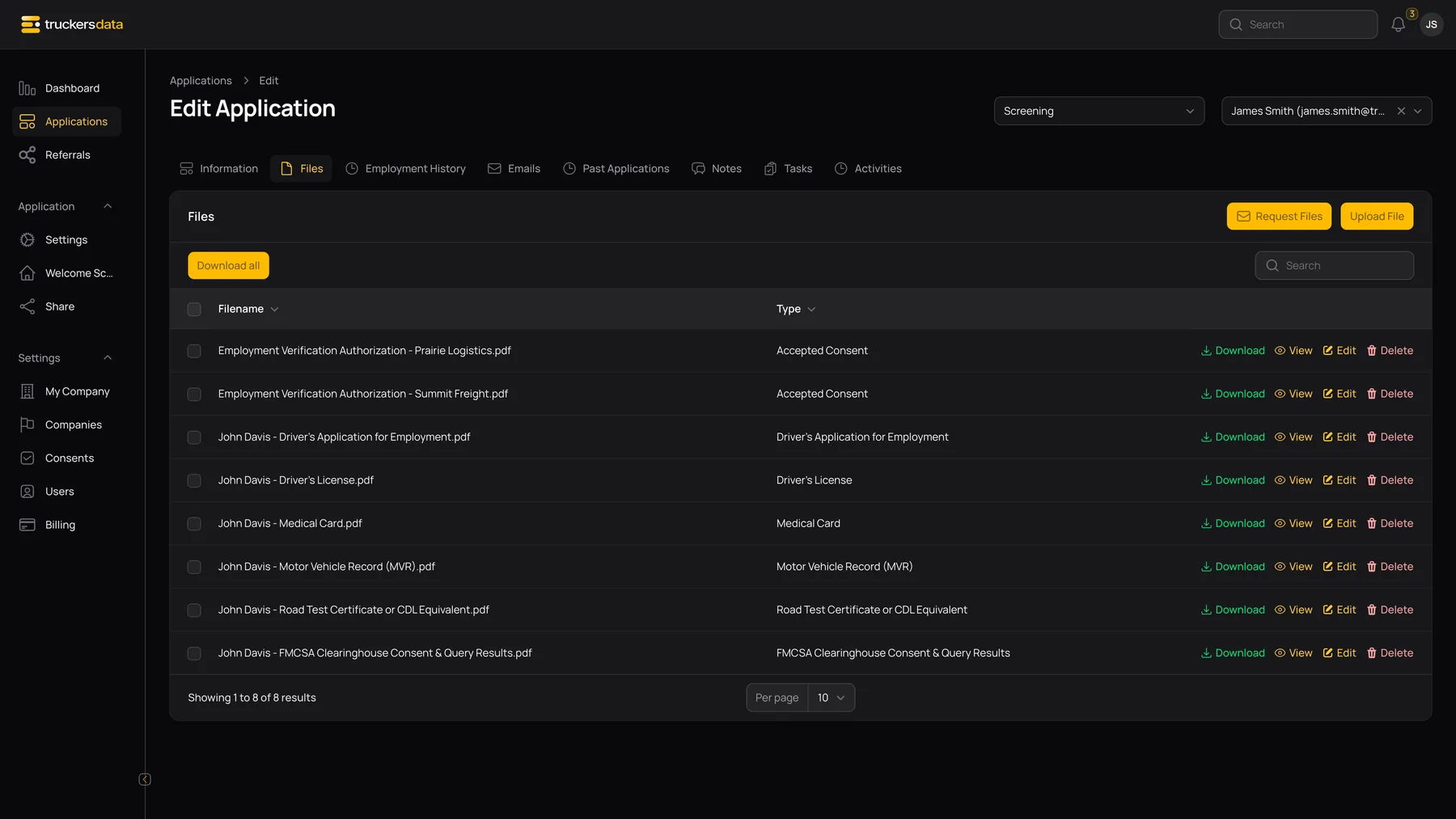
When an employer submits, open Files for the generated response PDF. Company administrators can also open the notification bell and choose View Application from the employment-verification completion notification; it opens the application’s Employment History tab.
The response PDF includes applicant and employer context, reported employment dates, verification answers, corrected date answers when provided, the responding person’s name and role, and the signature provided in the form.
Track email and activity separately
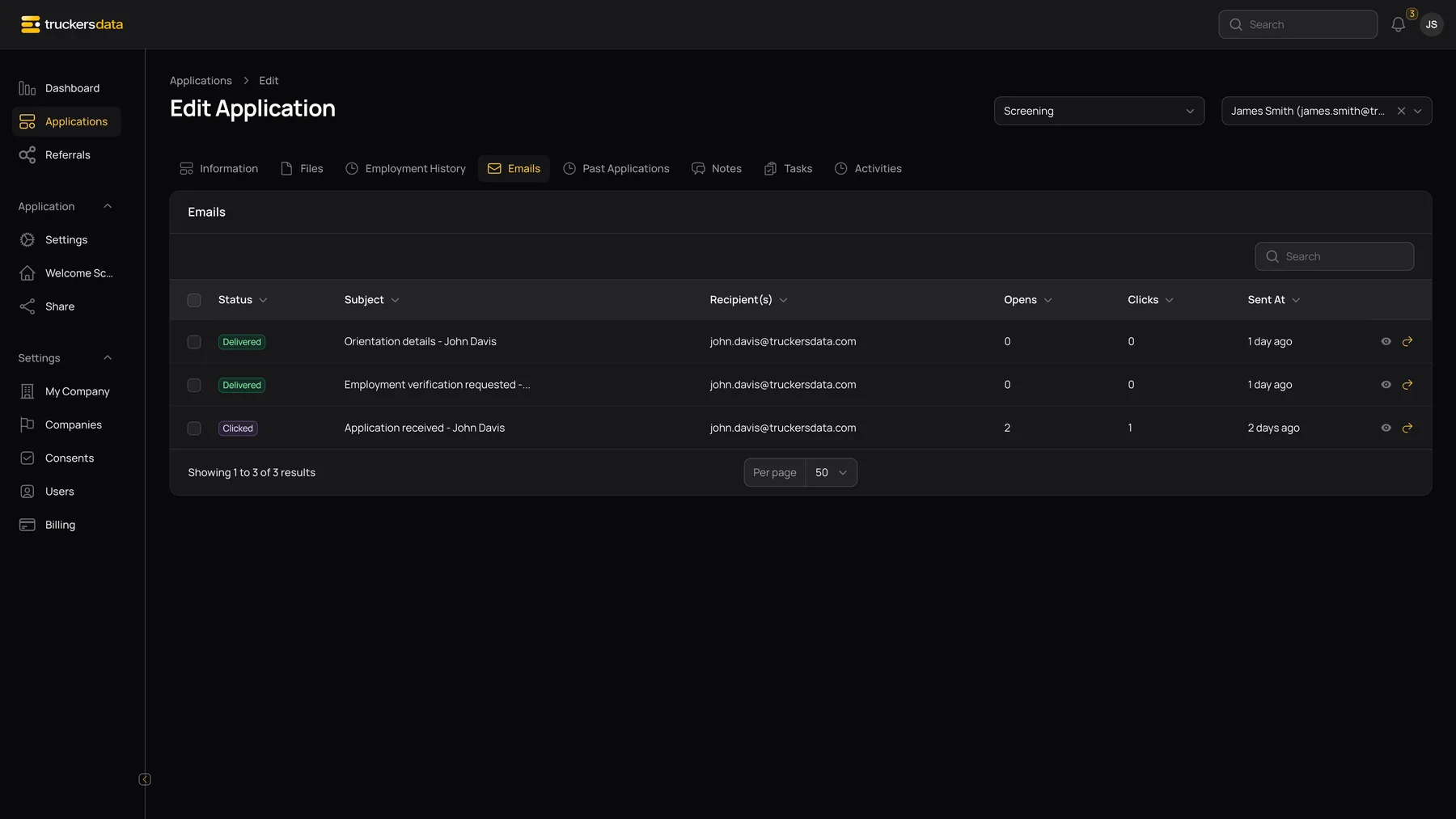
The Emails tab is the communication history; Activities is the application activity trail. A Requested badge means the request workflow was triggered. It does not by itself prove delivery, an email open, or an employer response.
If the employer says they did not receive the request, confirm the stored address and review the email’s available delivery information. If the employer has completed the form but the team cannot find the response, check the correct applicant, employer entry, and Files tab before starting a new request.
Changes do not silently restart verification
Editing an employer’s contact details, changing an application’s hiring stage, or revising a consent does not replace the initial verification action or reset an already recorded employer status. The initial request action is only shown for an eligible employment entry before it has been requested.
If the wrong employer was contacted or a completed response needs correction, preserve the existing record and contact the company administrator for the appropriate follow-up. See Request employment verification for the setup checks.