 Help
Before you connect
A Facebook connection belongs to a company. For your own company, open Settings → My Company → Facebook Integration. If you manage a linked carrier as a recruiting administrator, first open that carrier from Companies and use its Facebook Integration tab. Check the company name before authorizing access: forms imported here create applications for that company.
Have a Facebook account that can access the Page and its lead forms. The authorization screen is supplied by Facebook. Review the Pages and permissions it offers, and complete its prompts. If the expected Page is missing there, resolve the Facebook account or Page access before continuing in Truckers Data.
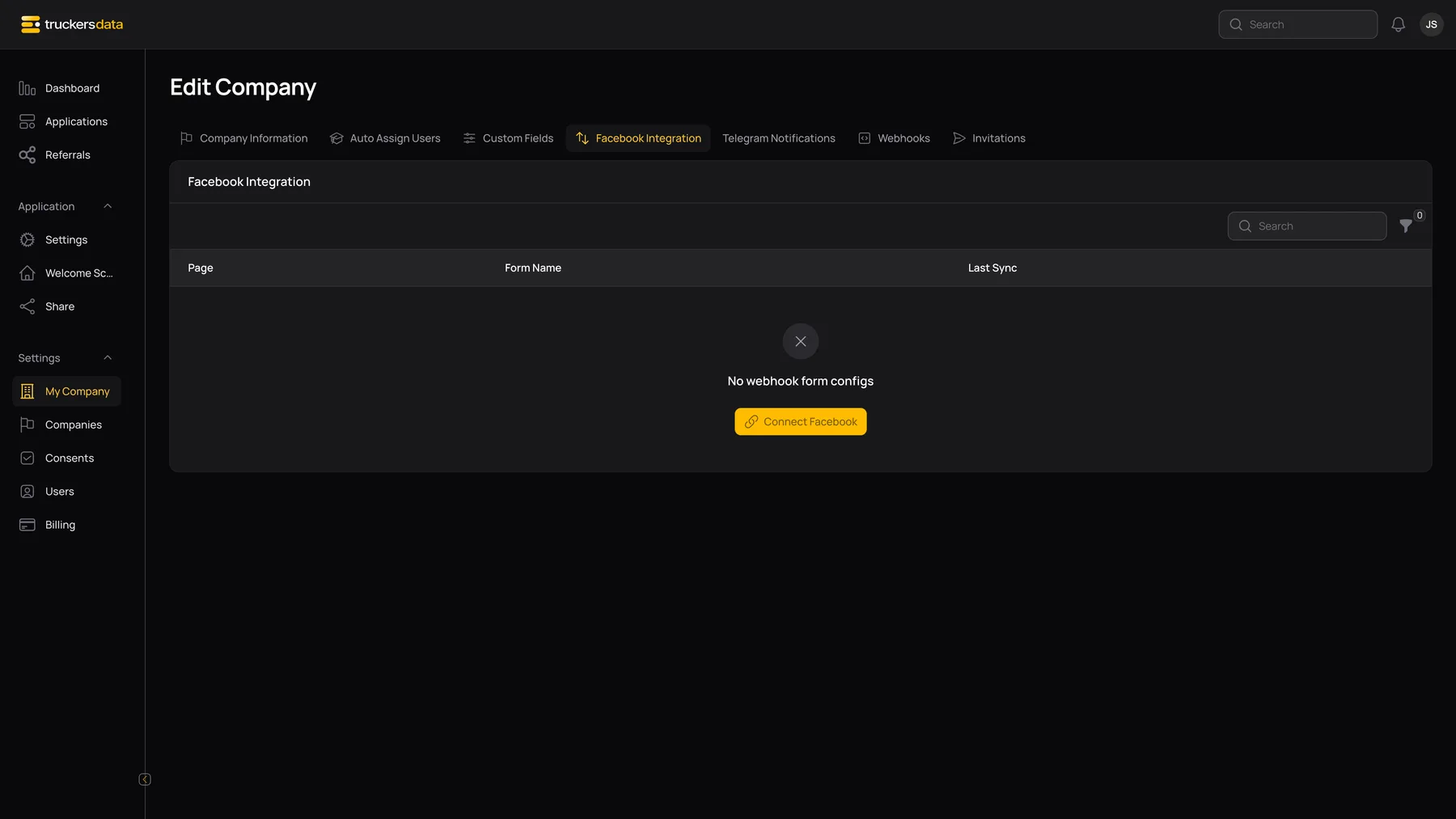
Authorize the connection
- Open Facebook Integration. When the connection has no configured forms, choose Connect Facebook.
- Complete the Facebook sign-in and authorization prompts. Use the account with access to the company’s recruiting Page.
- Return to Truckers Data. A newly connected own-company account with no selected Pages opens Facebook Page Selection.
- Select the Facebook Pages that belong in this company’s recruiting workflow.
- Review Lead sync, then save the selection. Truckers Data subscribes selected Pages for lead notifications and retrieves their form definitions.
- Return to the forms table and configure each form’s Map fields before importing leads.
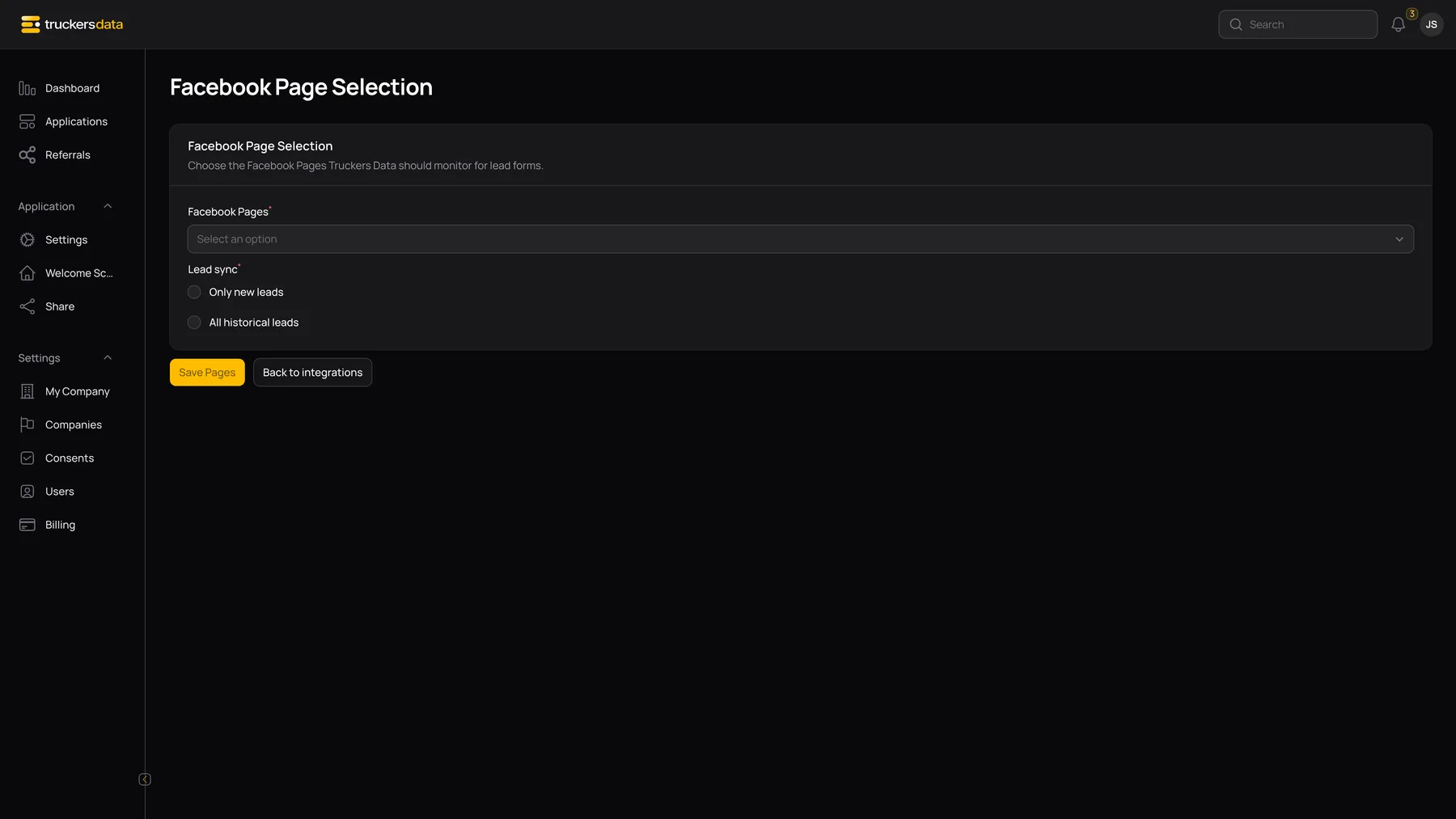
Pages, form discovery, and the lead-sync choices
| Field or button | What it does |
|---|---|
| Facebook Pages | A searchable multiple-selection list of Pages returned by your connection. Only selected Pages are shown in this company’s forms workspace. At least one Page is required when saving. |
| Only new leads | The saved preference for new-lead use. Selecting this option does not itself import older Facebook leads. |
| All historical leads | A saved historical-lead preference. It is not a one-click import: use the form’s explicit Sync Leads action after mapping and verify the result. |
| Save Pages / Save | Saves selected Pages, updates the Page subscriptions, and retrieves form definitions. It may report both successful updates and Page-specific errors. |
| Manage Pages | Reopens Facebook Page Selection for an already connected company. |
| Sync Forms | Refreshes forms for selected Pages and their available source questions. It reports created forms, updated forms, and any errors; it does not serve as the historical-lead import action. |
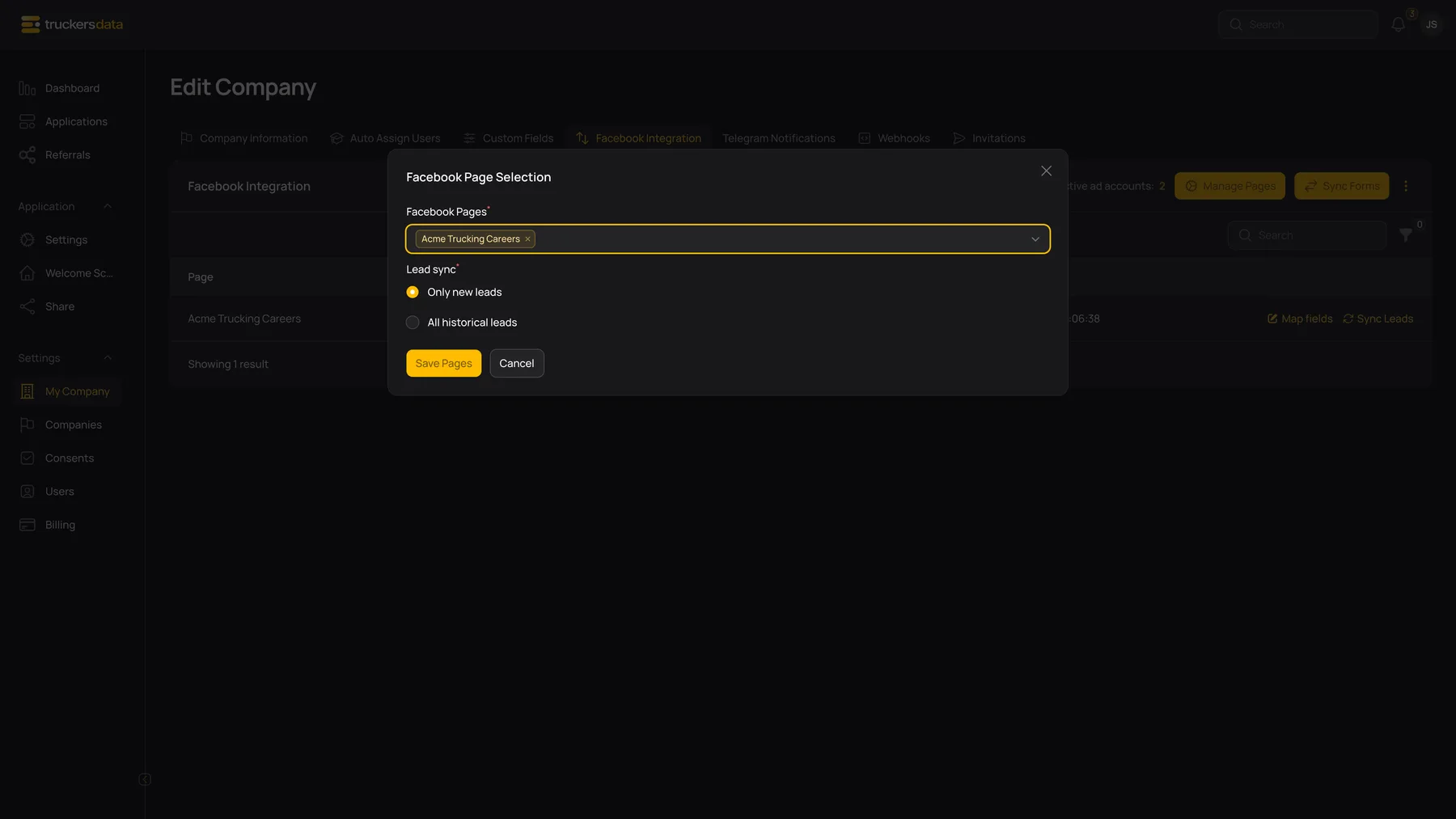
Read the connection and forms table
| Field or button | What it does |
|---|---|
| Status | Shows the saved connection status or the last account-access check error. Hover over a shortened error where a tooltip is available. |
| Last Checked | Date of the account-access check recorded when the connection completed; it is not a promise that access is being rechecked continuously. |
| Available ad accounts / Active ad accounts | Counts returned by that account-access check. These counts help diagnose the authorized Facebook account; they do not replace selecting a Page and mapping a form. |
| Page / Form Name | Identifies the Page and form you are configuring. Use search or the Page filter to find a particular form. |
| Active | Turns a form on or off for processing. A visible row is not enough: its Page must be selected and the form must be active. |
| Last Sync | The last form-definition sync timestamp. It does not mean every lead has become an application. |
| Map fields | Opens Source Field and Target Field pairs for this form. See Facebook field mapping. |
| Sync Leads | Requests existing leads for this form and processes eligible mapped records. A count reports successfully processed leads. Repeated imports use duplicate checks, but still review the resulting records. |
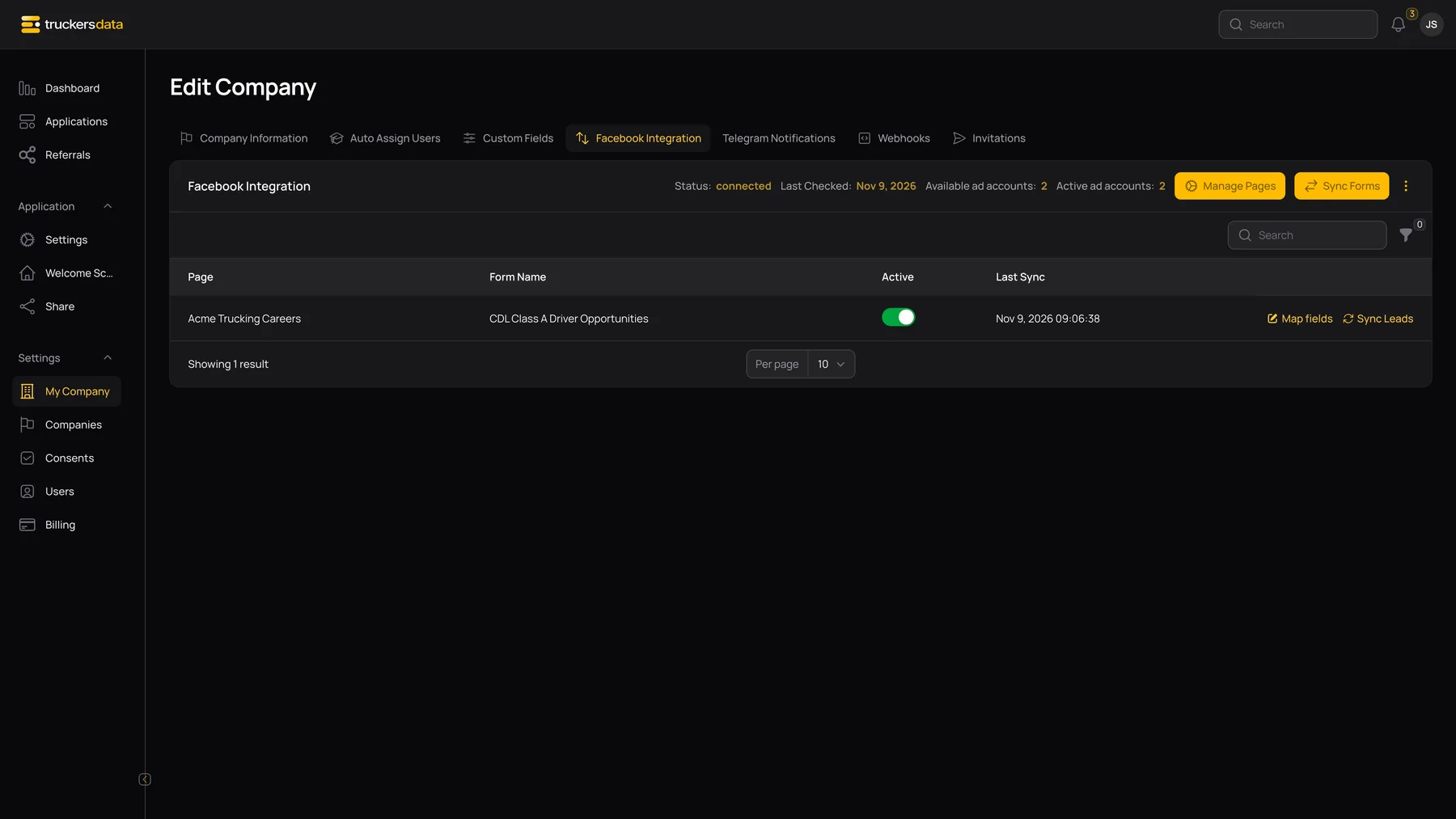
Change Pages or disconnect
When you change the selected Pages, the form list and which forms are eligible for incoming processing change. This does not move applications that were already created to another company. Review mappings when a Facebook form’s questions change, then run Sync Forms if a new form or question is missing.
Disconnect is in the connection’s action menu. It disconnects the company’s stored Facebook connection and removes its stored credentials and form configurations. Existing applications are not deleted by this action. Reconnecting requires authorization and rebuilding the Page/form selection and mappings.
If Facebook does not connect or leads do not arrive
| Field or button | What it does |
|---|---|
| No Pages were returned | Confirm that you used the intended Facebook account and that the Page is available during authorization. Reconnect after correcting Page access. |
| Callback missing, invalid, or expired | Start Connect Facebook again rather than reusing an old authorization tab or link. |
| Page settings saved with errors | Read the Page-specific error, correct access, and retry the affected Page setup. A saved selection can still have an unsuccessful subscription. |
| No form rows | Check selected Pages, then use Sync Forms. A connected account without selected Pages has no form list to display. |
| Form row exists but no application | Check Active, selected Page, and the email target mapping. Then inspect the result of Sync Leads and search Applications by the lead’s email. |
| Fields are blank after import | Open Map fields and compare the actual Facebook question with its destination. A Facebook question is not automatically a matching Truckers Data field merely because its label looks similar. |